
Manage storage and file cleanup
See how much storage your learning center uses, find the largest files, free up space safely and choose how long files are kept.
- 1
Open Data Lifecycle
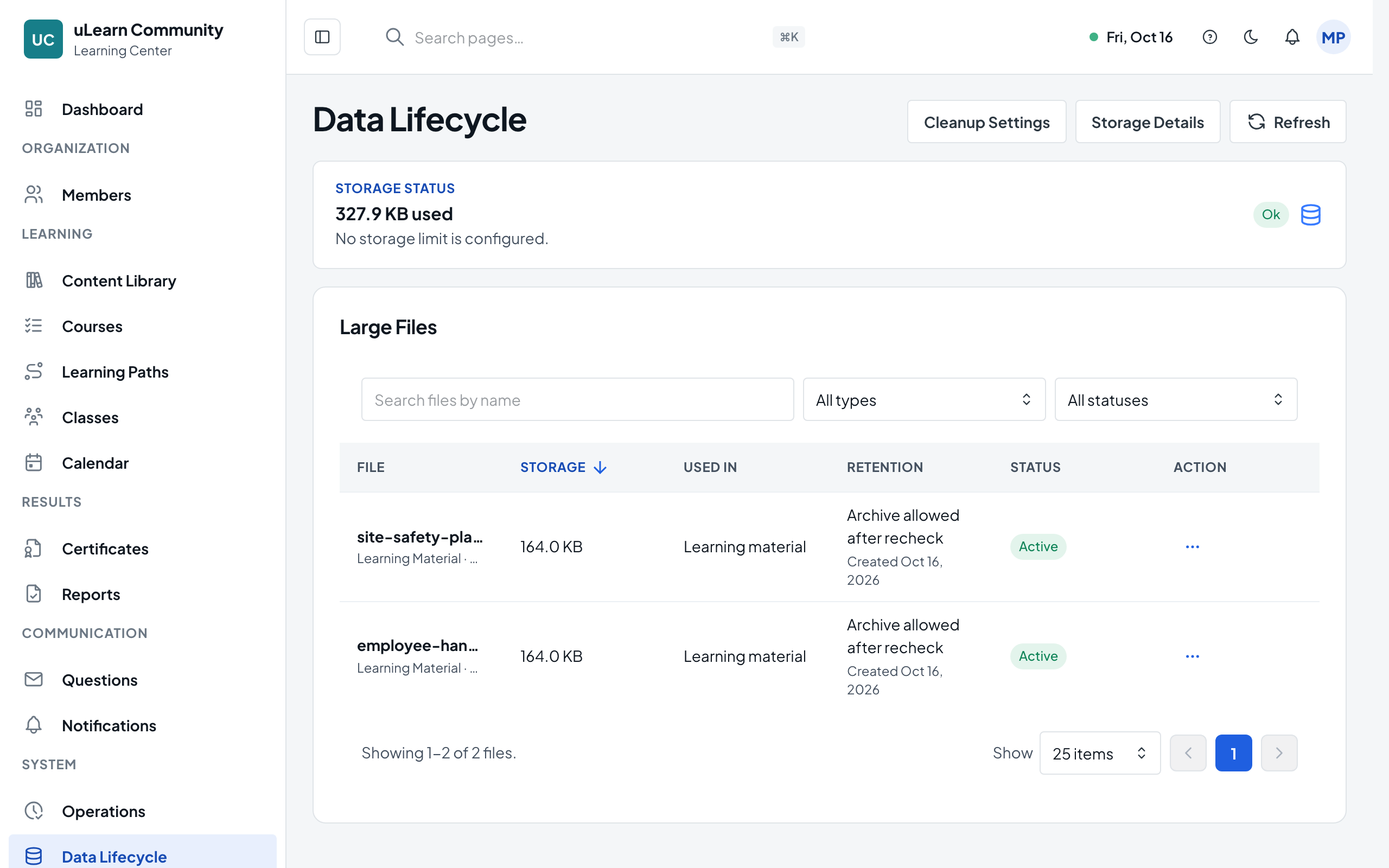
Select Data Lifecycle in the left menu, under System. You need the Center Owner, Center Manager or Center Administrator role. Storage status shows the space used and, when a limit applies, the share of it you use; its status chip warns as you near or pass the limit.
- 2
See what uses the space
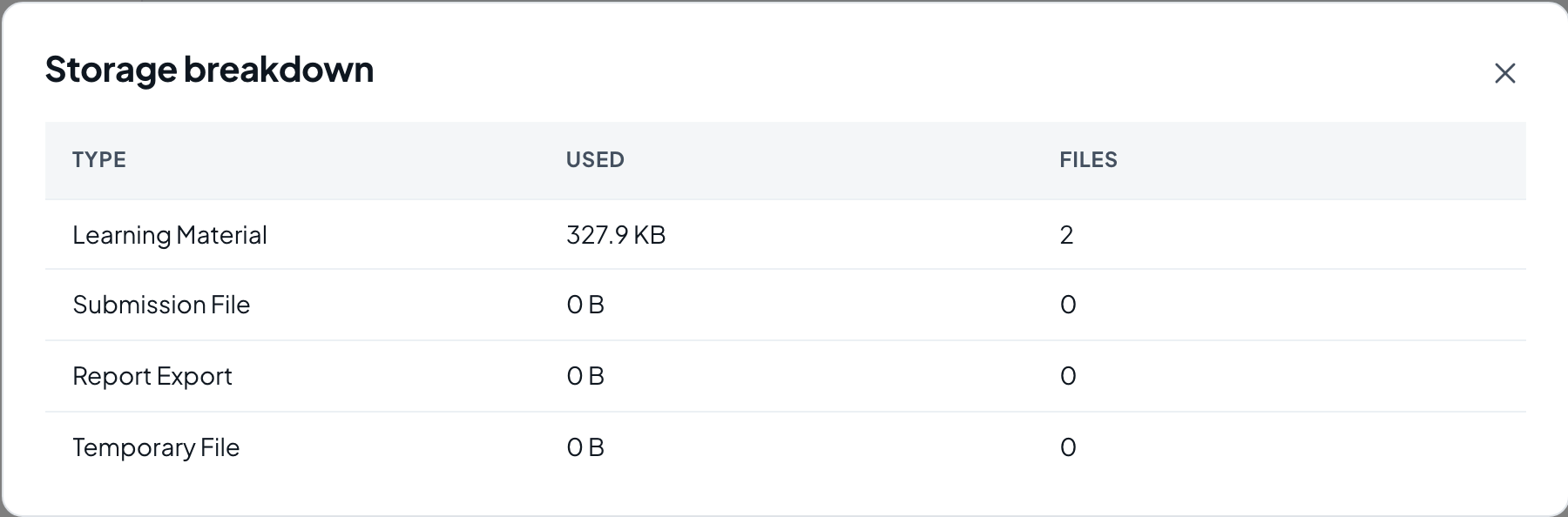
Select Storage Details. Storage Breakdown shows the space and number of files for each type, such as Learning Material, Submission File and Report Export.
- 3
Find the large files
Large Files lists your files with their size and where each one is used. Search files by name, and filter by type and by status: Active, Expiring Soon, Archived, Deleted or Temporary.
- 4
Archive unused material
On a learning material nothing uses, open the row’s menu, choose Archive and confirm. It is archived only if it is still unused, and learning history is kept.
- 5
Delete old files
Report exports, and submission files when your settings allow it, offer Delete File. The file is removed, while export history, or submission details, grades and feedback, are kept.
- 6
Set cleanup rules
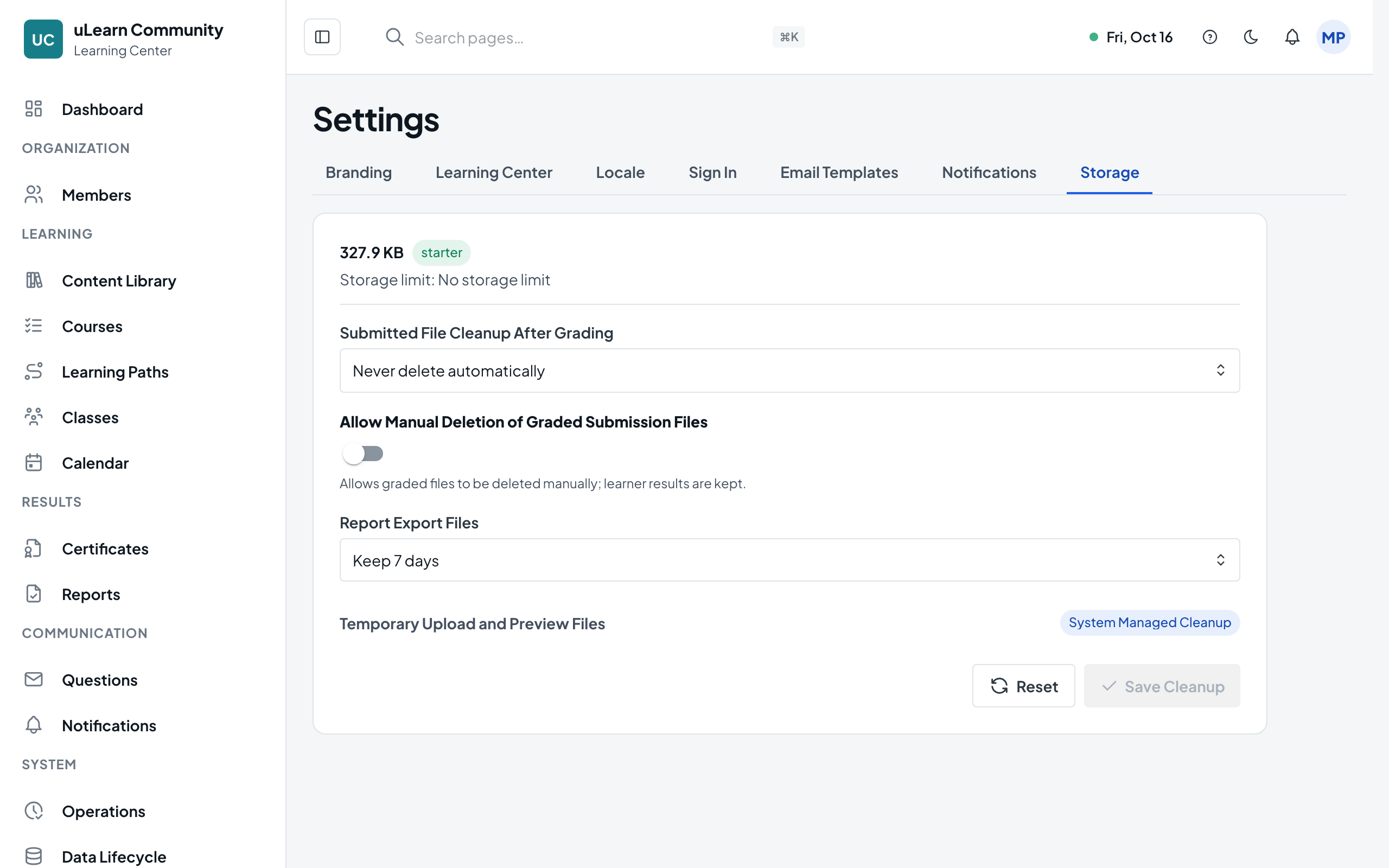
Select Cleanup Settings to open the Storage tab in Settings. Choose Submitted File Cleanup After Grading (never, 180 or 365 days), turn Allow Manual Deletion of Graded Submission Files on or off, and choose how long to keep Report Export Files (7, 30 or 90 days).
- 7
Save the rules
Select Save Cleanup and confirm. Temporary upload and preview files are always cleaned up automatically.