
Invite members by email
Paste a list of email addresses, check who will be invited, and send invitations that give people access to your Public learning center.
- 1
Open Members
Select Members in the left menu. You need the Center Owner, Center Manager or People & Group Manager role. The Members tab lists everyone with access and every pending invitation.
- 2
Open Invite Members
Select Invite Members. The Invite Members dialog opens with an Email List box.
- 3
Paste the addresses
Paste one or more email addresses, separated by commas or new lines, and select Preview Recipients.
- 4
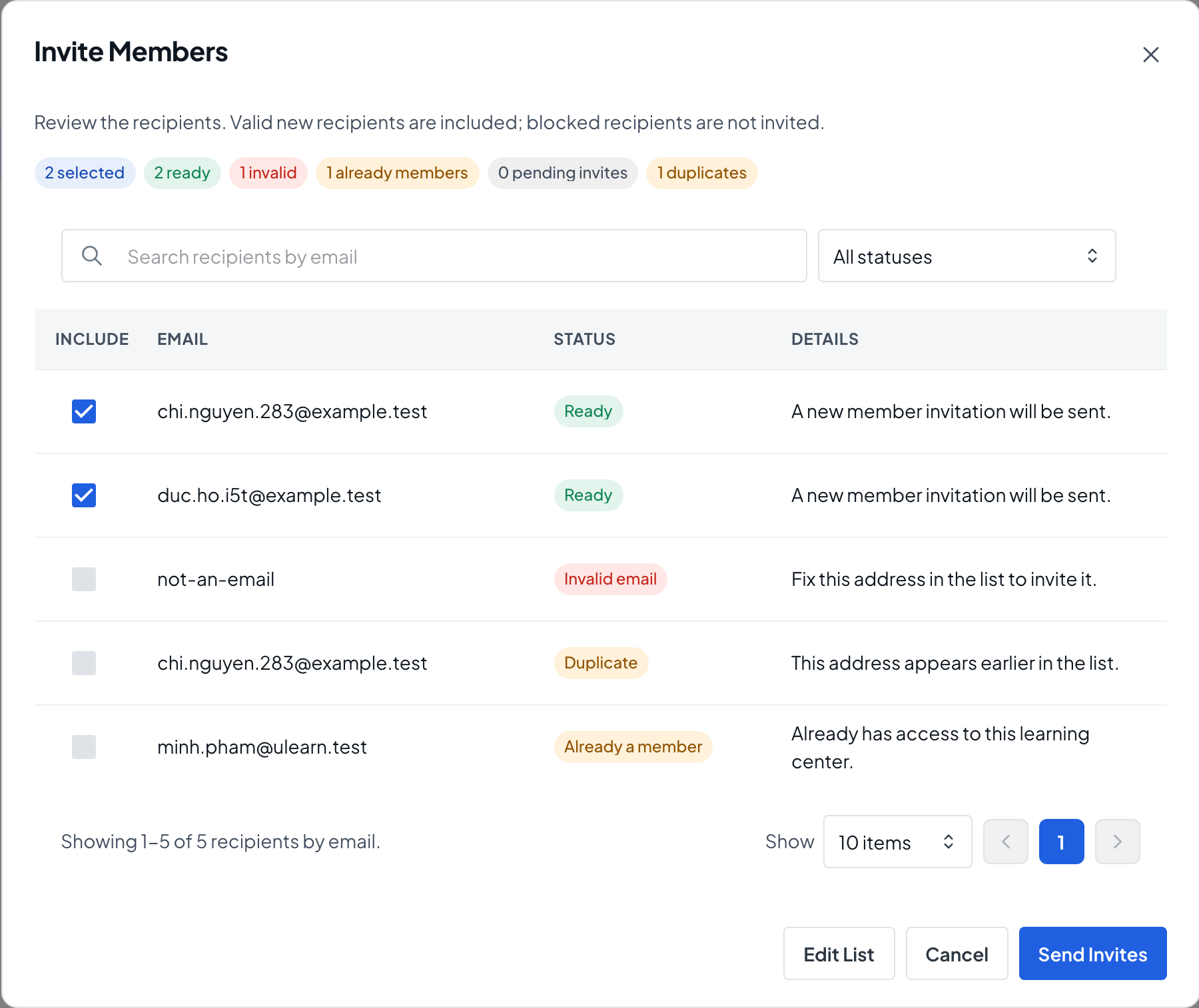
Review the recipients
The preview counts how many addresses are ready, invalid, already members, pending invites and duplicates. Valid new addresses are ticked; the others can’t be selected. Clear a tick to leave someone out, or select Edit List to fix the list.
- 5
Send the invitations
Select Send Invites. A message tells you how many invitations were sent, and the dialog clears for your next list.
- 6
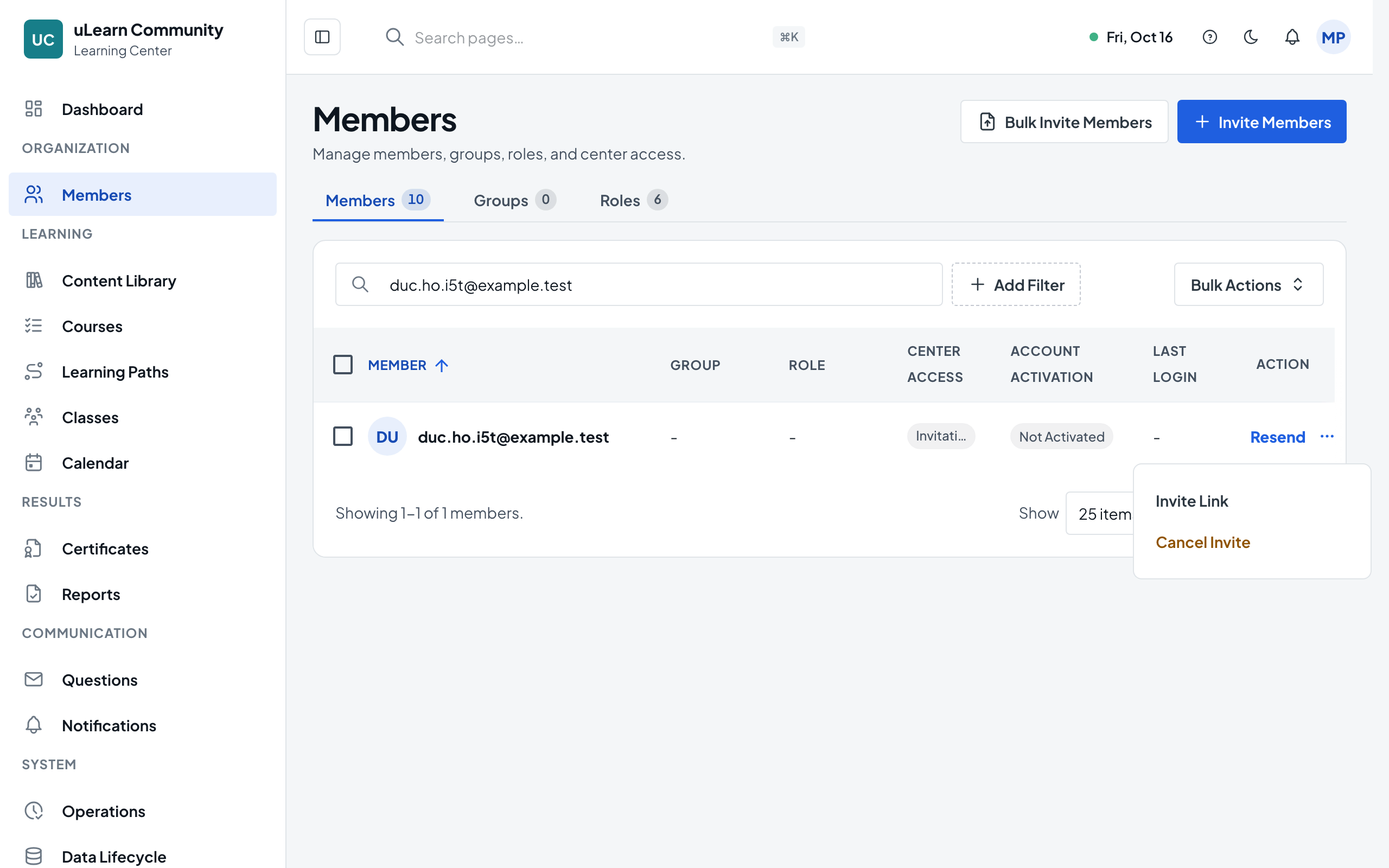
Follow up on pending invitations
Each invitee appears on the Members tab as Invitation pending. Resend sends a new link and the old one stops working. In the row’s menu, Invite Link copies the current link and Cancel Invite withdraws it.
- 7
The invitee accepts
The invitee opens the link in the email and selects Accept Invite. Someone new to uLearnBox first enters a Full Name, Password and Confirm Password. They then show on the Members tab as a member.