Create member accounts
In an Organization learning center, create a member’s account yourself, then let them activate it from an email or sign in with a temporary password.
- 1
Open Add Member
Select Members in the left menu, then Add Member. You need the Center Owner, Center Administrator or People Administrator role, or Department Administrator for your Departments.
- 2
Enter the details
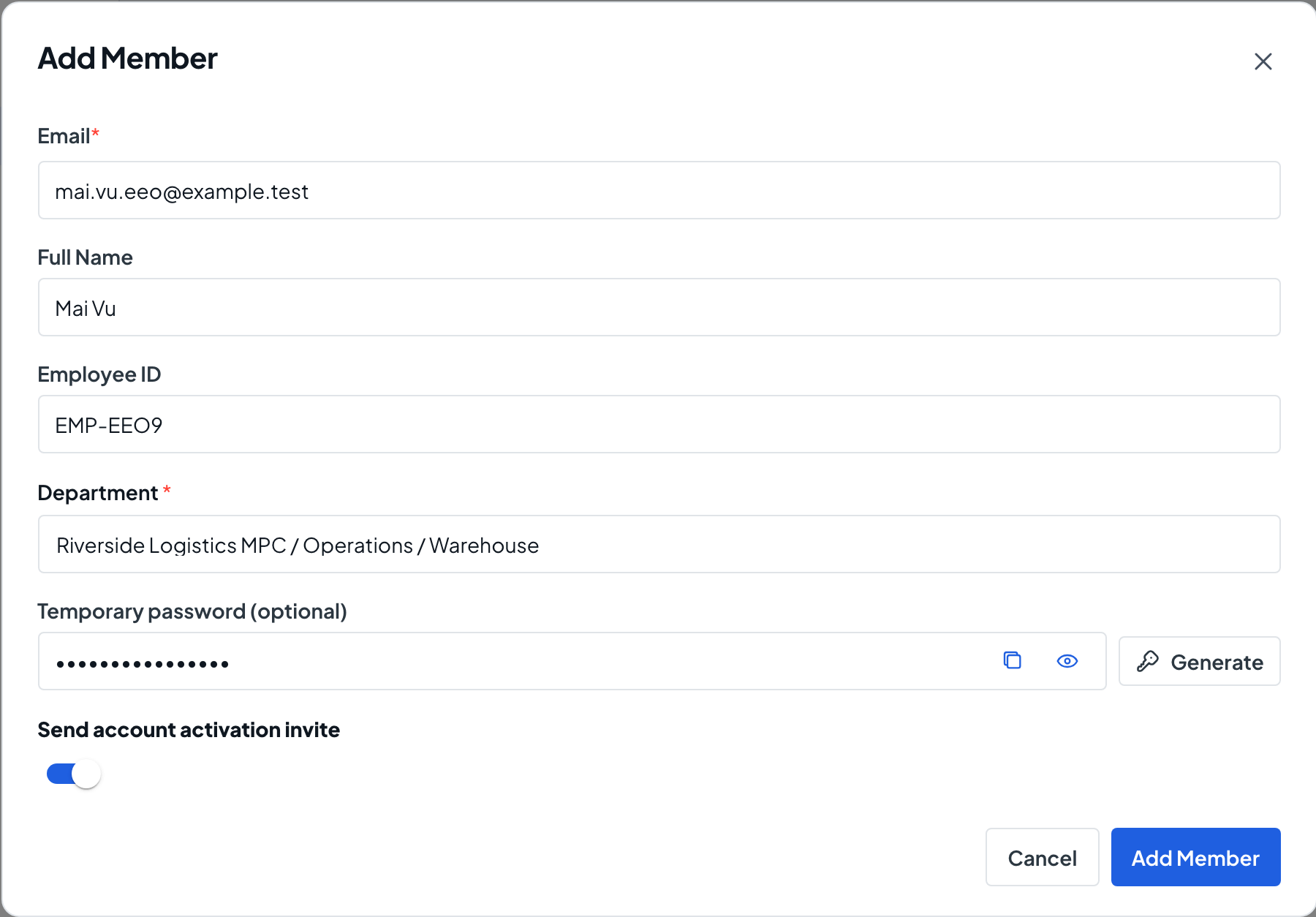
Fill in Email, Full Name and, if you use them, Employee ID. When username sign-in is turned on, you can also enter a Username, and the email becomes optional.
- 3
Choose a Department
Pick the member’s Department. It starts at the top of your organization; choose a more specific Department if you have set them up.
- 4
Choose how they get in
Leave Send account activation invite on to email them an activation link. Or type a password in Temporary password (optional), or select Generate, so they can sign in straight away and must choose their own password at first sign-in.
- 5
Add the member
Select Add Member. You see Member added. (or Member added with a temporary password.) and the person appears on the Members tab. Without an invite or a password, their status is Not Activated.
- 6
Send an activation link later
For a member who is Not Activated, open the row’s menu and choose Send Activation Invite to email them, or Get Activation Link to copy a link you can share yourself.
- 7
Set or reset a password
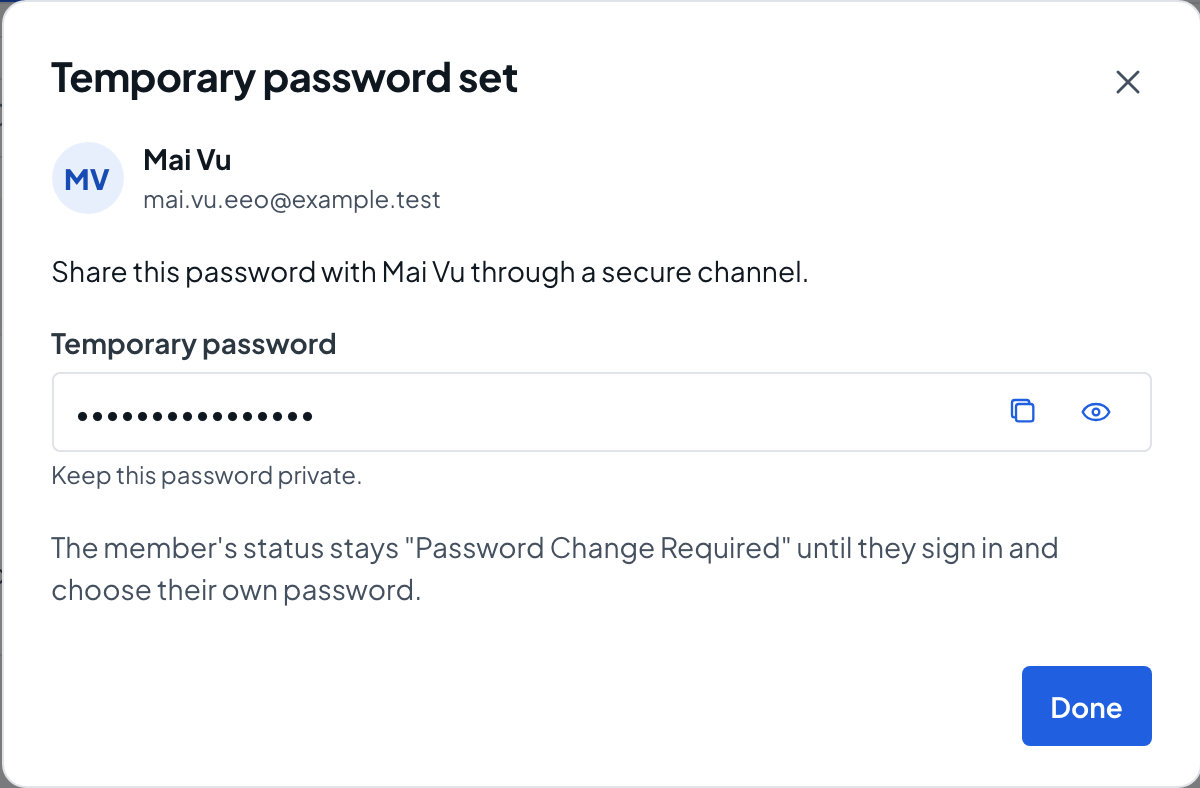
Choose Set Temporary Password (Reset Password for an activated member) from the row’s menu or from Member Actions on their profile. Enter or generate a password and select Set Password. The password is shown only once, so copy it and share it safely; the member is signed out on every device.