Give members a role
Let a member help run your learning center, for example as a Center Manager for everything or an Instructor for one class, and take the role away when it’s no longer needed.
- 1
Open the Roles tab
Select Members in the left menu, then the Roles tab. You need the Center Owner, Center Manager or Center Administrator role, or Department Administrator for your Departments.
- 2
Know the built-in roles
Public learning centers have Center Manager, People & Group Manager and Instructor. Organization learning centers have Center Administrator, Department Administrator, People Administrator, Learning Manager and Instructor. Select Open on a role to see what it can do.
- 3
Start the assignment
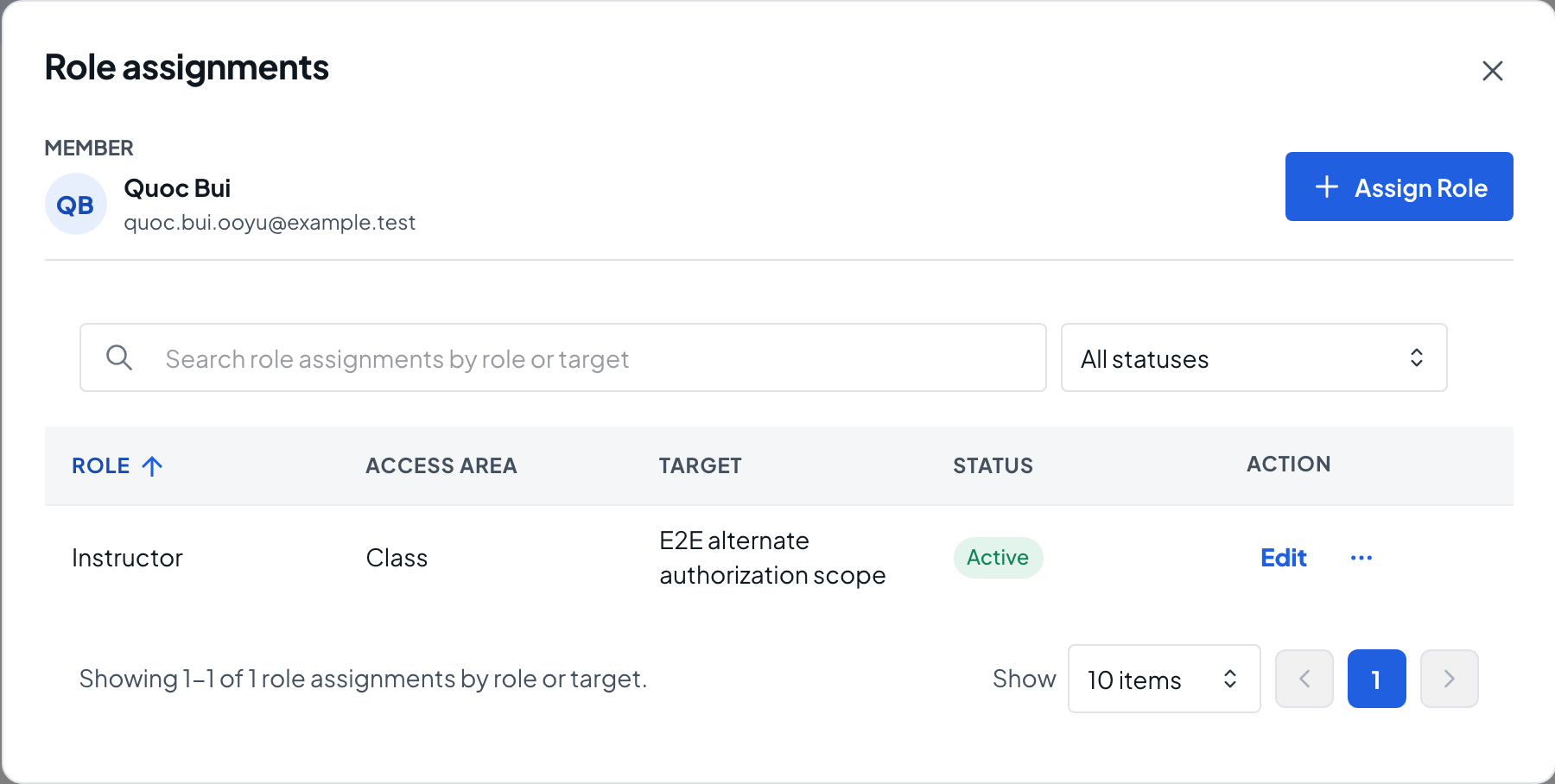
Open the role’s menu and choose Assign. Or open a member’s profile, select View Role Assignments, then Assign Role.
- 4
Choose the member and role
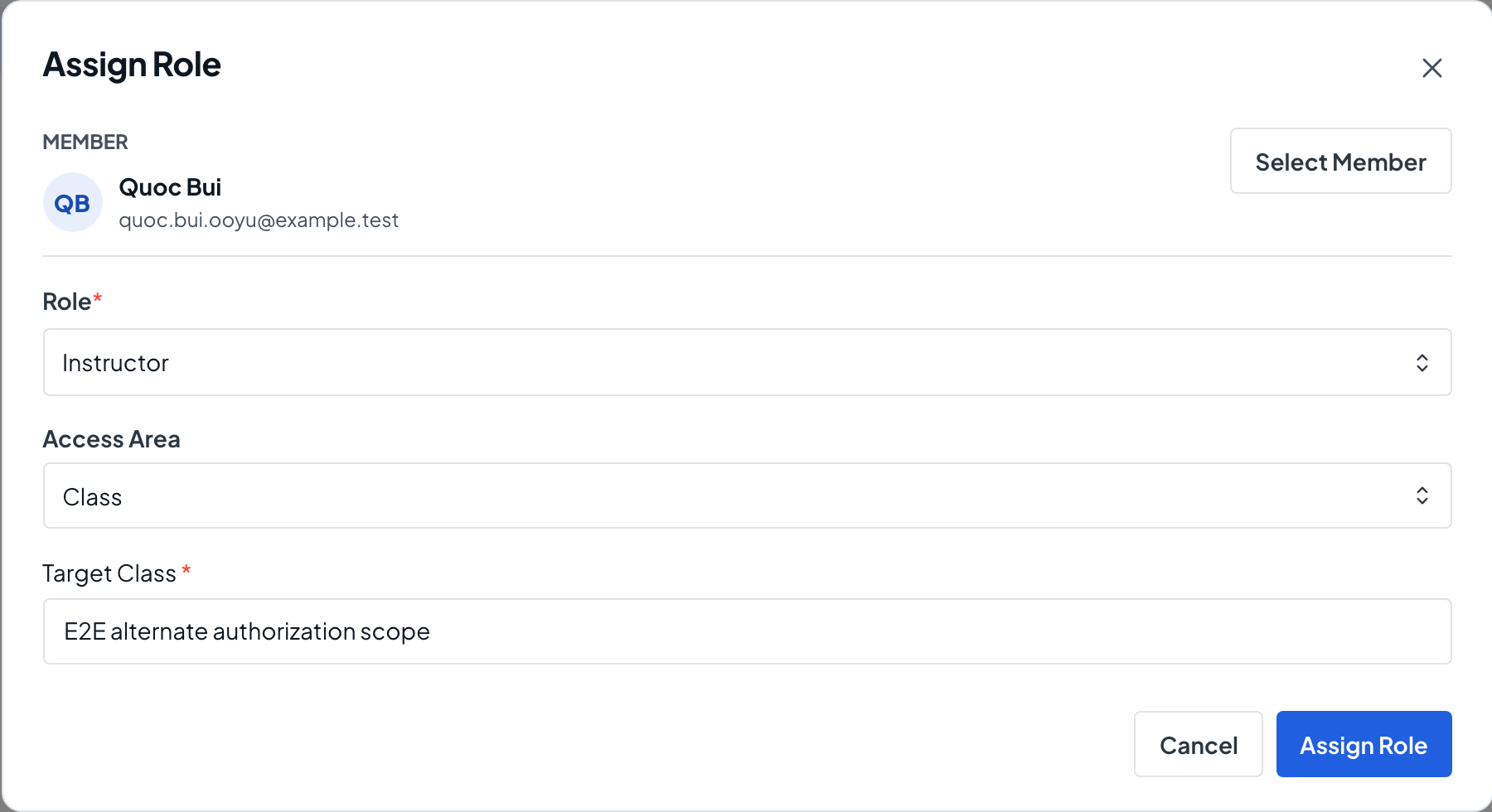
Select Select Member, search by name or email and choose Select. Check that the Role is the one you want.
- 5
Choose where it applies
Set Access Area. Whole Site covers the entire learning center and Class limits the role to the class you choose. In an Organization learning center, Department limits it to one Department; turn on Include descendant departments to cover the Departments below it too.
- 6
Assign the role
Select Assign Role. You see Role assigned. and the member’s profile opens.
- 7
Review, change or revoke
On the member’s profile, View Role Assignments lists each role and where it applies. Use Edit to change the access area, or Revoke to remove the role; you can add a reason before you confirm.