
Submit an assignment
Hand in a file or a link for an assignment from a class, course or learning path, replace it before review, and resubmit when your teacher asks.
- 1
Open your assignments
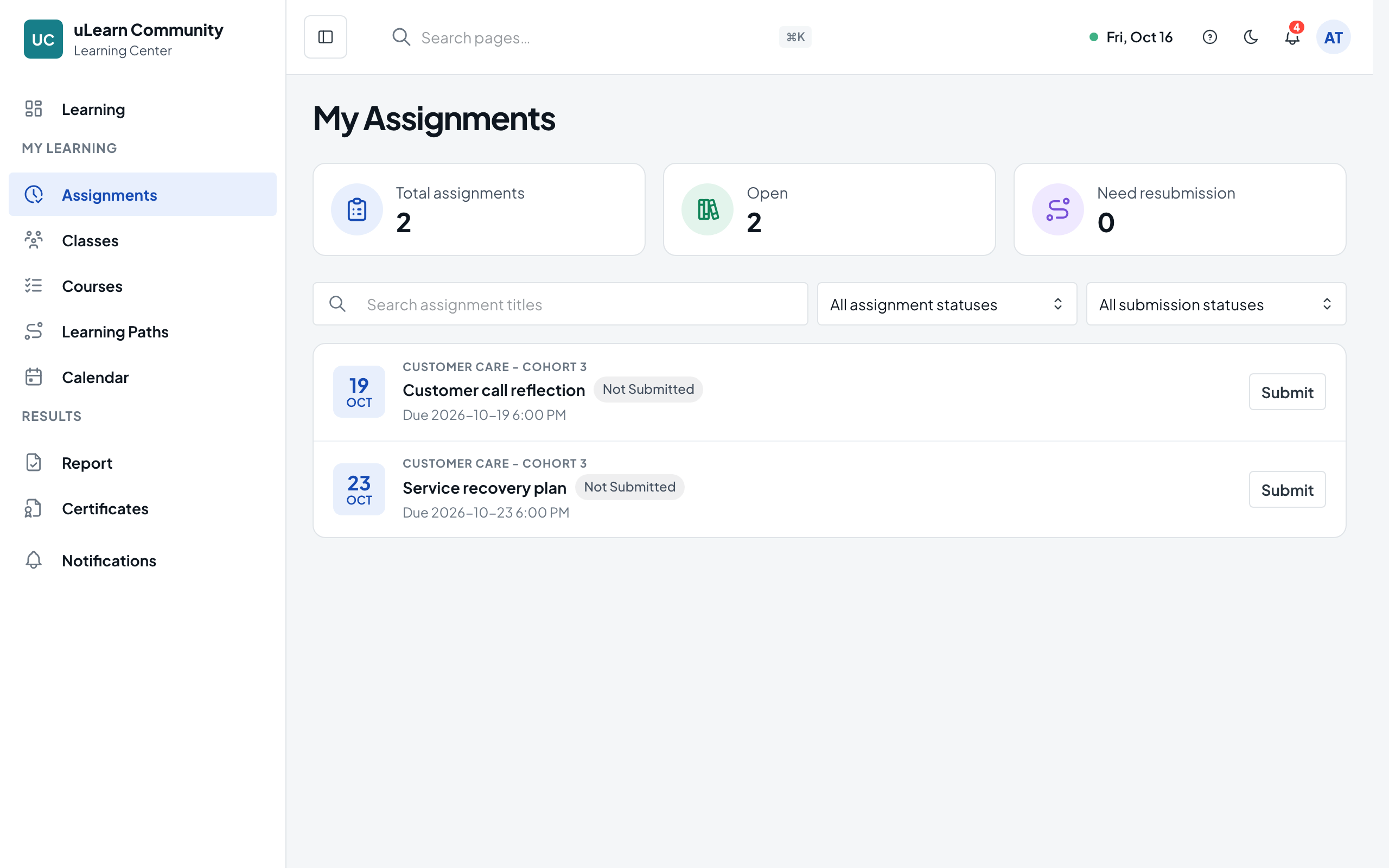
Select Assignments in the left menu. My Assignments lists your work from every class, course and learning path. Use Search Assignments, Assignment status and Submission status to narrow the list.
- 2
Read the assignment
Select the assignment’s title. The Overview tab shows Submission Due, Submissions Close, Max Score, the instructions and any Teacher Attachments, which you can Preview or Download.
- 3
Add your work
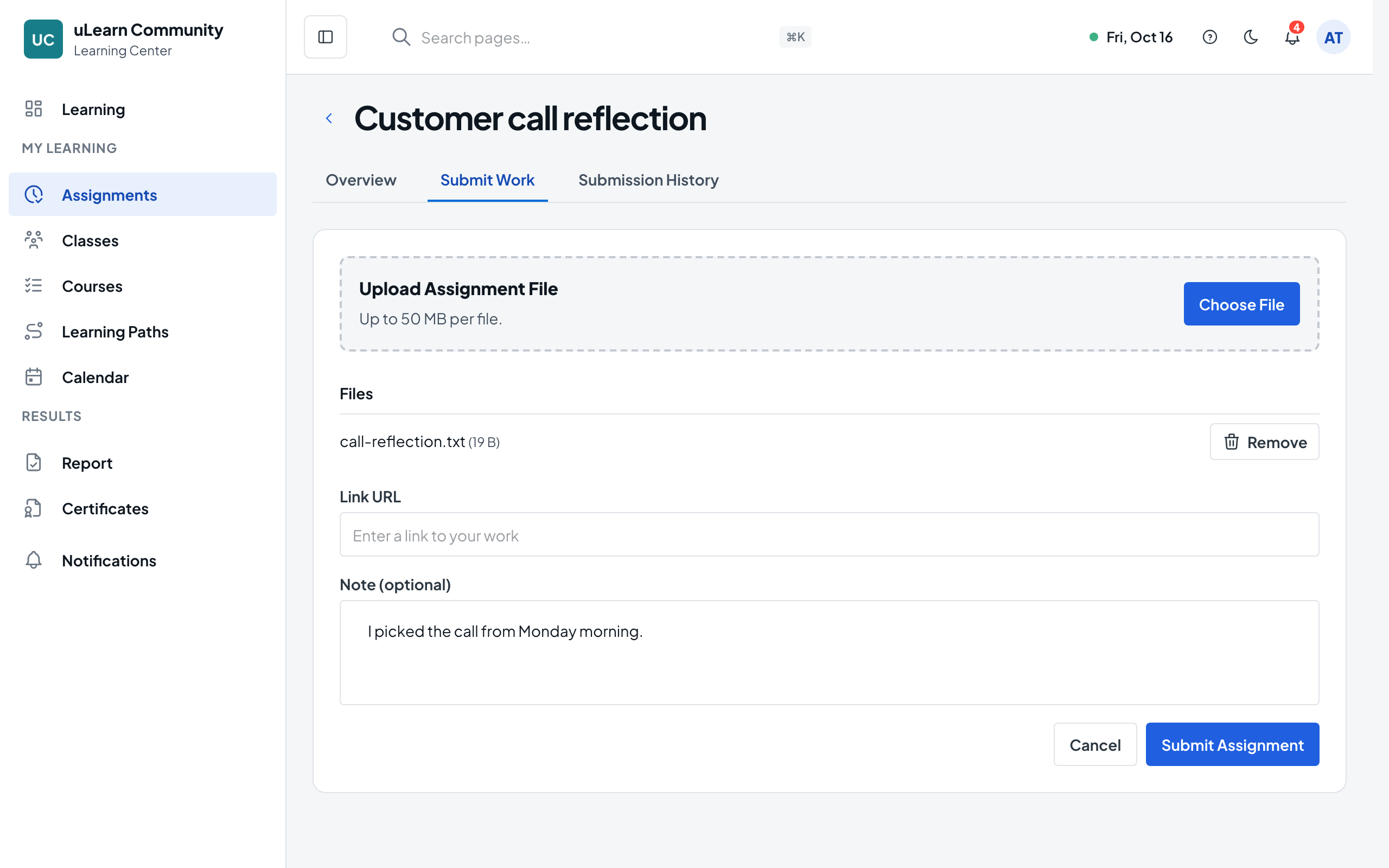
Open the Submit Work tab. Under Upload Assignment File, select Choose File to attach a file (the size limit is shown there), or paste a web address in Link URL. You can add a message for your teacher in Note (optional).
- 4
Submit
Select Submit Assignment. You see Assignment submitted., and the Submission History tab lists the attempt with its file, link and note.
- 5
Replace it before review if needed
Until your teacher starts reviewing, the assignment’s row offers Replace. The Replace Submission tab takes a new file or link, and older attempts stay in Submission History.
- 6
Read your grade and feedback
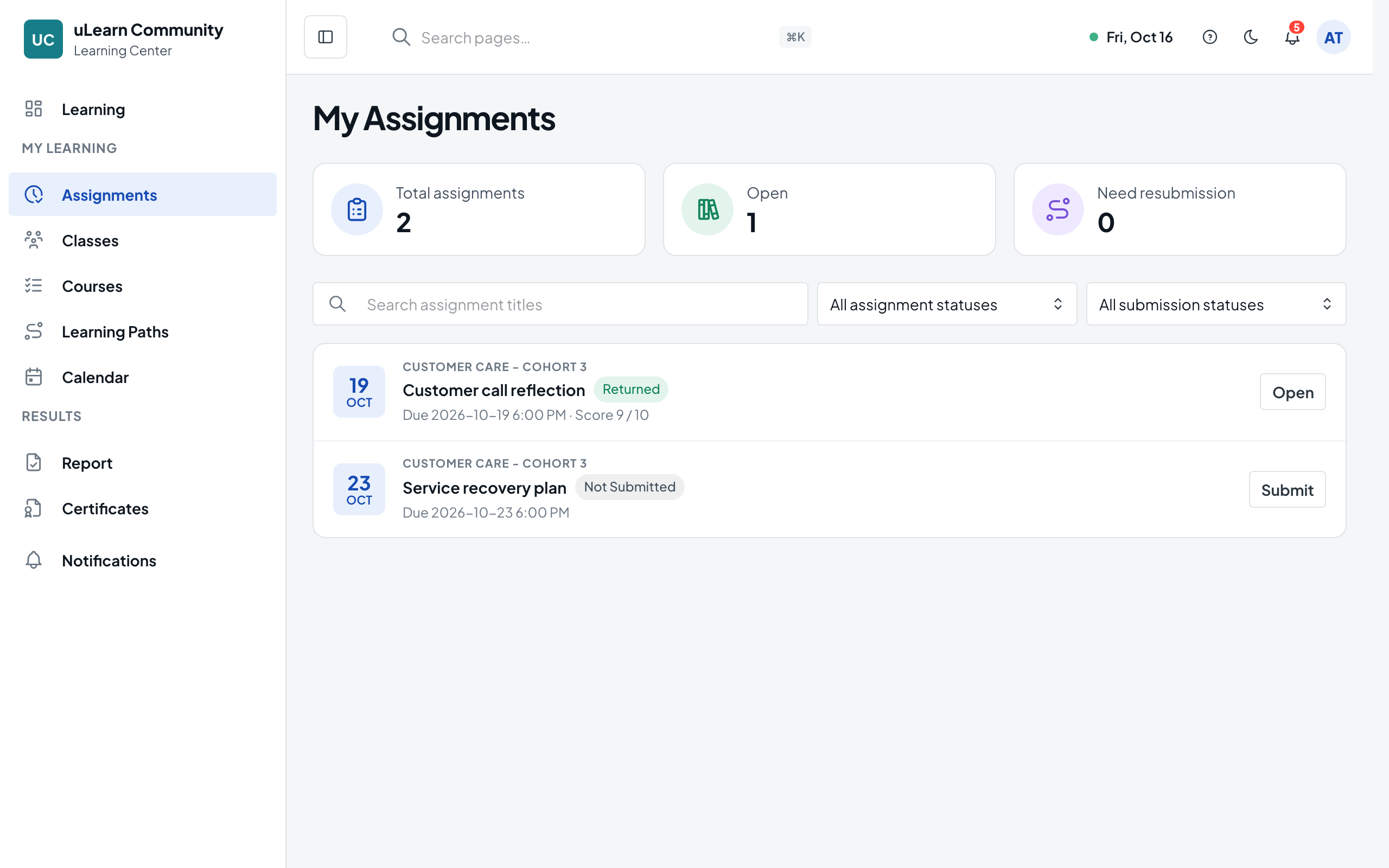
When your teacher returns the grade, the row shows your score, such as Score 9 / 10, and the Overview tab shows their feedback. The Submit Work tab then says Submissions are closed.
- 7
Resubmit when asked
If your teacher asks for a resubmission, the row offers Resubmit. The Resubmit Work tab shows their feedback; add your new file or link and select Resubmit.