Move learners to a new version
Move learners who are still working on an older version of a course or learning path to the newest published version, and decide which results they keep. For classes, update the class curriculum instead.
- 1
Check what you need
Moving learners needs permission to move versions and view reports; the Owner and center managers or administrators have it. Publish the new version first: learners can only move to the latest published version.
- 2
Open the older version
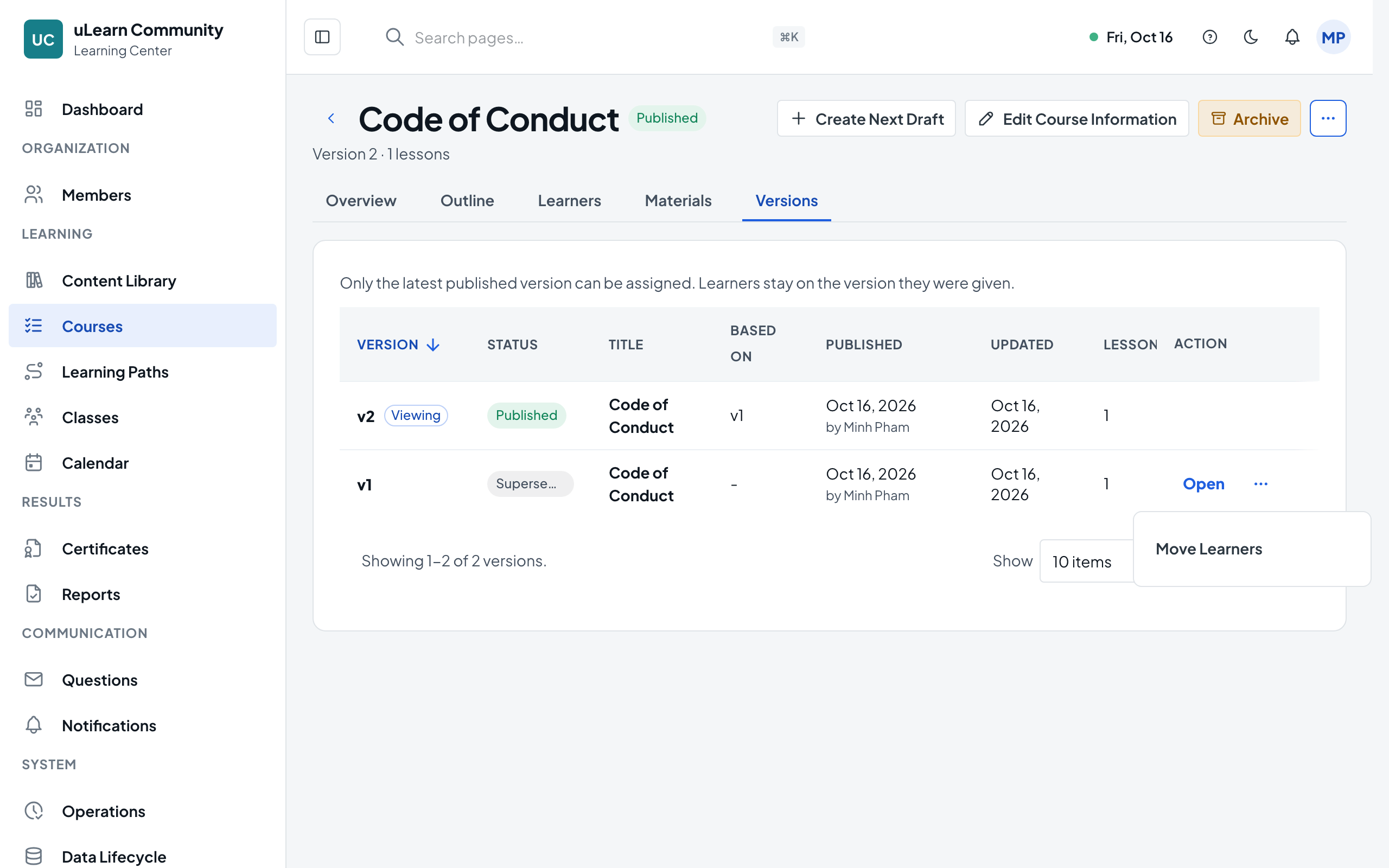
Open the course or learning path and go to the Versions tab. Older versions show as Superseded.
- 3
Start Move Learners
On the older version’s row, open the more actions menu and choose Move Learners. It appears only while learners are still active on that version. The Move learners dialog opens with the learners it covers.
- 4
Set up the move
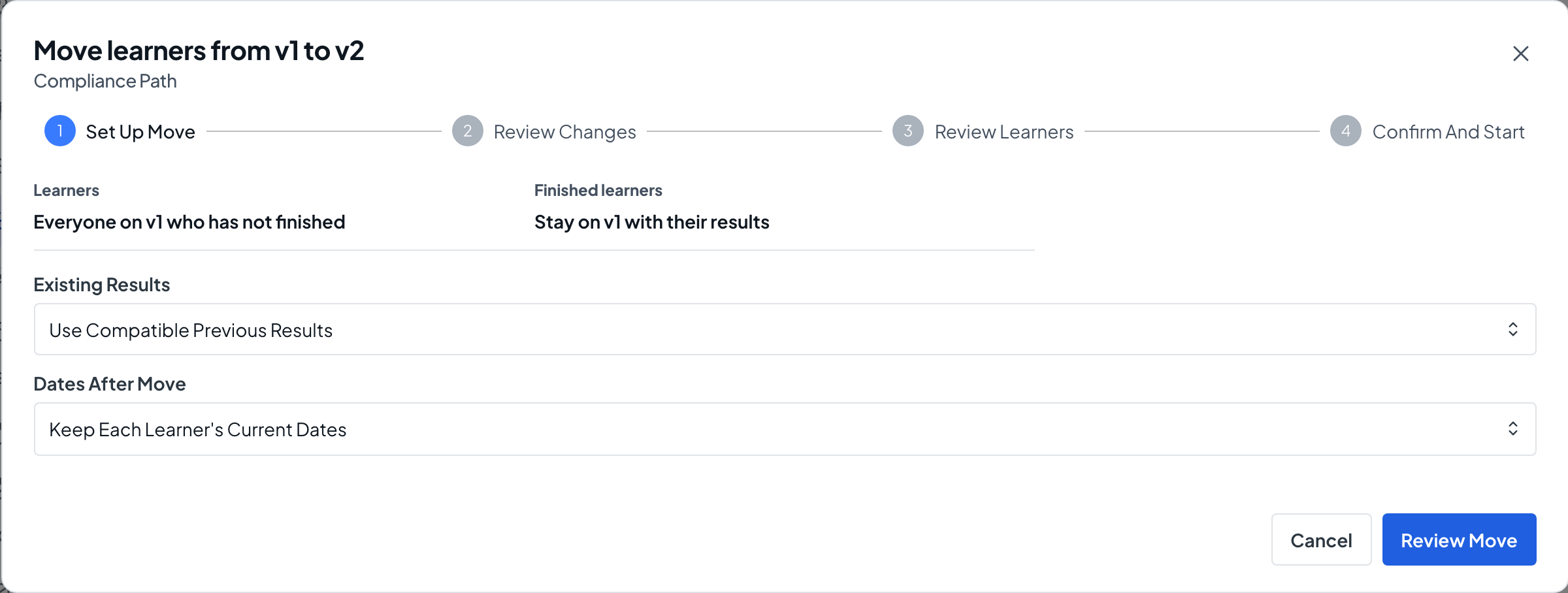
Under Existing Results, choose Use Compatible Previous Results, Start Learners Over, or Decide by Lesson/Course. Under Dates After Move, keep each learner’s dates or Set New Dates. Select Review Move.
- 5
Review the changes
Each changed lesson or course is listed. Choose Keep result, Keep completion or Study again; some choices ask for a reason. Select Review Learners.
- 6
Review the learners
Everyone listed moves. Use Skip to leave someone on the current version. For a course, finished learners are skipped by default; Include them to recalculate their results. Select Confirm And Start.
- 7
Start the move
Add a Reason for Move if you like, select Start Move and confirm. Choices cannot be changed once the move starts.
- 8
Follow the status
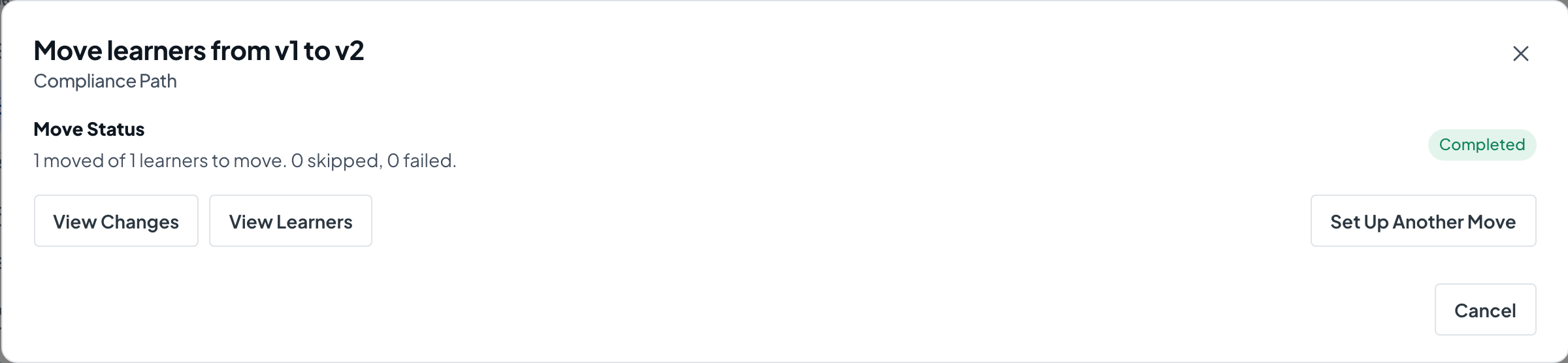
Move Status shows progress until it reads Completed. The moved learners then appear on the new version’s Learners tab, with kept results marked as carried over.