Create a course
Build a course from sections and lessons, set how learners complete it, and publish a version that can be assigned. You need permission to create courses; publishing needs publish permission too.
- 1
Open Courses
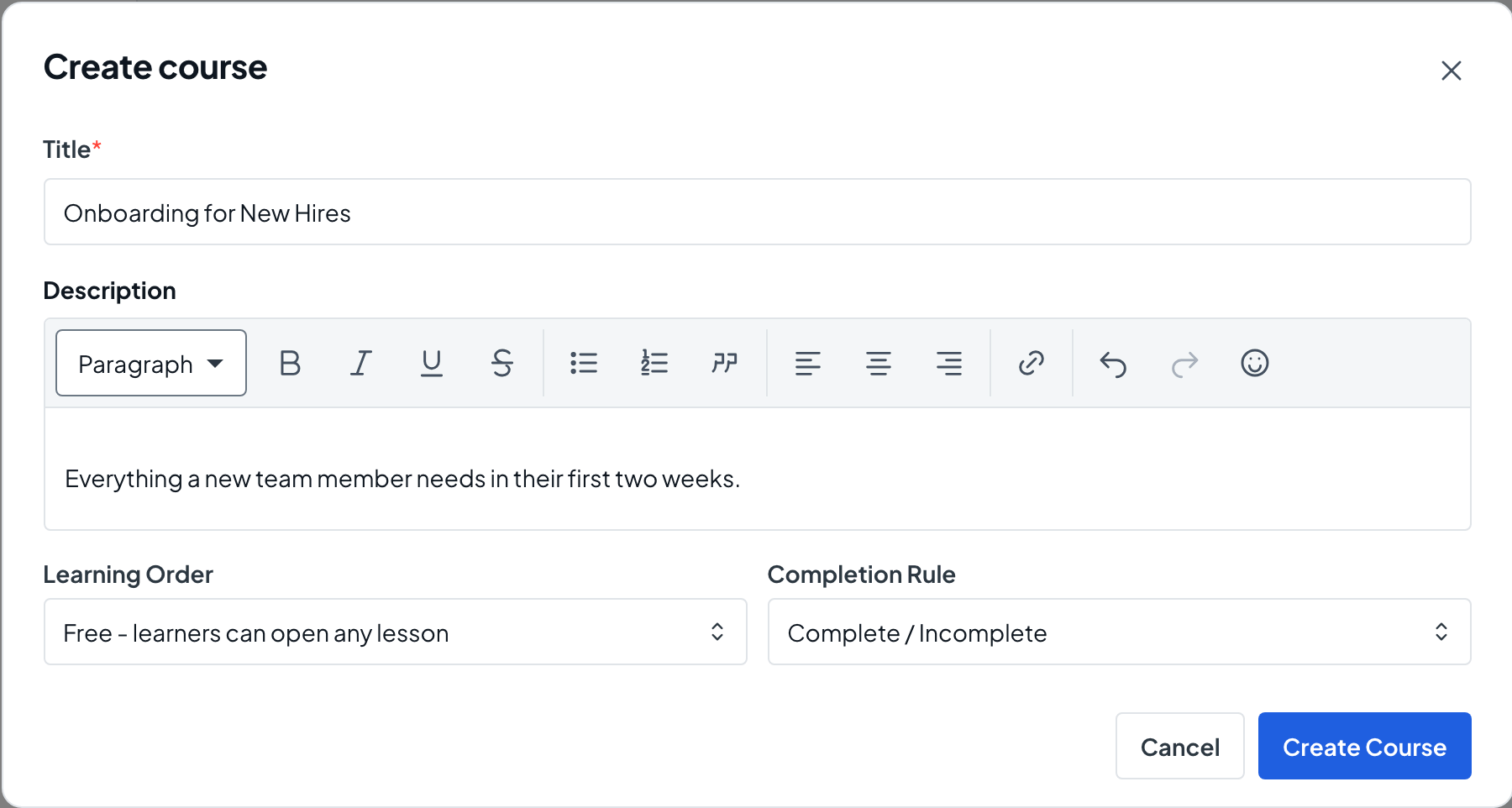
In Manage Center, choose Courses, then Create Course. The Create course dialog opens. If you do not see the button, ask an administrator for course authoring access.
- 2
Describe the course
Enter a Title and an optional Description, then choose a Learning Order (Free or Sequential) and a Completion Rule. In an Organization learning center, also choose the Owner Department. Select Create Course to open the new draft on its Overview tab.
- 3
Add sections
Open the Outline tab and select Add Section, type a section title and select Save. Use Subsection on a section to nest one level deeper.
- 4
Add lessons from the library
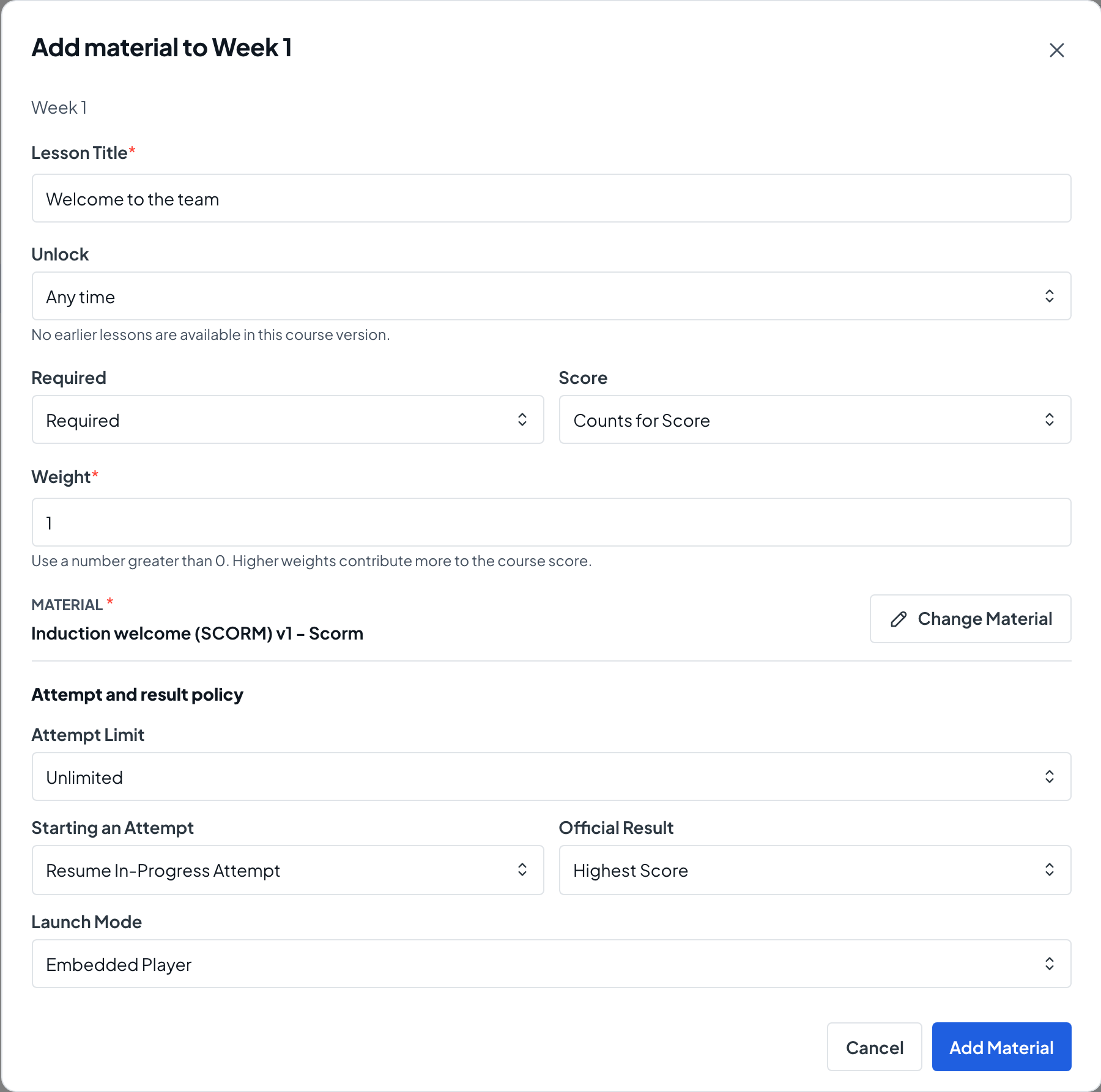
Select Add Material on a section, search for a material and choose Select. Give the lesson a Lesson Title, choose whether it is Required, counts for score, and how it launches, then select Add Material.
- 5
Add a manual assignment if you need one
Open the section’s more actions menu and choose Add Manual Assignment. Write the Instructions, set a Max Score and an Attempt Limit, then select Add Manual Assignment.
- 6
Set completion
On the Overview tab, select Edit Completion. Choose Completion only, or Completion and passing score with a Passing score, then select Save Settings. A passing score needs at least one required lesson that counts toward score.
- 7
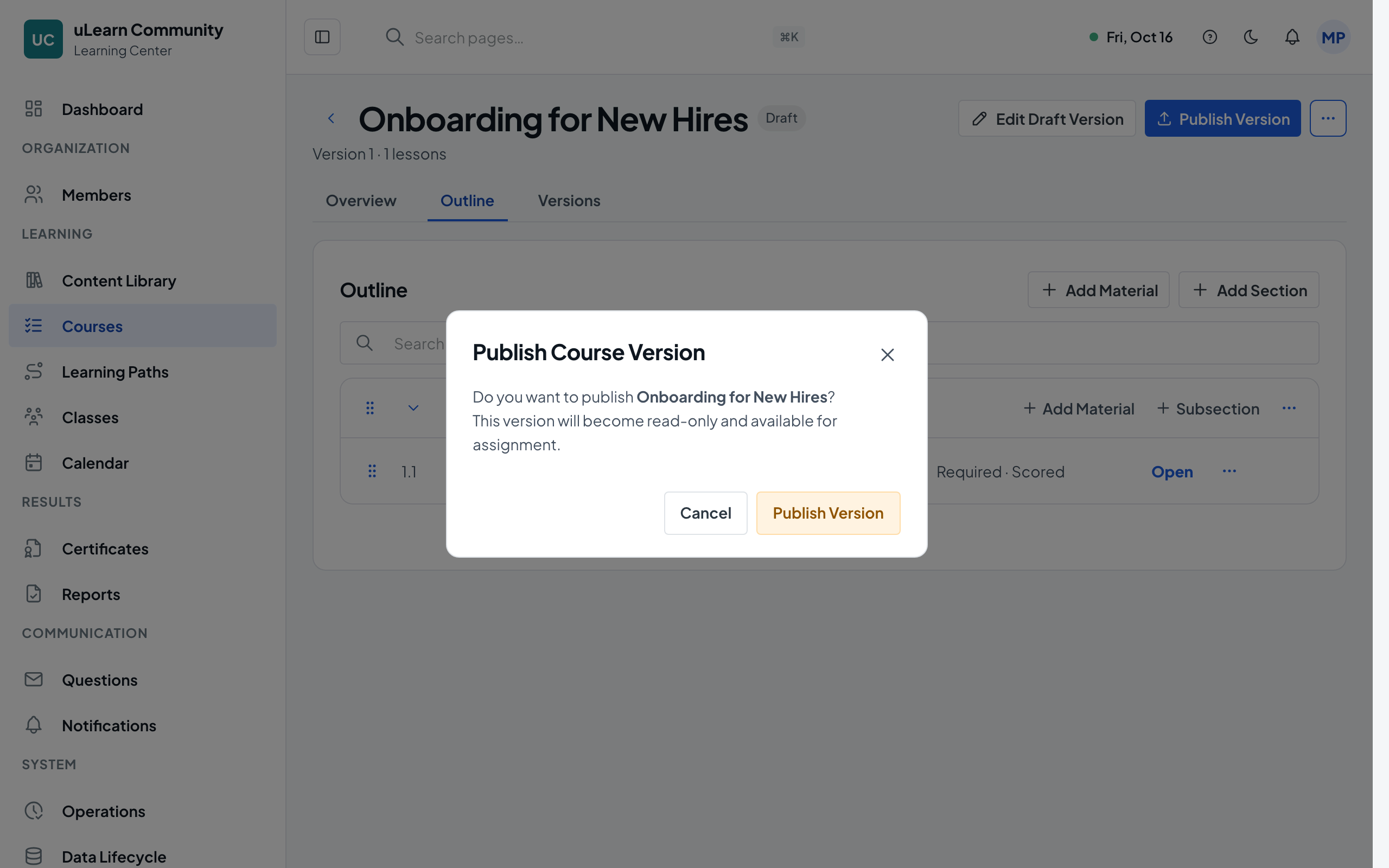
Publish the version
Select Publish Version and confirm. The version becomes read-only and the Learners tab appears so you can assign it. If something is missing, a Course version was not published notice lists what to fix.