
Design a certificate template
For owners and administrators who manage certificates: design your own certificate on a background image or PDF, check the preview and activate it, ready to use for any course or learning path.
- 1
Open Certificates
In the sidebar, under Results, select Certificates. The page has three tabs: Templates, Settings and Issued. Templates lists your templates with their status: Draft, Active or Archived.
- 2
Start a template
Select Create Template for a blank design, or Browse Built-in Templates and choose Create Draft Copy on a ready-made design. A three-step editor opens: Details, Layout and Review.
- 3
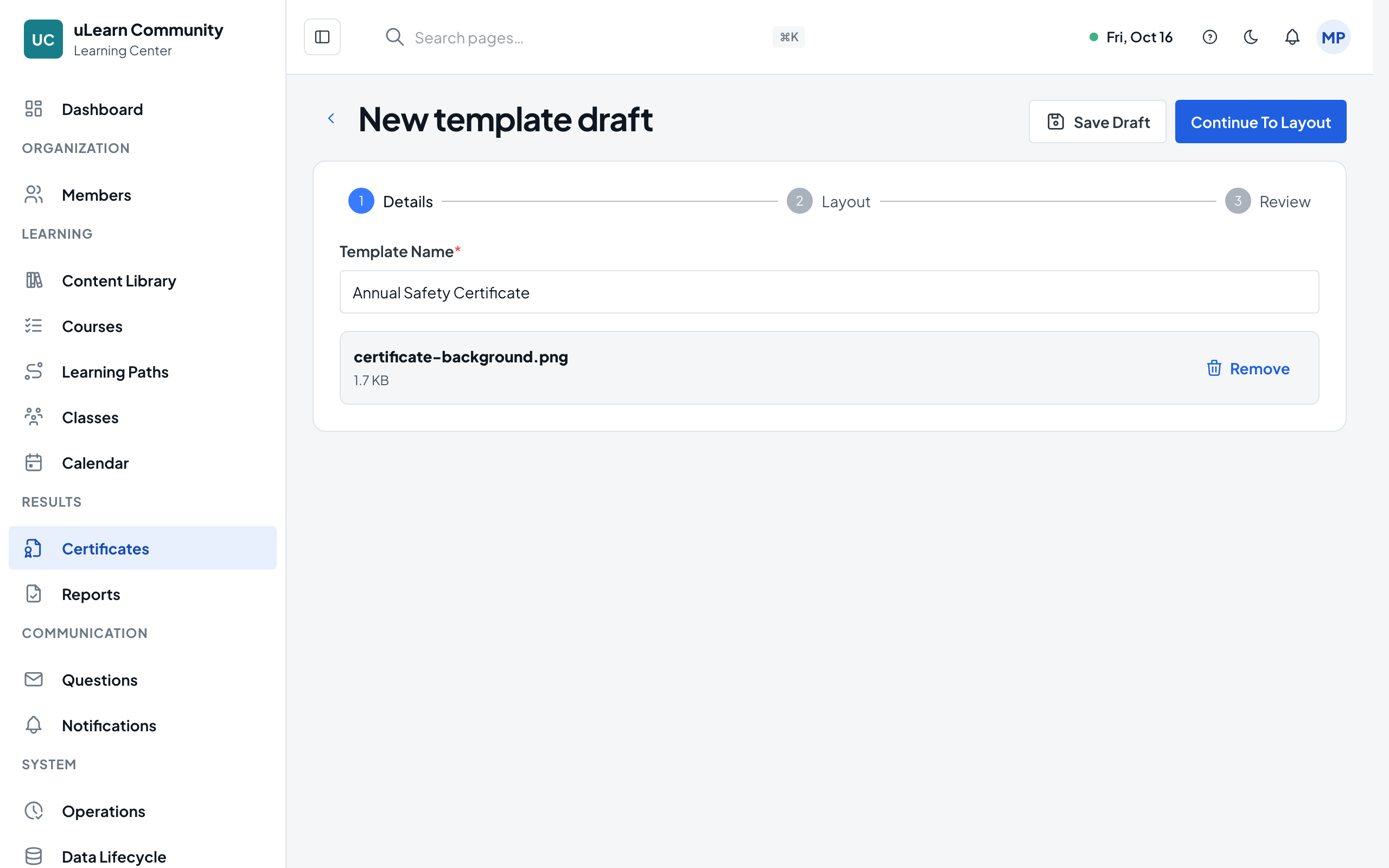
Name it and add a background
Enter a Template Name and select Choose Background to upload a PDF, PNG or JPG of up to 20 MB. The certificate page is landscape A4 (297 × 210 mm), so a background of that shape fits best. Select Continue To Layout.
- 4
Place the fields
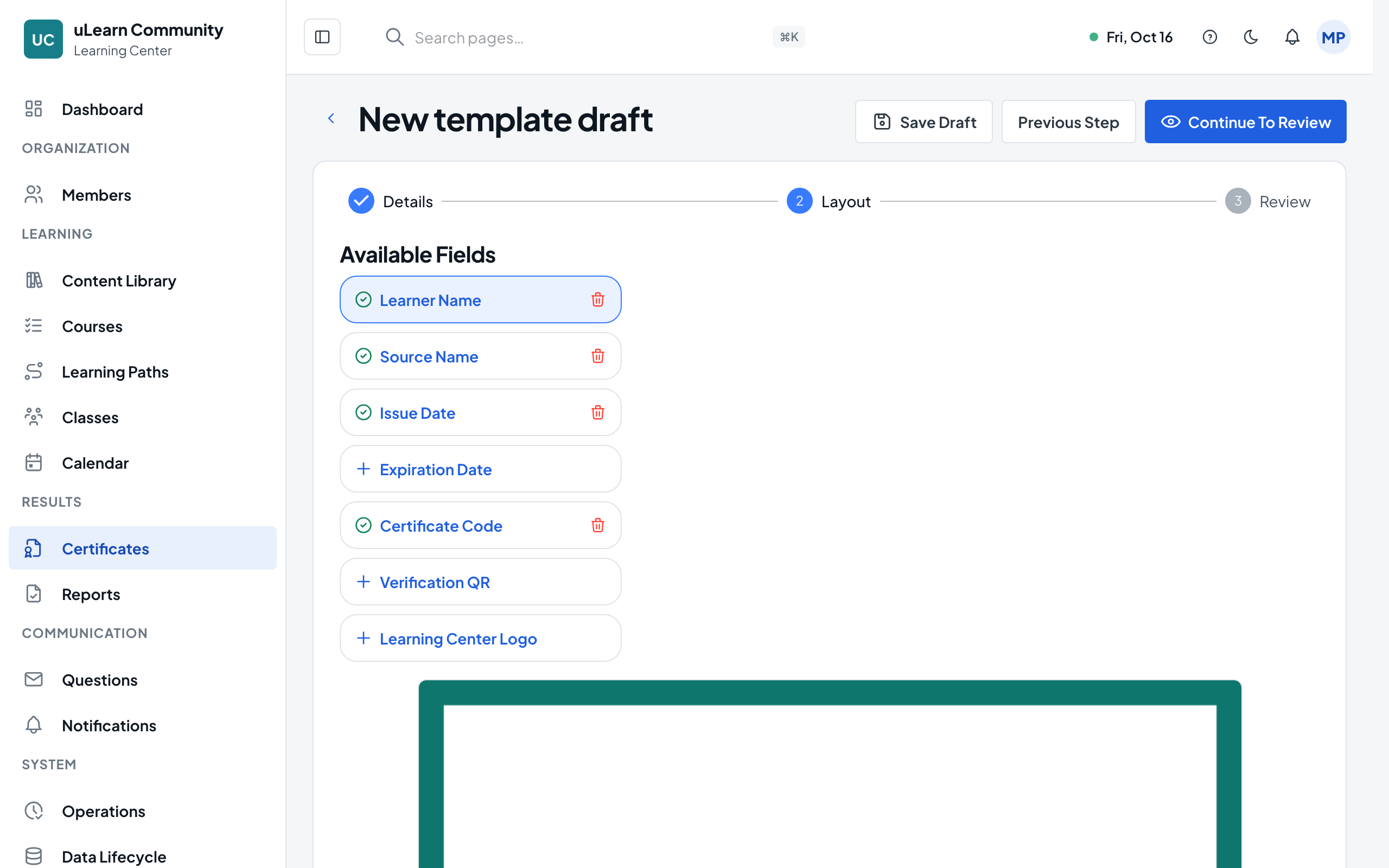
Available Fields lists Learner Name, Source Name, Issue Date, Expiration Date, Certificate Code, Verification QR and Learning Center Logo. Add a field, then drag or resize it on the canvas, or type its X, Y, Width and Height in millimetres.
- 5
Style the text
Select a field on the canvas to set its Font Size (pt), Weight, Color and Align. The canvas shows sample values, such as a sample learner name, so you can see the result.
- 6
Include the required fields
A template needs Learner Name, Source Name and Issue Date, plus Certificate Code or Verification QR so the certificate can be verified. Every field must stay inside the page.
- 7
Review and activate
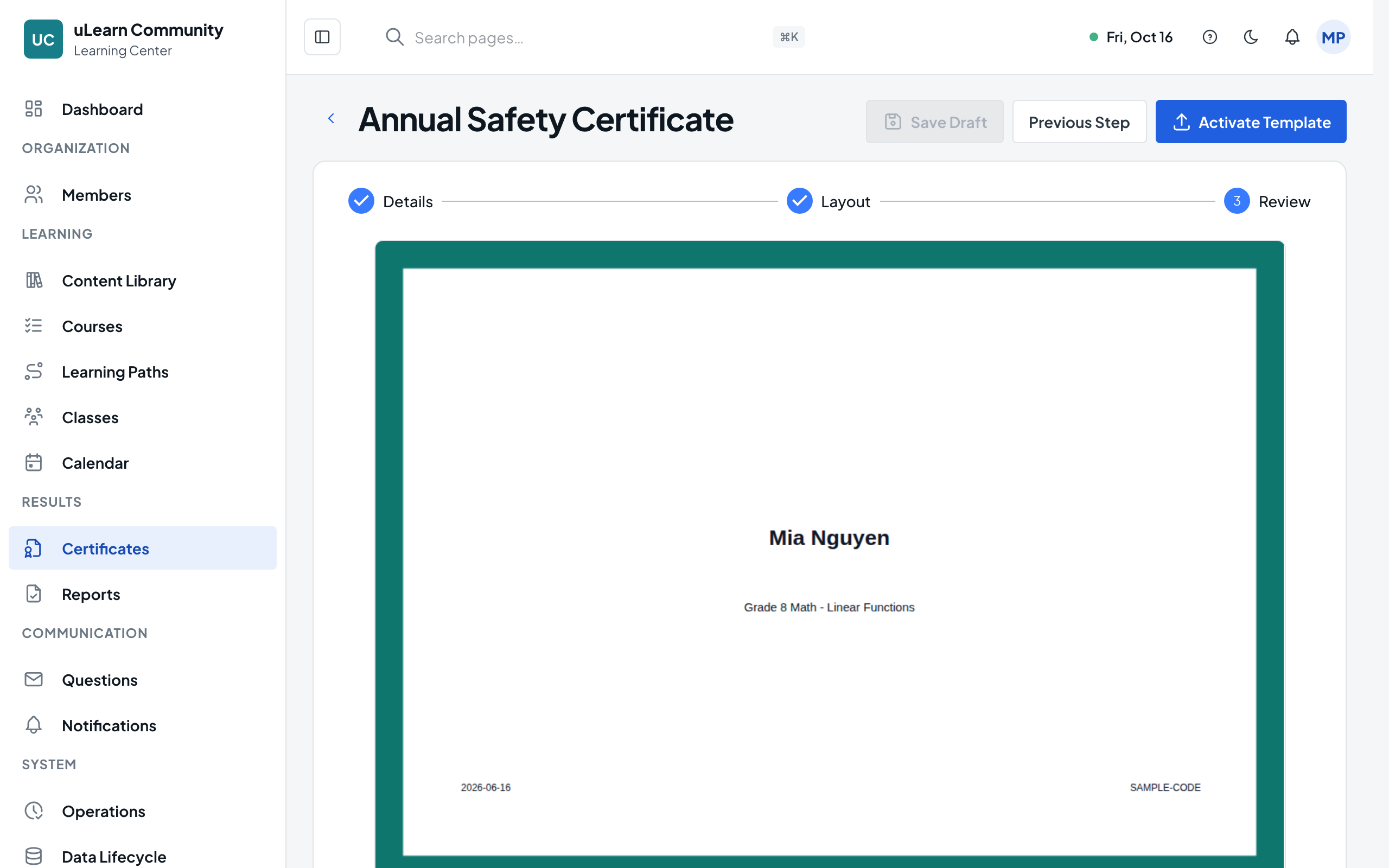
Select Continue To Review. The draft is saved and a rendered preview appears. If it looks right, select Activate Template; the template now shows Active in the list.
- 8
Use it for a course or path
Open the Settings tab and select Add Setting. Choose Course or Learning Path as the Certificate Source, pick it with Select Source, then pick your template with Select Template. Only active templates are offered.