Create a Public learning center
Open your own Public learning center from your uLearnBox account in a minute. You become its owner and administrator, ready to invite teachers and learners.
- 1
Sign in with a verified account
Sign in at uLearnBox with your account. Its email must be verified first; otherwise the creation page shows a warning and the Create Learning Center button stays off.
- 2
Choose Create Learning Center
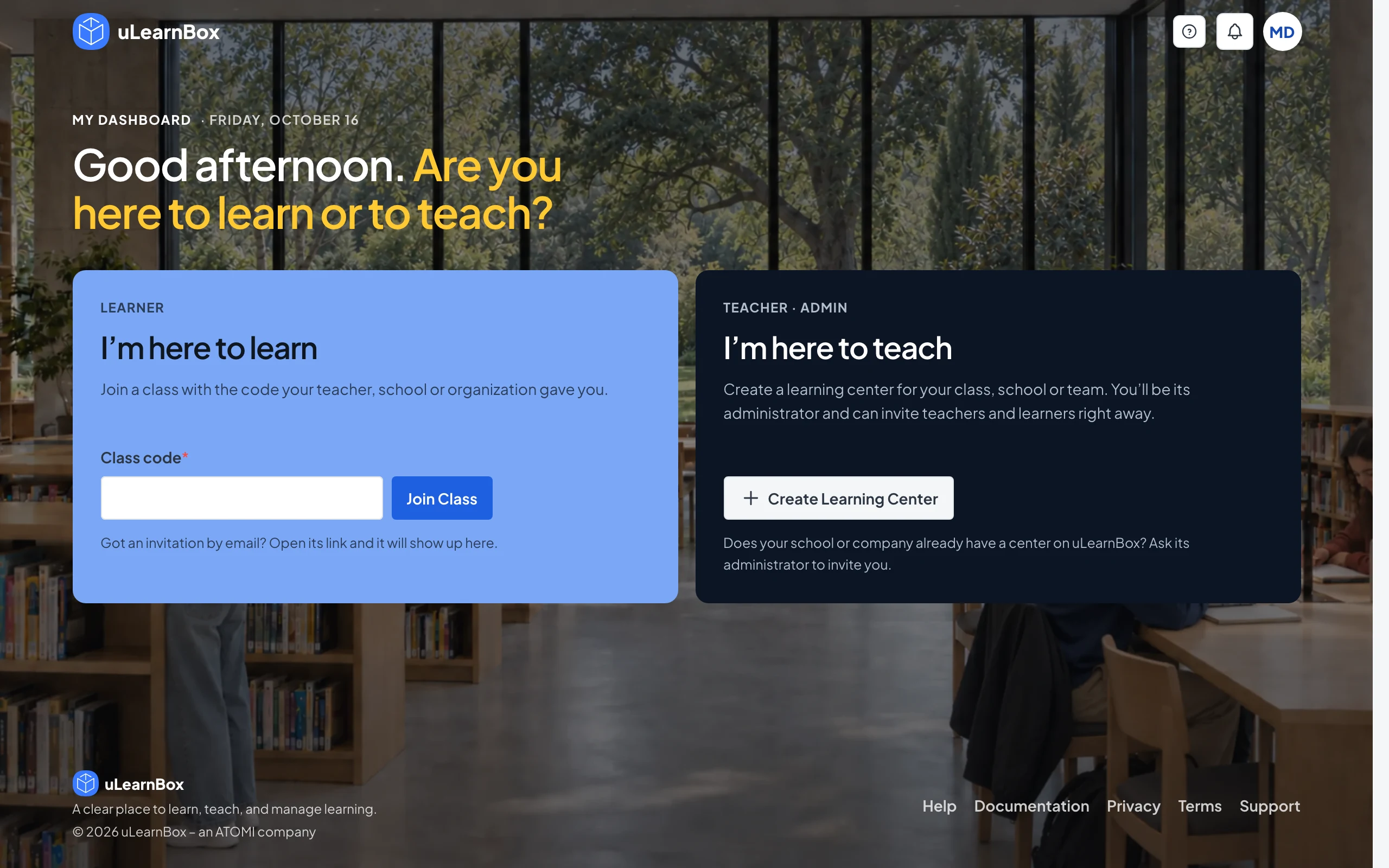
On My Dashboard, under I’m here to teach, select Create Learning Center. If you already belong to a center, select Create A Center next to My Learning Centers instead. The Create a public learning center page opens.
- 3
Name your center
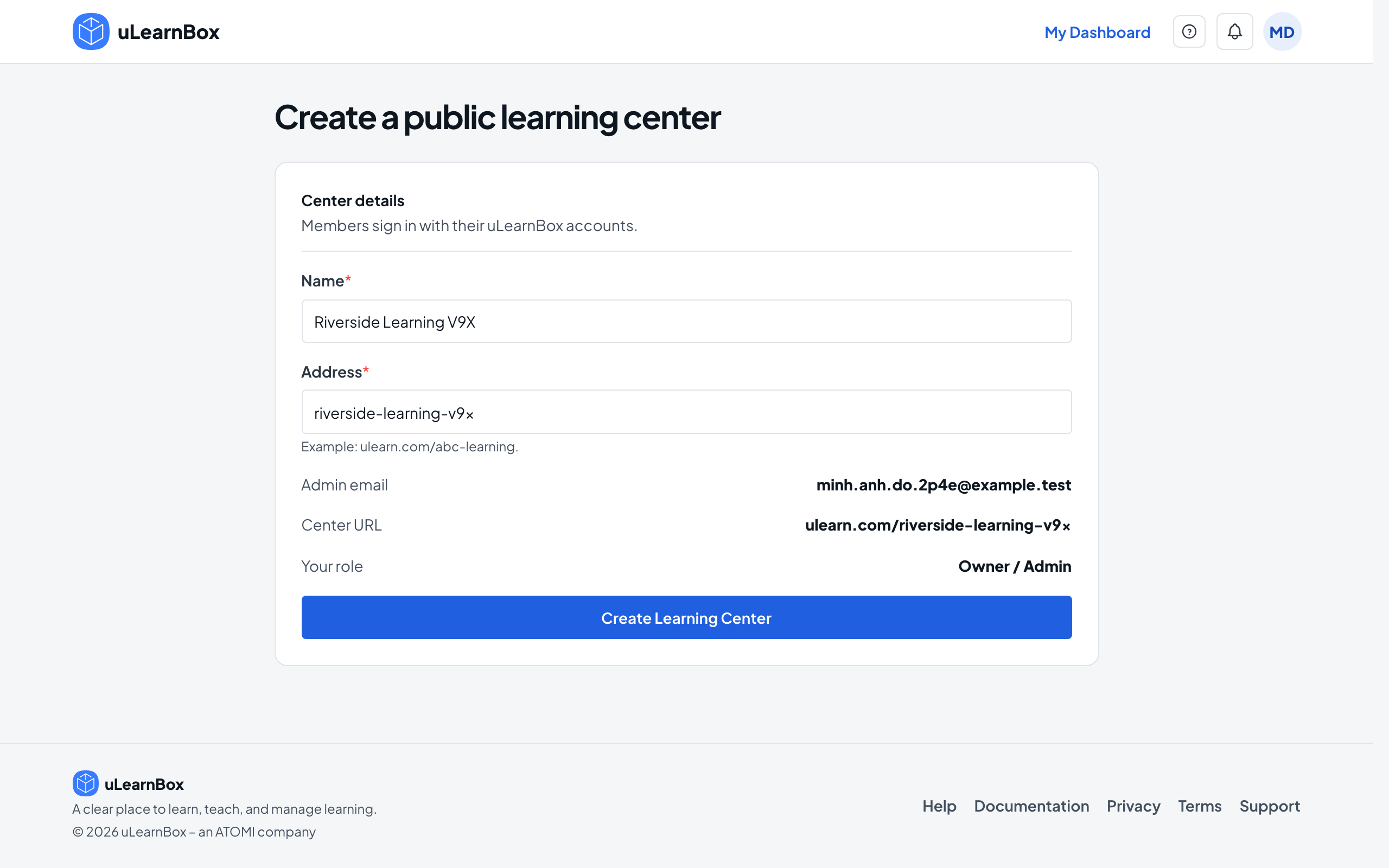
Type the center’s name in Name. The Address field fills in from the name, and Center URL below shows the full address people will open.
- 4
Check the address
Edit Address if you want a shorter one. It takes lowercase letters, numbers and hyphens, from 3 to 63 characters; reserved words and addresses that look like official pages are refused with a message under the field.
- 5
Review and create
Admin email shows your account and Your role shows Owner / Admin. Select Create Learning Center, and your new center’s management dashboard opens.
- 6
Come back to it any time
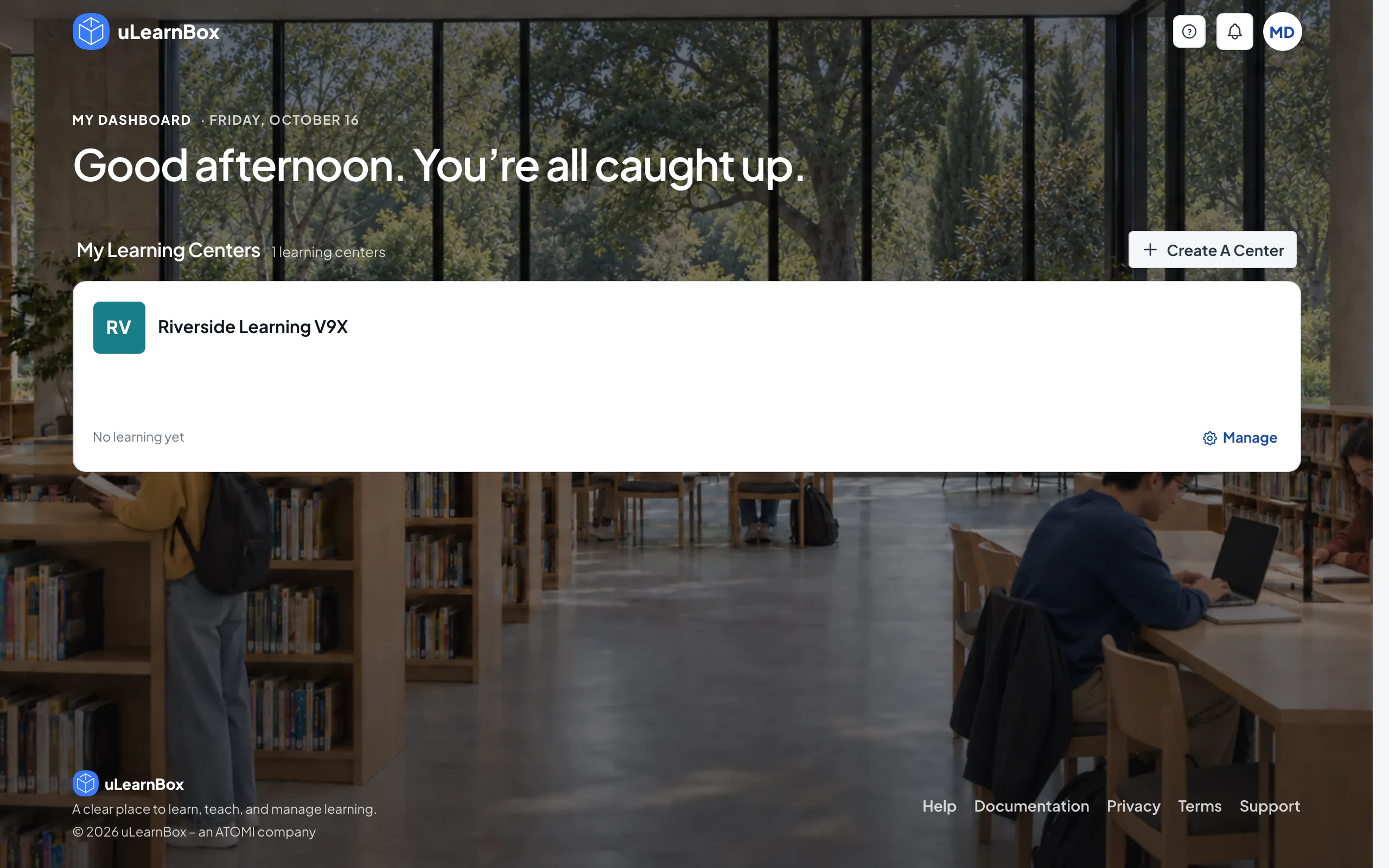
Your center now appears under My Learning Centers on My Dashboard. Select its card to open your own learning, or Manage to open its management dashboard.