
Answer learner questions
Reply to the questions learners ask on class lessons, all from one inbox. Answers are visible to everyone in the class.
- 1
Know when a question arrives
Learners ask from the Questions button in the class lesson player. You get a web notification, and your Dashboard shows a Questions waiting tile with an Open inbox link. Answering needs the class’s answer permission, which the Instructor role includes.
- 2
Open Questions
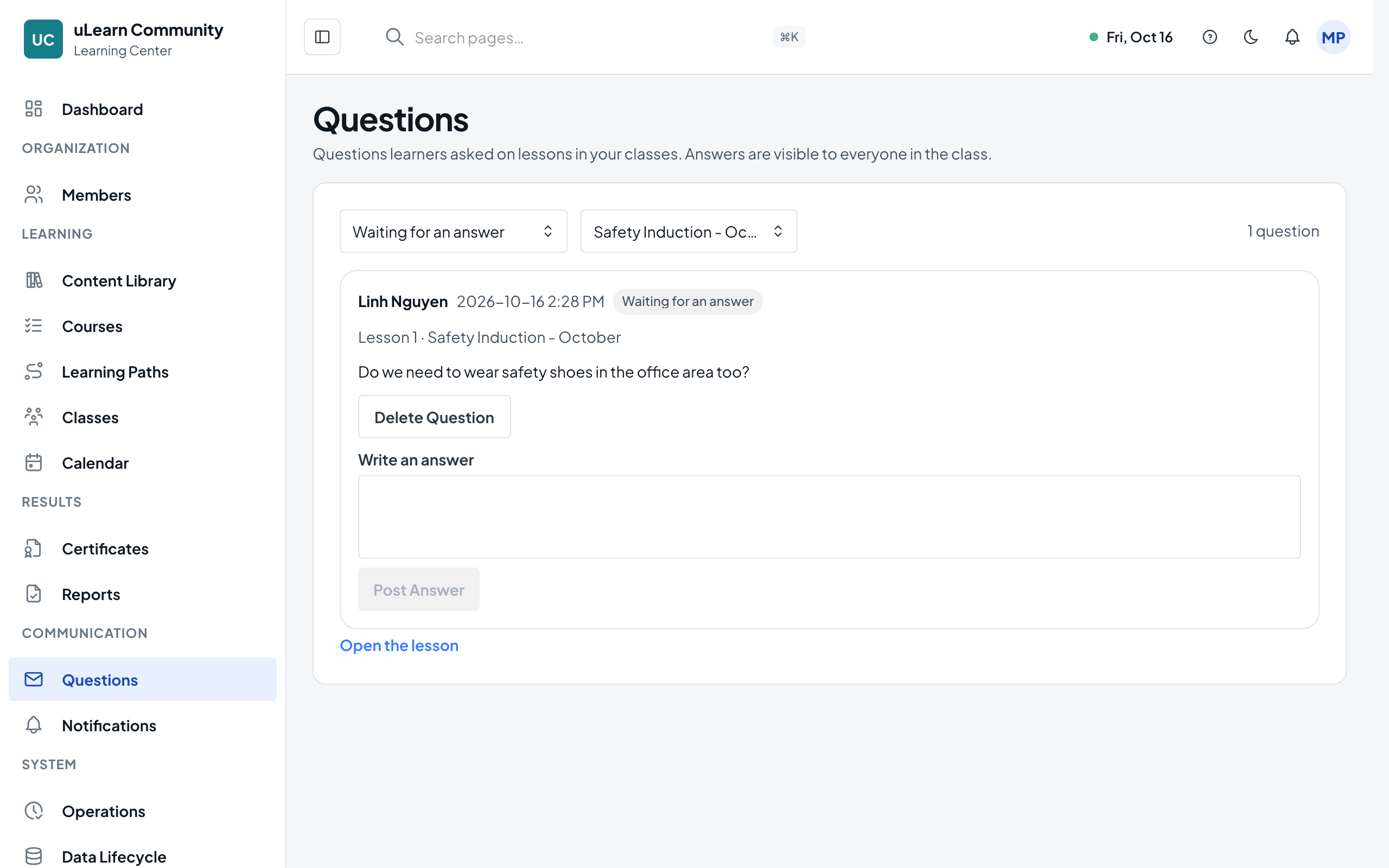
Choose Questions under Communication in the menu. Questions waiting for an answer are listed first, oldest first, each with its lesson and class.
- 3
Focus the list
Use the status filter to switch between Waiting for an answer, Answered and All questions, and the class filter to see one class. The number of matching questions shows on the right.
- 4
Post your answer
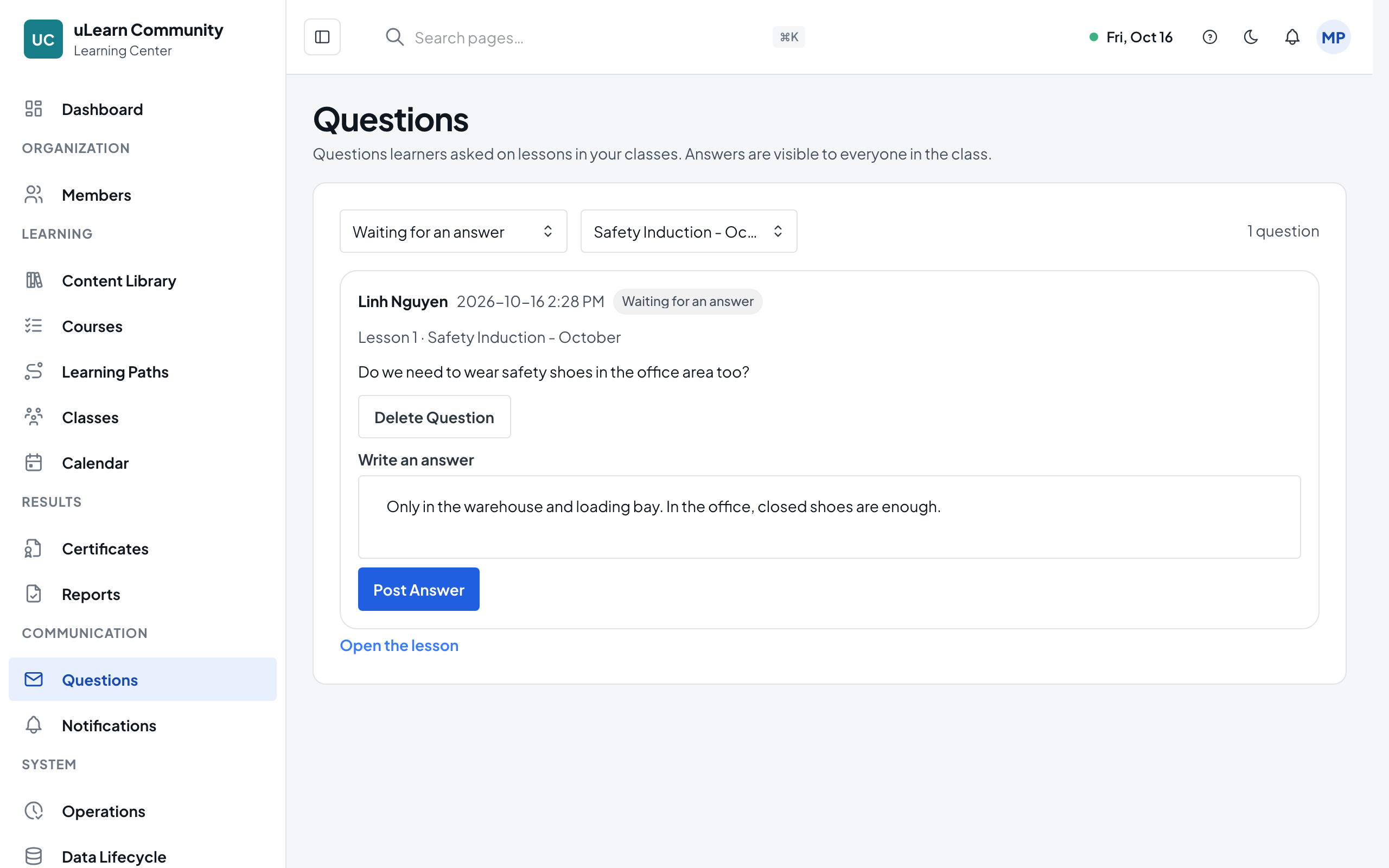
Type in Write an answer under the question and choose Post Answer. You see Answer posted., and the question moves to Answered.
- 5
See it in the lesson
Choose Open the lesson to open the lesson in the player, where the same questions and answers appear under Questions.
- 6
Edit or remove an answer
Find the question under Answered. Edit Answer lets you change the text and Save Answer. Delete Answer removes it; when no answer is left, the question goes back to Waiting for an answer.