Brand your learning center
Give your learning center its own name, description, contact email, colors and logo, so its sign-in page and screens look like your school or organization.
- 1
Open Settings
You need to be the center owner or have a role that lets you configure the center, such as Center Manager or Center Administrator. In the management area, open Settings in the sidebar; the Branding tab opens first.
- 2
Set the name and description
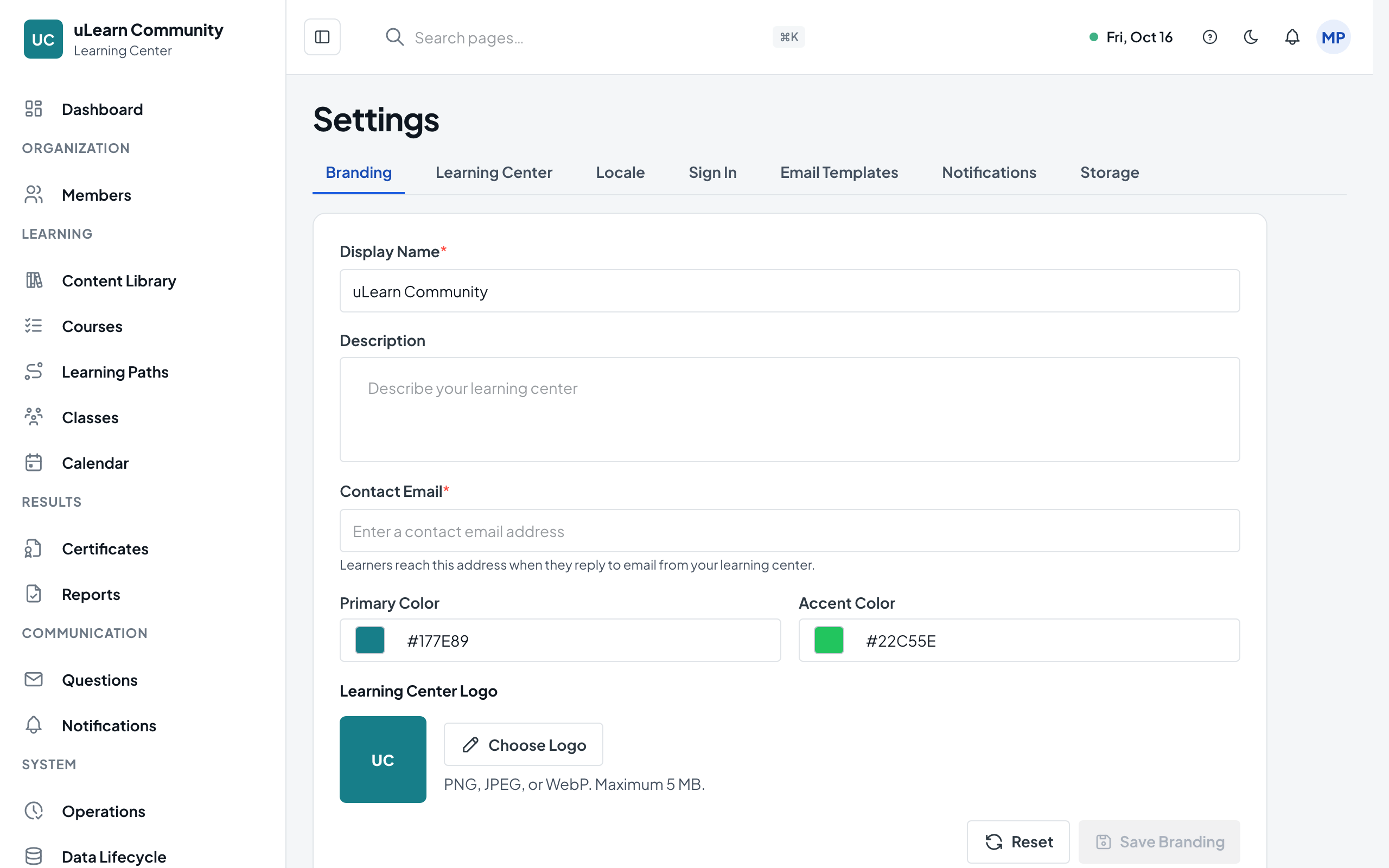
Enter Display Name, which is required, and an optional Description. They appear on your center’s sign-in page, in the page header and on the center’s card on My Dashboard.
- 3
Add a contact email
Enter Contact Email. When learners reply to an email from your learning center, the reply goes to this address.
- 4
Choose your colors
Type a six-digit color code such as #1A4D8F in Primary Color and Accent Color, or select the color swatch to pick one. Save stays off while a code is incomplete.
- 5
Upload your logo
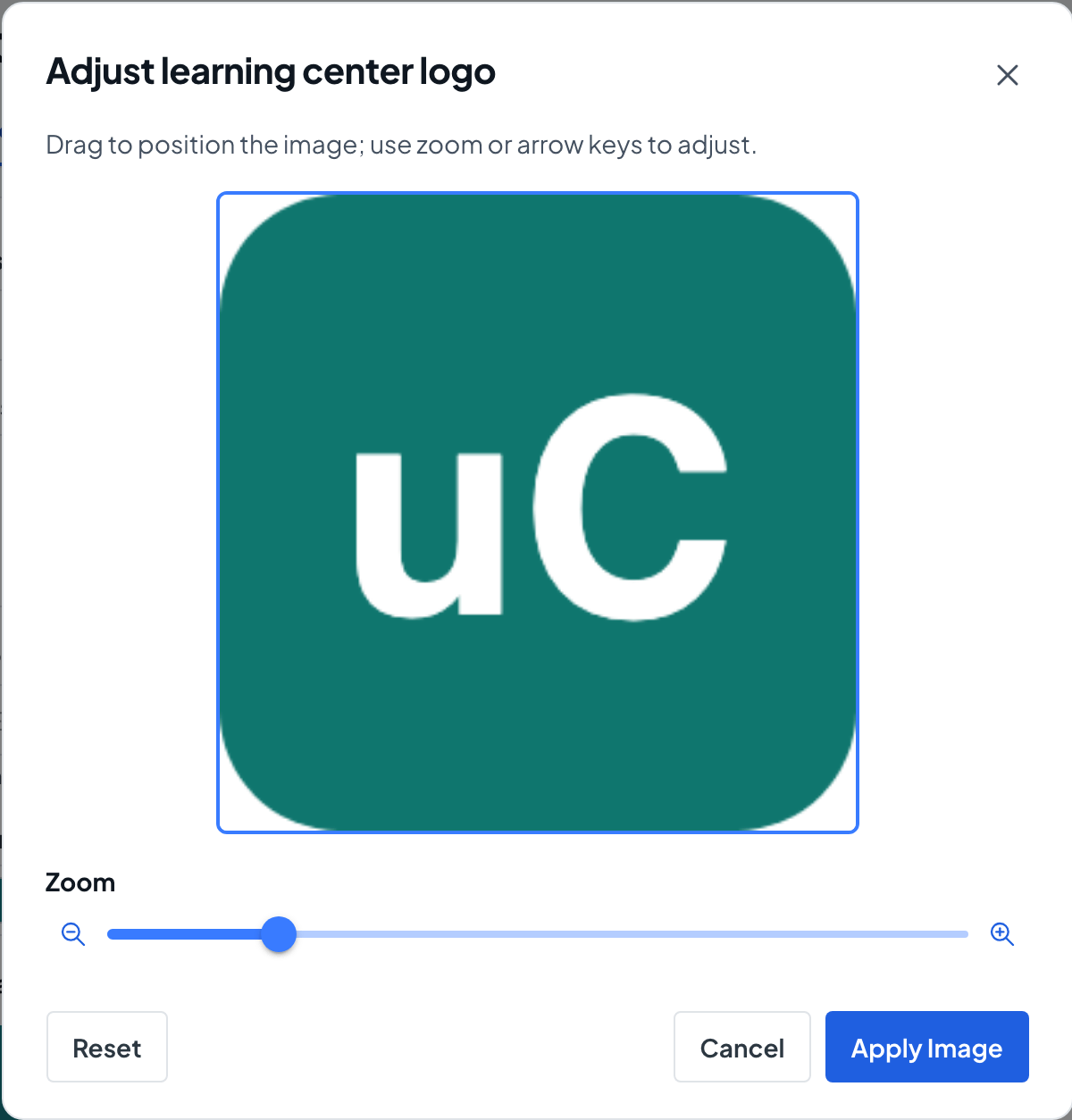
Select Choose Logo and pick a PNG, JPEG or WebP image of up to 5 MB. Adjust it in the Adjust learning center logo dialog, then select Apply Image.
- 6
Save your branding
Select Save Branding and you see Branding saved. Reset discards every change you have not saved yet.
- 7
Check your address
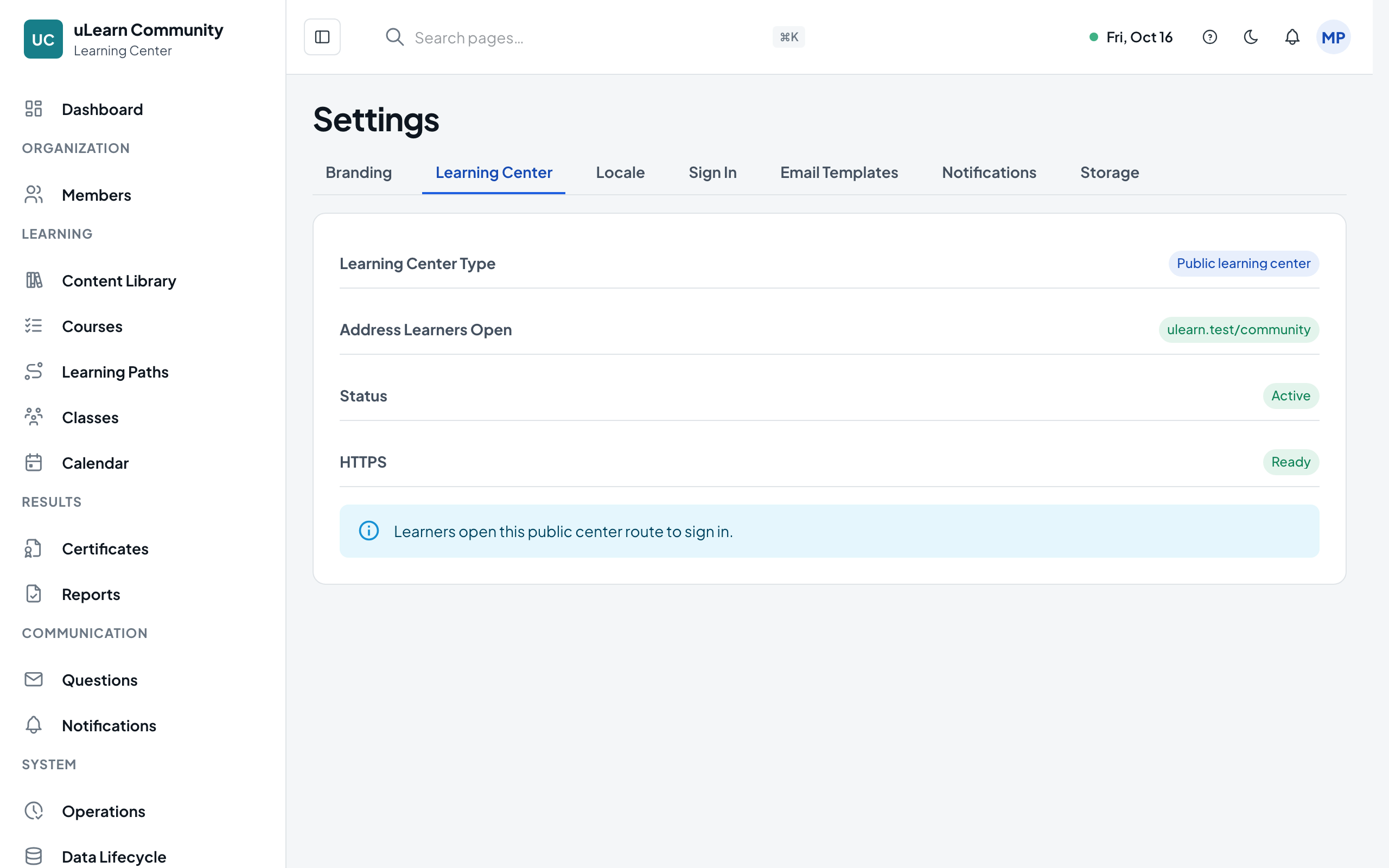
Open the Learning Center tab to see the Learning Center Type, the Address Learners Open and its Status. Share that address with your members.