Assign a self-paced course
Give people or a group a published course to study at their own pace, with optional start and due dates, then follow their progress.
- 1
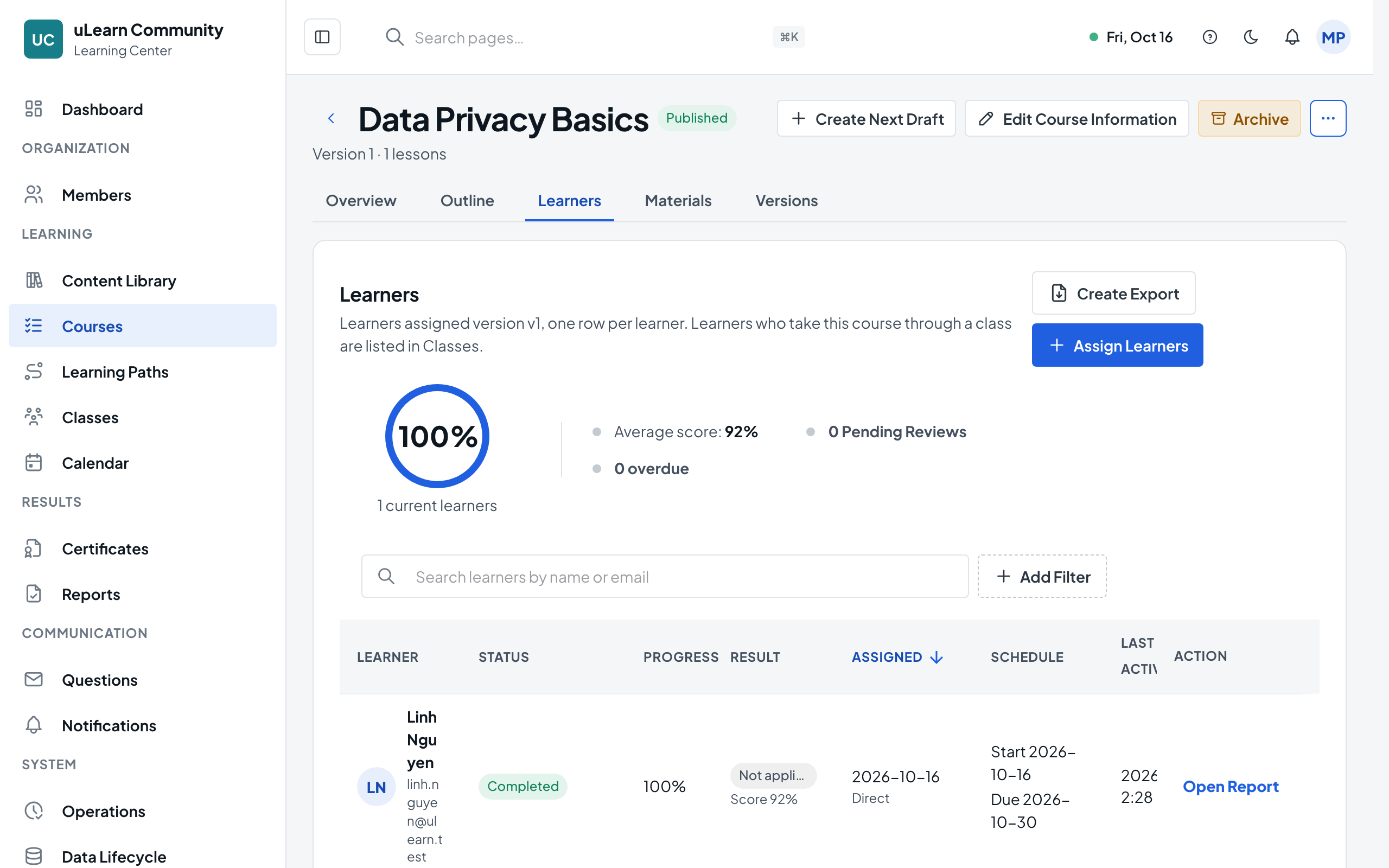
Open the course
Choose Courses in the menu, search for the course and choose Open. You need permission to assign courses, which Center Managers, Center Administrators and Learning Managers have.
- 2
Go to the Learners tab
Select Learners. It lists everyone assigned this version, one row per learner, under a progress summary. If the open version is still a draft, a message asks you to publish it first.
- 3
Choose who to assign
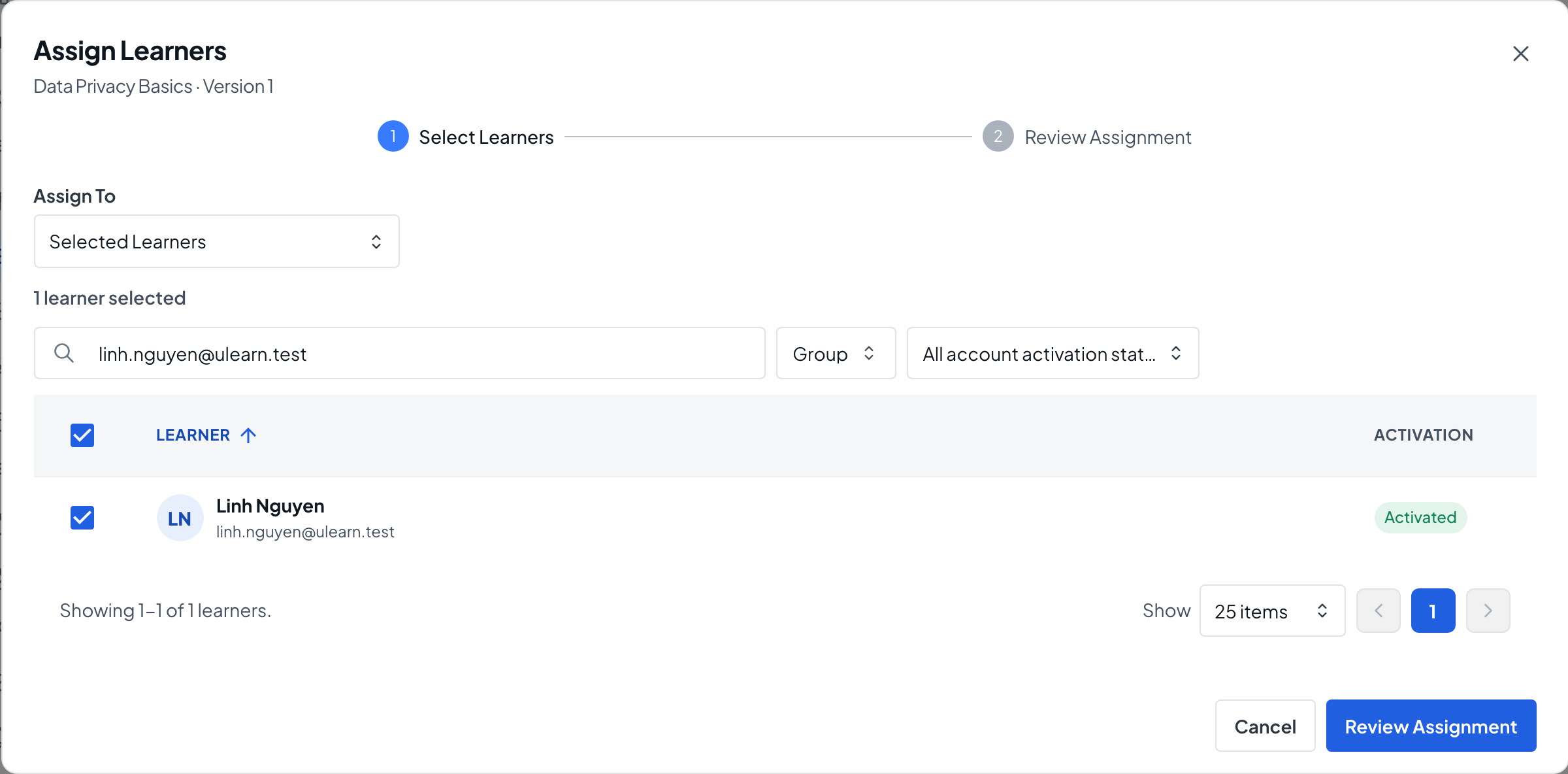
Choose Assign Learners. With Assign To set to Selected Learners, tick people from the list; search by name, email or internal ID, or filter by group. To assign a whole group, set Assign To to Group and choose the group.
- 4
Review the list
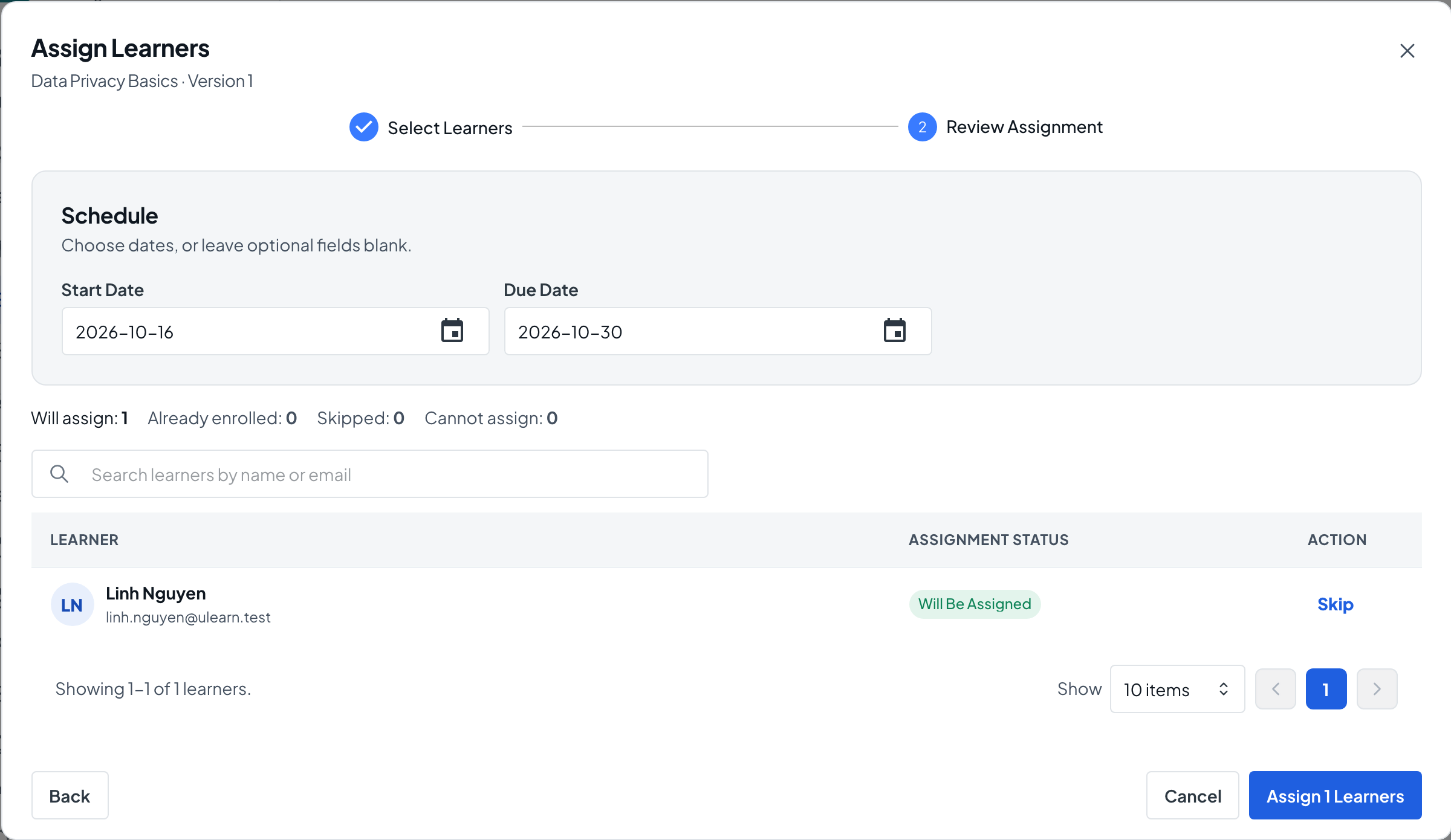
Choose Review Assignment. The preview counts who Will assign, who is Already enrolled, who is Skipped and who you Cannot assign, with one row per learner.
- 5
Set the dates
Under Schedule, set an optional Start Date and Due Date. A Due Date is required when the course contains manual assignment lessons.
- 6
Confirm the assignment
Choose the Assign button that shows how many learners will be assigned, then Assign Learners in the Assign Course confirmation. The learners appear in the list as Not started.
- 7
Follow progress
Search and filter the list by status, result, source and due date. Open Report opens a learner’s course report, More actions offers View History and Cancel Access, and Create Export starts an Excel or CSV export.