View and export reports
For owners, administrators and anyone with a report role: open the progress report of a class, course or learning path, drill down to one learner, then export it to Excel or CSV or email a learner their own report.
- 1
Open Reports
In the sidebar, under Results, select Reports. You only see Reports if your role includes report access, and you only see the classes, courses and learning paths your role covers.
- 2
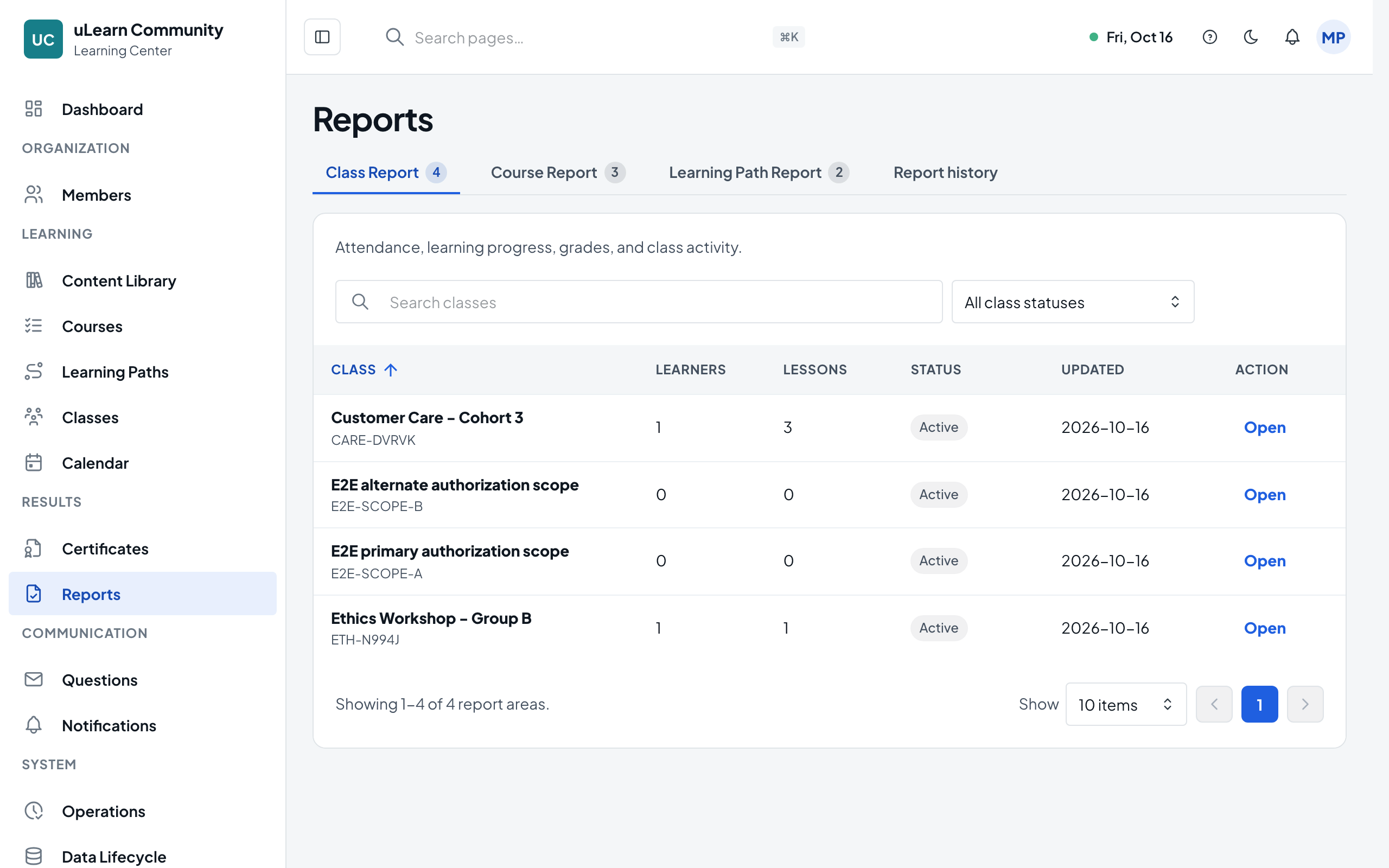
Choose a report type
Pick a tab: Class Report, Course Report or Learning Path Report. Each tab lists what you can report on, with search, filters and a count in the tab name.
- 3
Open a report
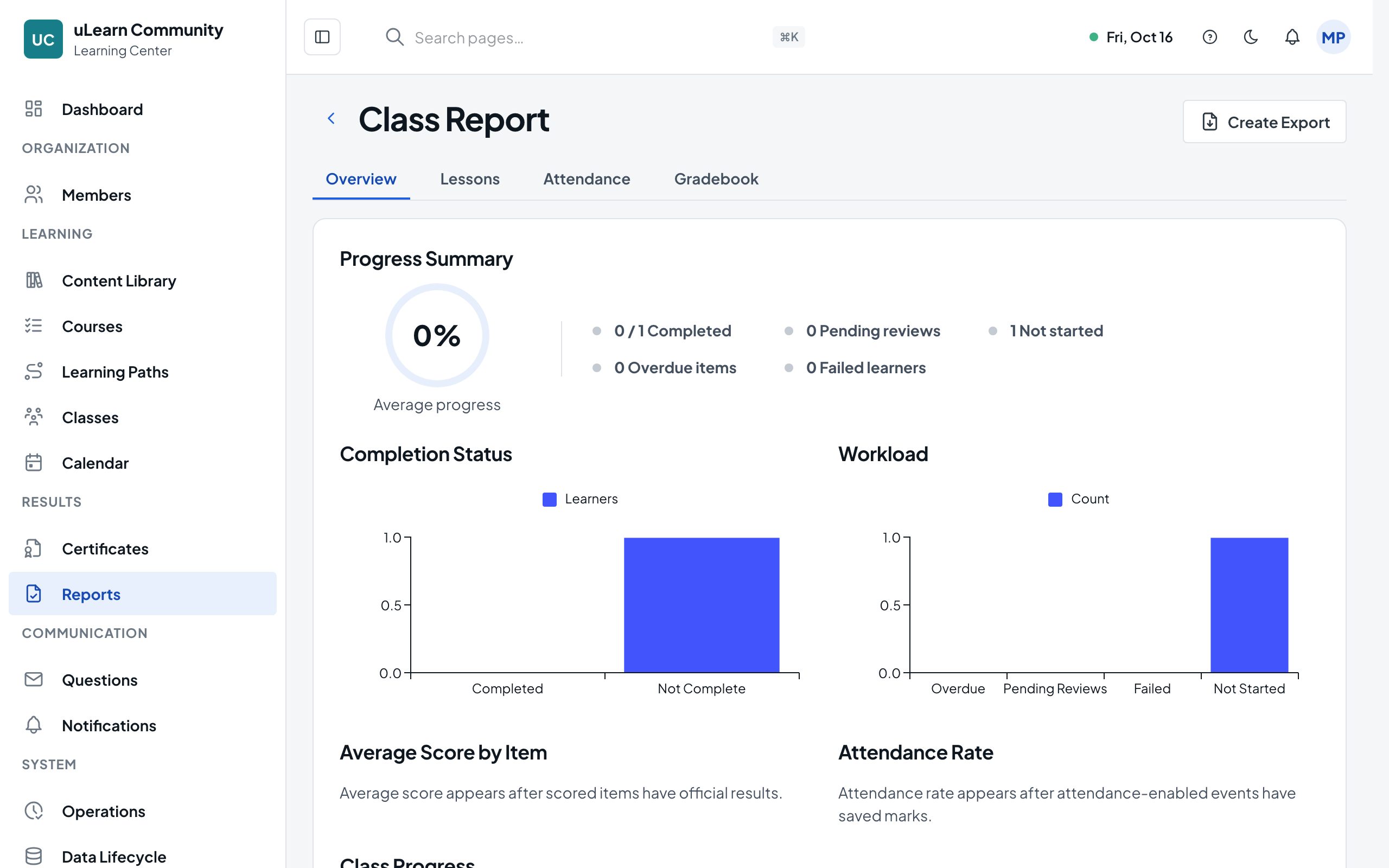
Search for the class, course or learning path and select Open on its row. A Class Report has the sections Overview, Lessons, Attendance and Gradebook; Course and Learning Path reports start with a progress summary and a learner list.
- 4
Filter the learner list
Search learners by name or email, or narrow the list with filters such as Status. The filters change only the learner list, not the summary at the top.
- 5
Look at one learner
Select Open on a learner’s row to see their detail page with every lesson, its status, score and result. Back to Class Report (or the matching Back button) returns you to the report.
- 6
Email a learner their report
On the learner detail page, select Send Report. The dialog shows the address it goes to (always the learner’s own account email); select Send Report again and you see Report email queued.
- 7
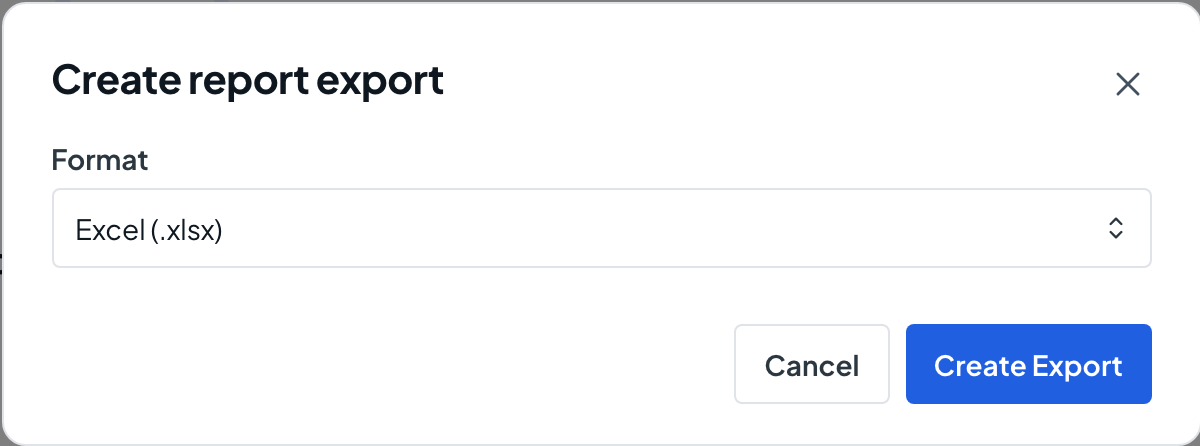
Create an export
In an open report, select Create Export, choose Excel (.xlsx) or CSV (.csv) under Format, and select Create Export. You see Export started with a View exports link.
- 8
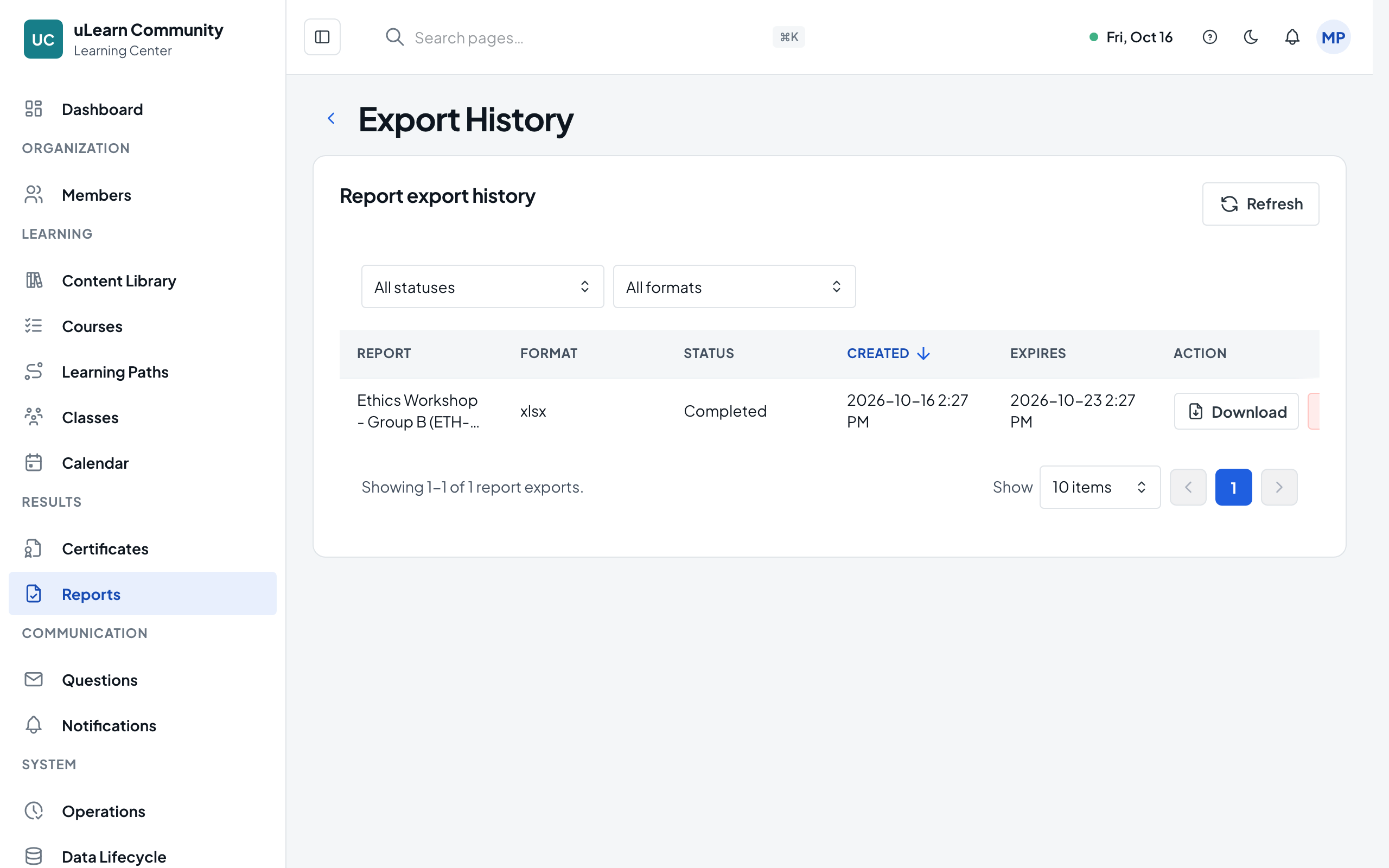
Download the file
View exports opens Export History. When the row shows Completed, select Download. Each file has an expiry date, and Delete removes a file you no longer need.