Check whether a certificate is genuine
For employers, schools and anyone shown a uLearnBox certificate: open its verification page to see whether it’s valid, without signing in.
- 1
Get the verification link
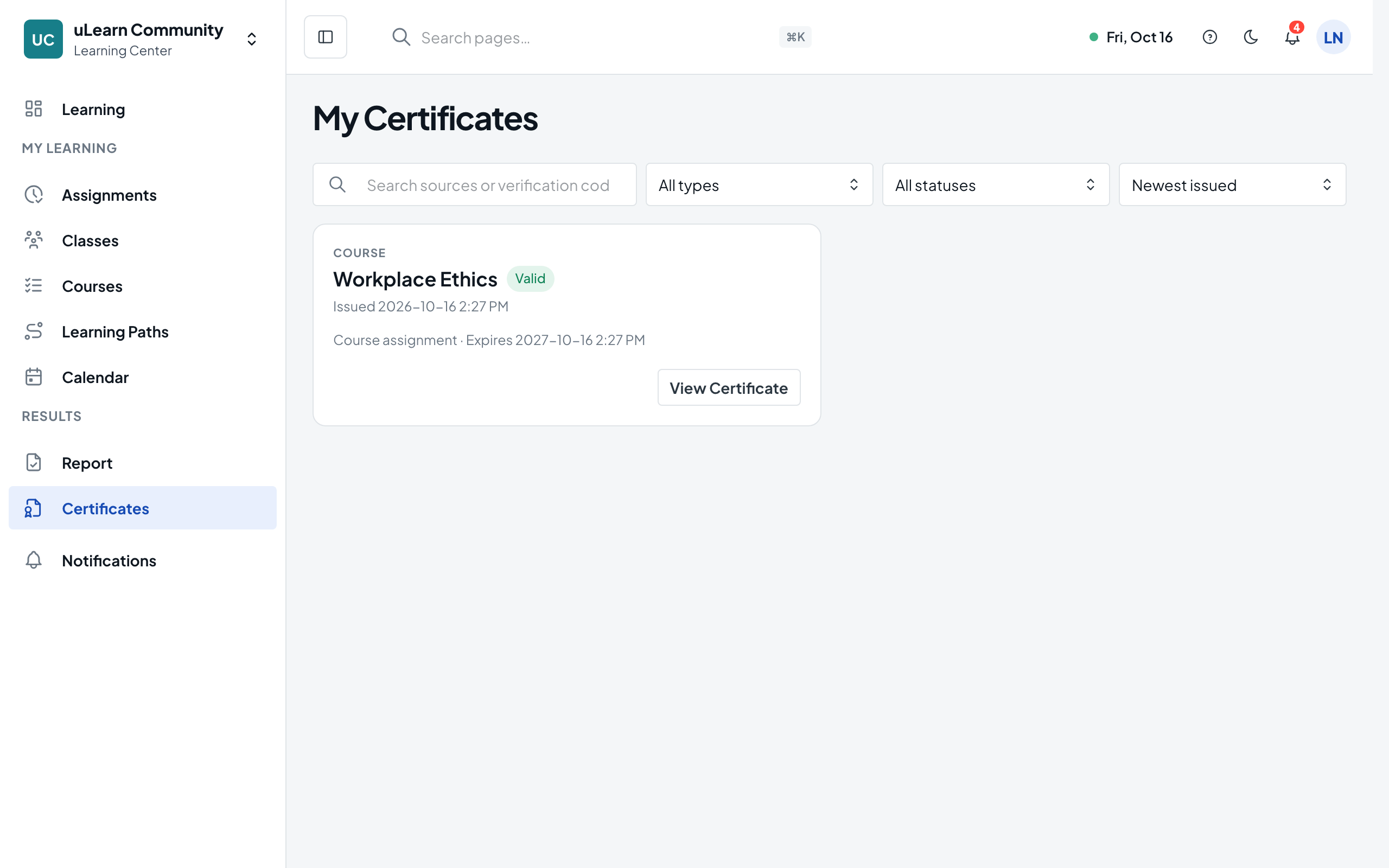
Learners open it from My Learning, Certificates by selecting View Certificate, then share the page address. Administrators find the same View Certificate action on the Issued tab of Certificates.
- 2
Or scan the QR code
If the certificate carries a verification QR code, scan it with a phone camera. It opens the same page.
- 3
Look at the certificate
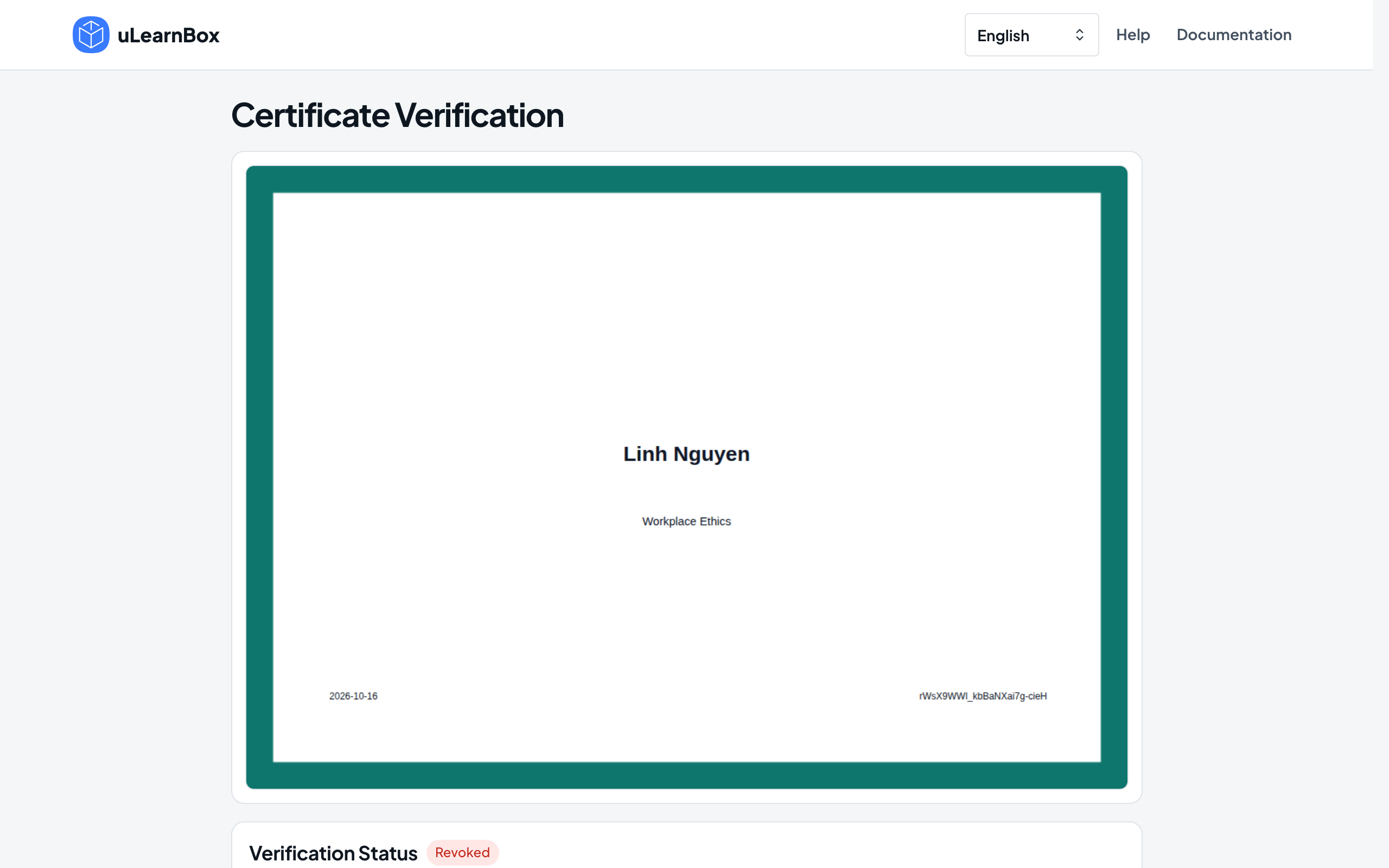
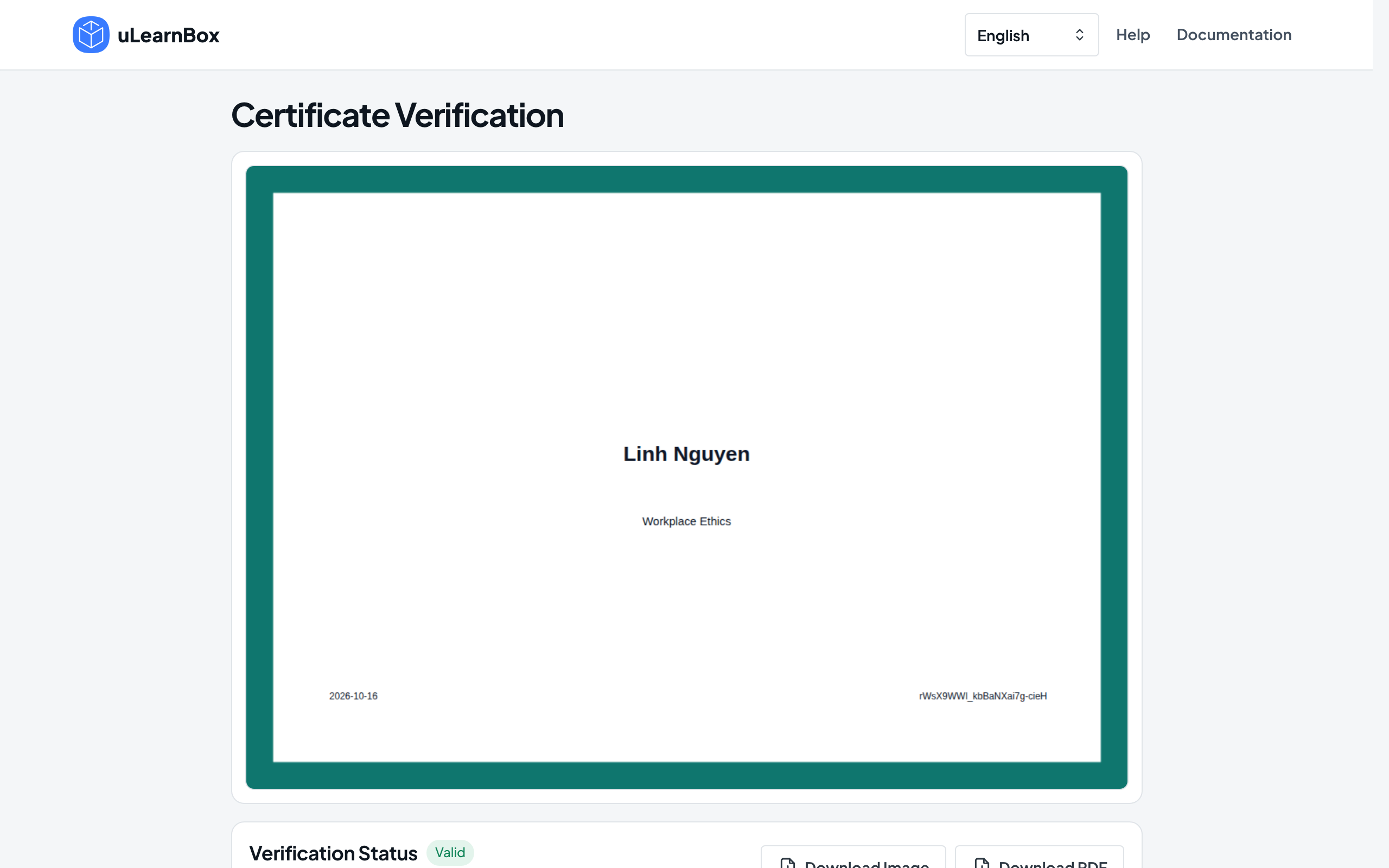
The Certificate Verification page opens without signing in and shows the certificate as it was issued. If its files are still being prepared, select Check Again after a moment.
- 4
Read the status
Next to Verification Status you see Valid, Expiring, Expired, Renewed or Revoked, with the certificate’s code below. Renewed means a newer certificate replaced this one; Revoked means the learning center withdrew it.
- 5
Download a copy if needed
For a Valid, Expiring or Expired certificate you can select Download Image or Download PDF. Renewed and revoked certificates offer no download.