
Use the class gradebook
See every learner’s lesson and assignment results for a class in one table, open any result, and correct it when needed.
- 1
Open the Gradebook tab
In Classes, open your class and select Gradebook. The tab appears once the class is no longer a draft and you can view the class’s reports, which the Instructor role includes.
- 2
Read the table
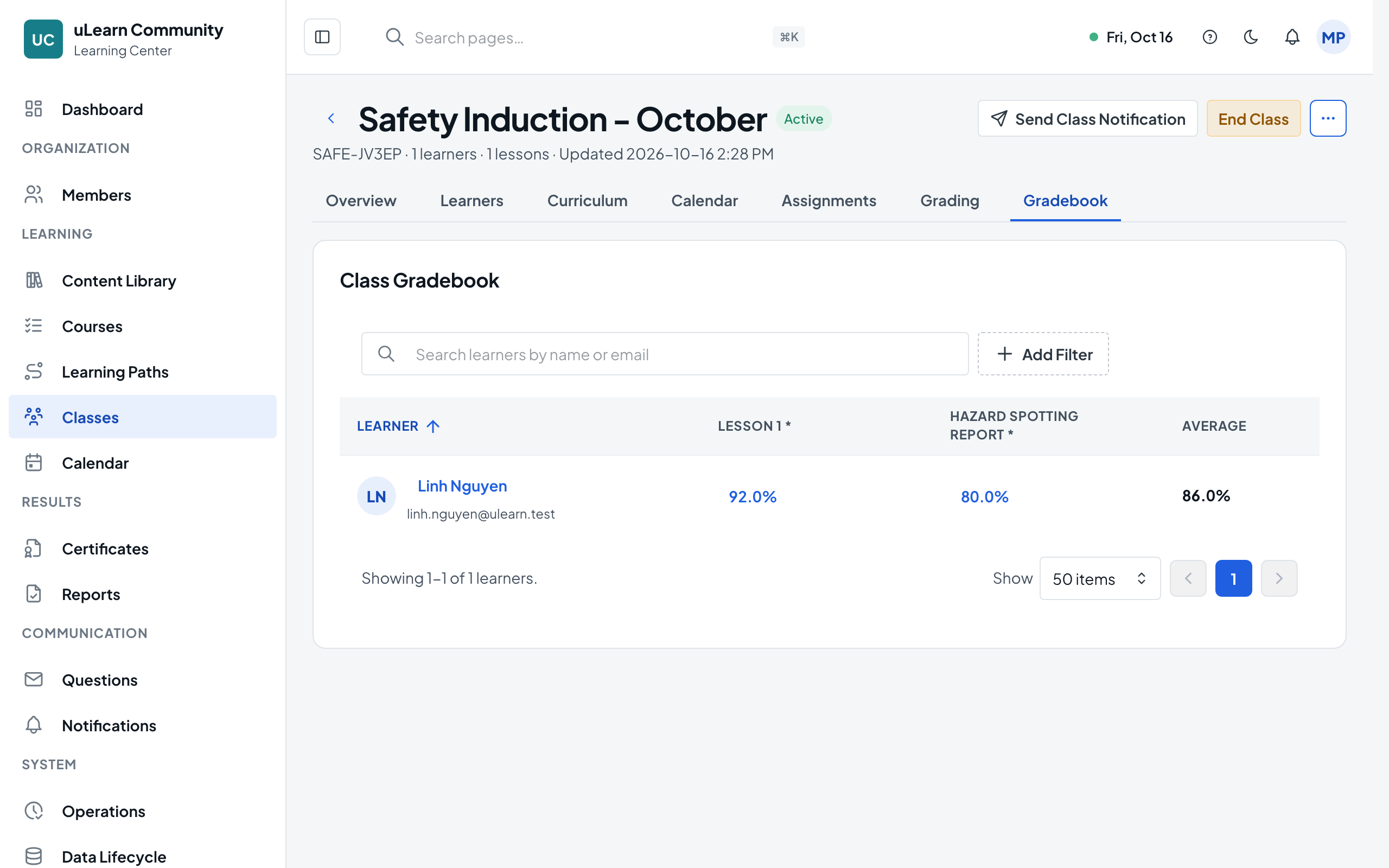
Class Gradebook shows one row per learner and one column per lesson and class assignment, with required items marked *. The Average column averages all scored items.
- 3
Narrow it down
Search learners by name or email. Gradebook Items and Item Type choose which columns you see, and Advanced Filters narrows learners by completion, grading status, average, activity and due state.
- 4
Open a result
Click a score in the table. Result detail opens inside the learner’s class record and shows the official score and status.
- 5
Override a result
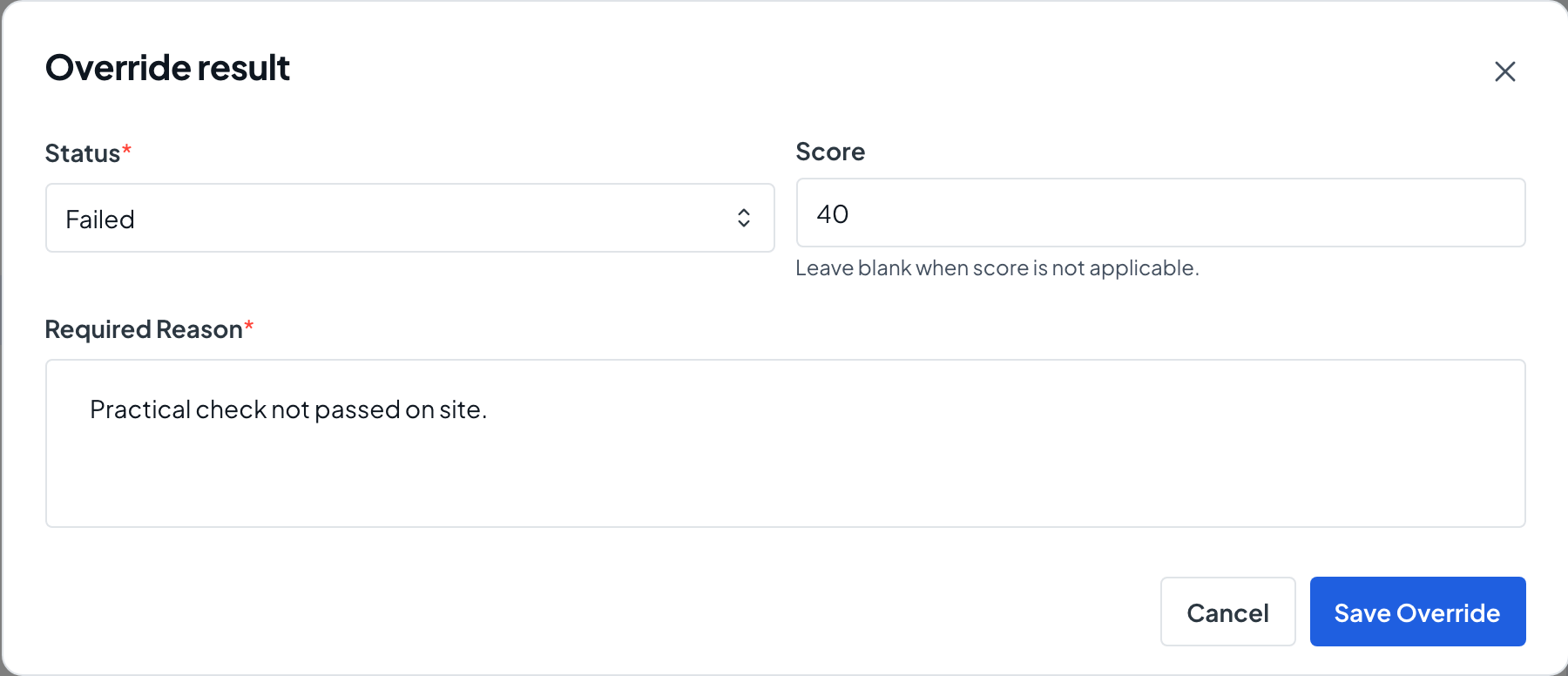
Choose Override Result, set the Status and a Score from 0 to 100 (or leave it blank), enter a Required Reason and choose Save Override. The table then shows the new score with an Override label, and the learner sees it too. Remove Override brings back the original result.
- 6
Give another attempt
For a lesson result, Request Retake asks the learner to take the lesson again, and Grant Extra Attempt adds attempts. Each needs a reason, and you can cancel the retake or revoke unused attempts later. Override, retake and extra attempts need permission to adjust grades, which the Instructor role does not include.
- 7
Go back to the table
Choose Back to learner detail, then Back to Gradebook. Clicking a learner’s name in the table opens that learner’s full record in the class instead.