
Add learners to a class
Put existing members into a class, or let new people join with a link, code or QR code, and keep the class roster up to date.
- 1
Open the class’s Learners tab
Choose Classes in the menu, find the class with the search box and choose Open, then select the Learners tab. Adding learners needs permission to manage the class’s learners; the built-in Instructor role does not include it, so ask an administrator if you don’t see the buttons.
- 2
Choose Add Existing Members
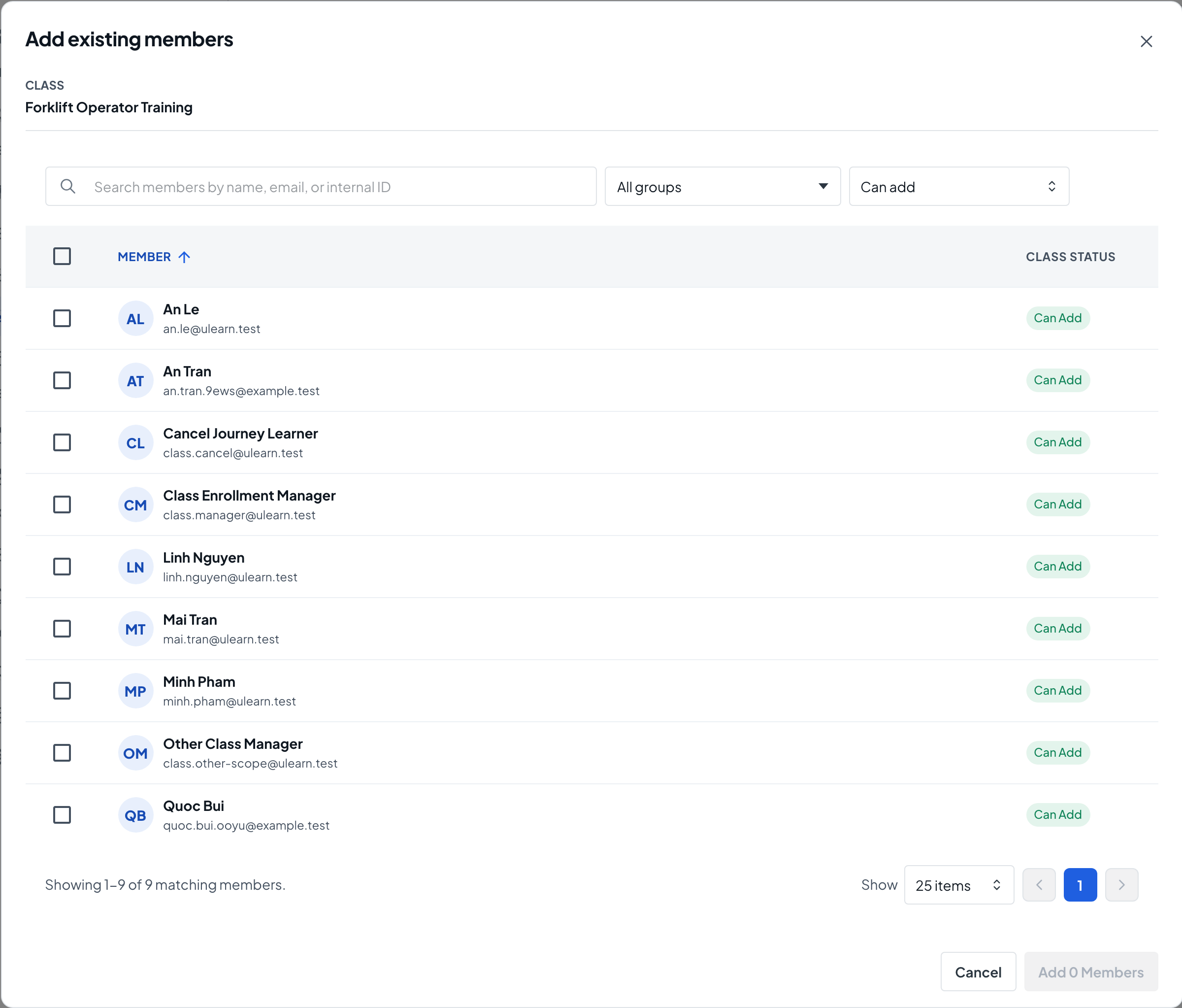
A dialog lists the members of your learning center. Each row shows whether the person Can Add, is Already in Class, or has a Join Pending request.
- 3
Find the people you need
Search by name, email or internal ID, or narrow the list with the group filter and the class status filter. In an Organization learning center you can also filter by department. Choosing a group only filters the list; it never adds the whole group.
- 4
Select them and add
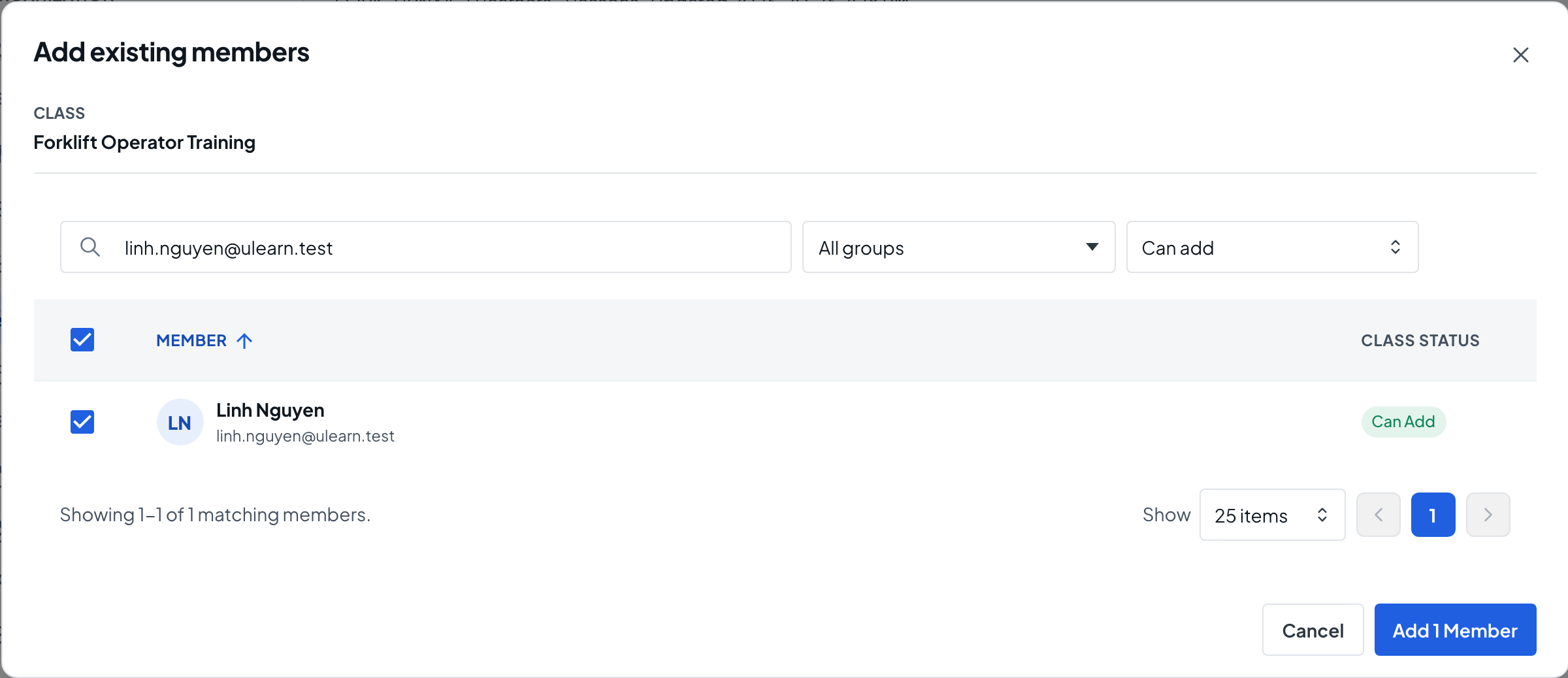
Tick each learner you want; your selection is kept when you search or change pages. Choose the Add members button, which shows how many you picked. You see Selected learners added to the class., and the new learners appear under Enrolled Learners.
- 5
Share a join link (Public learning center)
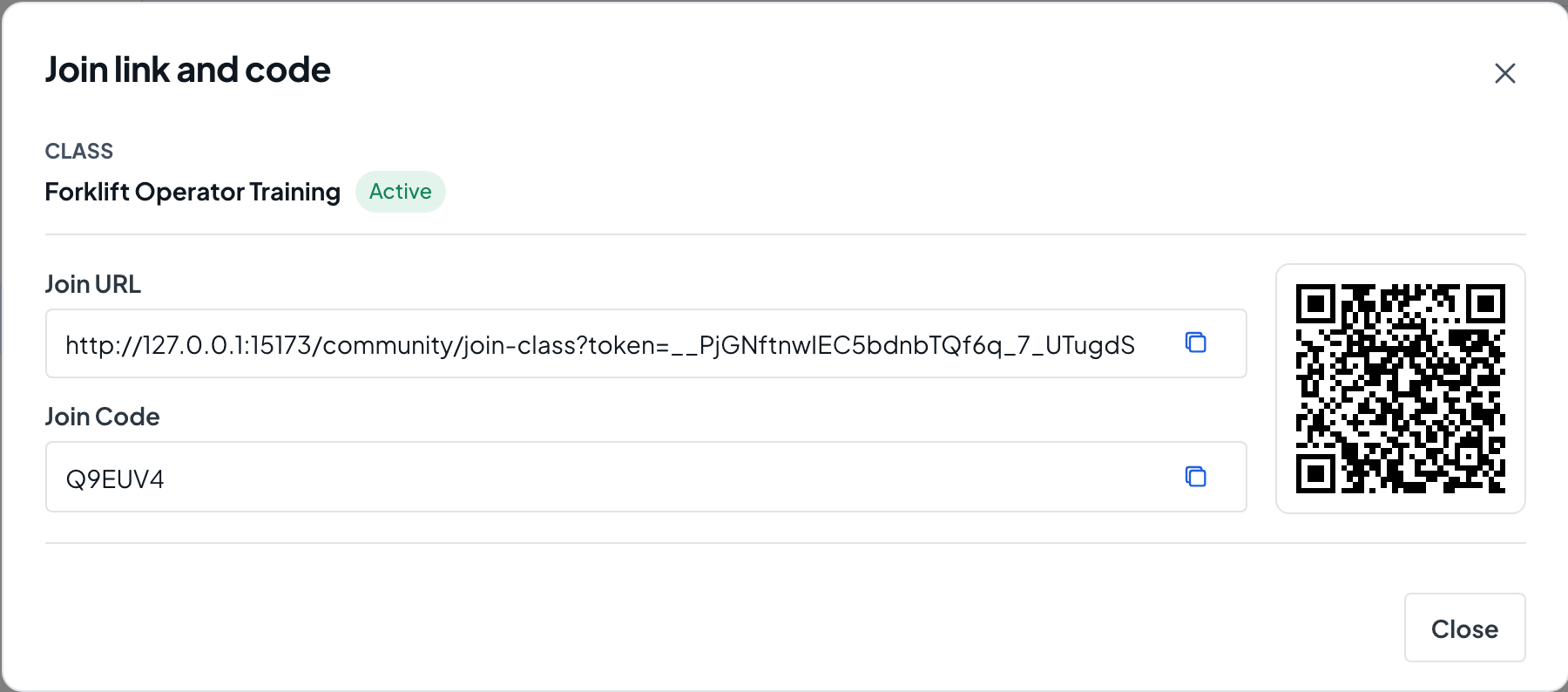
For people who are not members yet, choose Join Link/Code. Turn on Require Approval if you want to admit each person, set an optional Class Size Limit, then choose Generate Link And Code. Use Copy Link or Copy Code, or share the QR code.
- 6
Approve join requests
When approval is on, a Join Requests button with the number of waiting requests appears next to Add Existing Members. Open it and choose Approve, or Decline from More actions.
- 7
Keep the roster tidy
In the learner table, Open shows a learner’s record in this class. More actions on a row offers Transfer Enrollment to move the learner to another class and Cancel Enrollment to remove them from this one.