
Update a class to a new course version
Move a running class to the newest published version of its course or learning path, while it keeps its learners, calendar, attendance and history.
- 1
Check the Curriculum tab
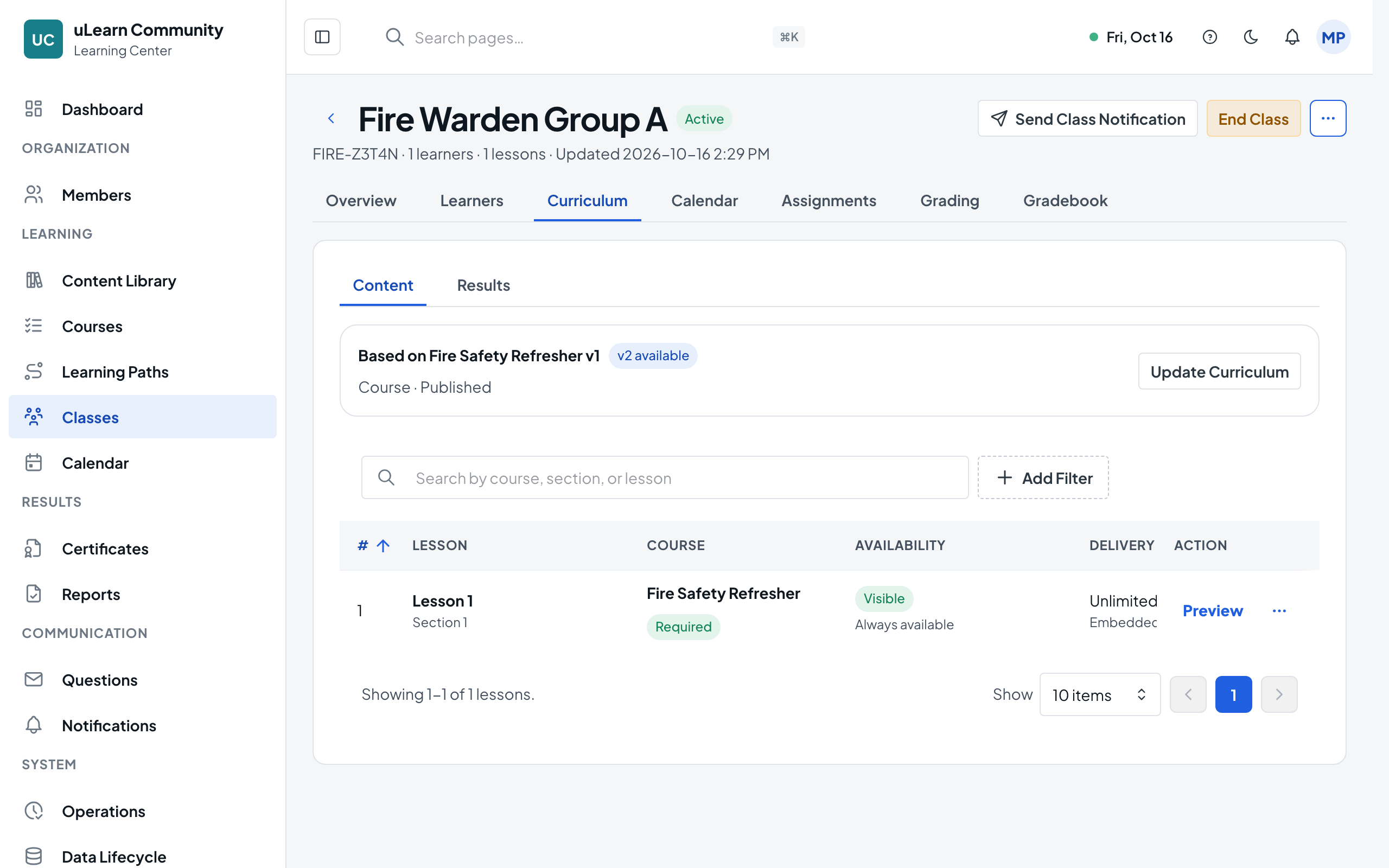
Open the class and select Curriculum. It shows which version the class is based on and, when a newer one is published, a chip saying that version is available. Only Center Managers, Center Administrators and the Owner can run the update.
- 2
See what changed
Choose View Changes for a read-only list of added, removed, renamed and moved lessons, changed materials and scoring changes. For a learning path class, only a newer path version counts as an update.
- 3
Set up the update
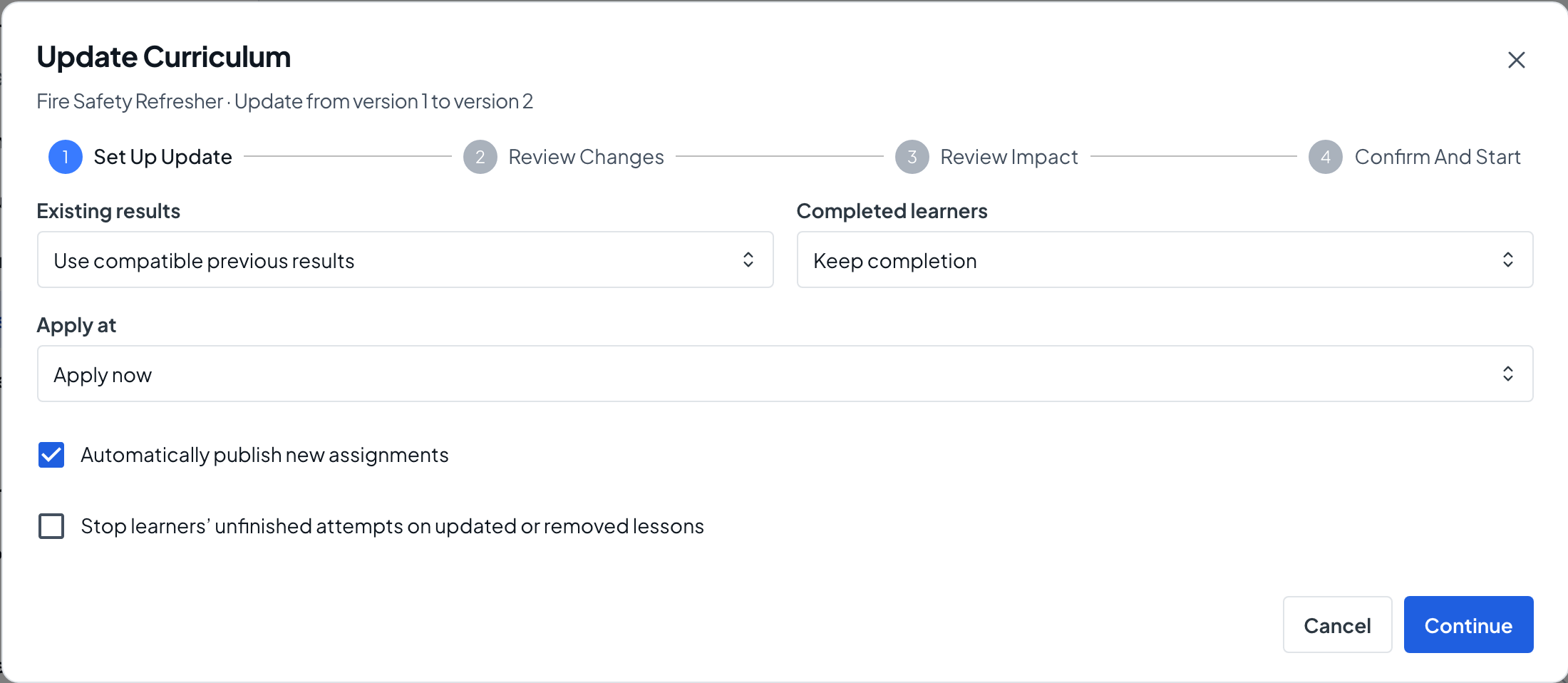
Choose Update Curriculum. In Set Up Update, choose how Existing results are handled, whether Completed learners keep their completion, and whether to Apply now or Apply at a time, then choose Continue.
- 4
Review the changes
Review Changes lists each changed lesson or assignment. Items marked Decision required need Edit decision and Save Decision before you can continue.
- 5
Review the impact
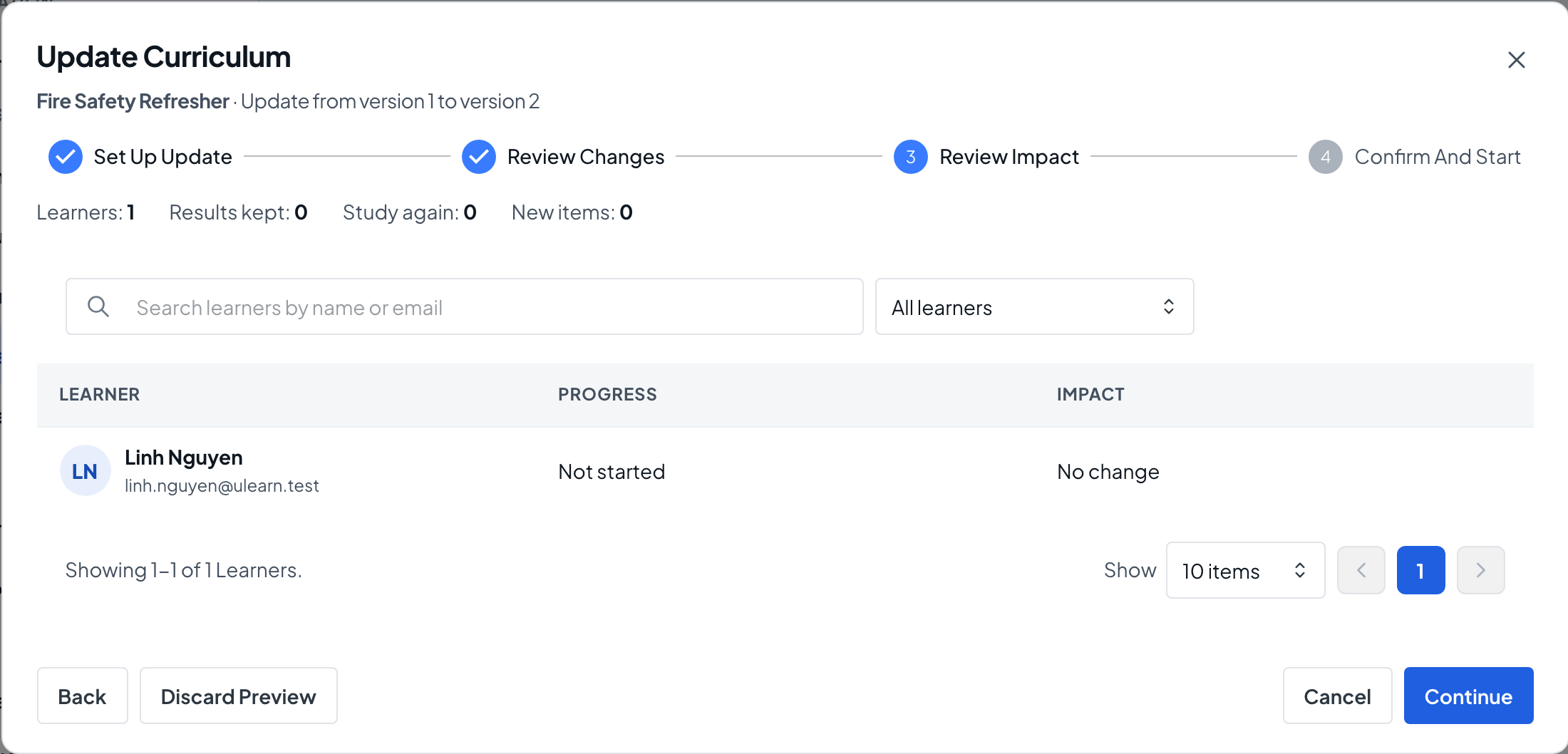
Review Impact counts the learners, results kept, items to study again and new items, and lists each learner’s progress before and after. A warning shows when unfinished attempts block the update.
- 6
Confirm and start
Enter a Reason for update and, if asked, confirm that previous results will be used across changed content. Choose Confirm And Start; Update Status then shows Update completed, or the time the update is scheduled for.
- 7
Check the class
The Curriculum tab now shows the new version and a curriculum revision number. Curriculum History lists earlier revisions, which stay read-only. Learners receive one notification about the update.