
Add a uPresenter lesson to your library
Export a uPresenter presentation as an xAPI package and upload it to your content library, filed in the right folder and ready to use in a course. You need permission to upload materials.
- 1
Set tracking in uPresenter
Before exporting, set how the presentation counts as completed or passed in uPresenter. uLearnBox records the completion and score the package reports.
- 2
Export an xAPI package
In the uPresenter editor, use its export or download option and choose xAPI. Exporting a package is a uPresenter Pro feature. Keep the ZIP file as it is; do not unzip it.
- 3
Prepare a folder
In Manage Center, open Content Library and the Folders tab, and create a folder for the course or program if you do not have one yet.
- 4
Upload the ZIP
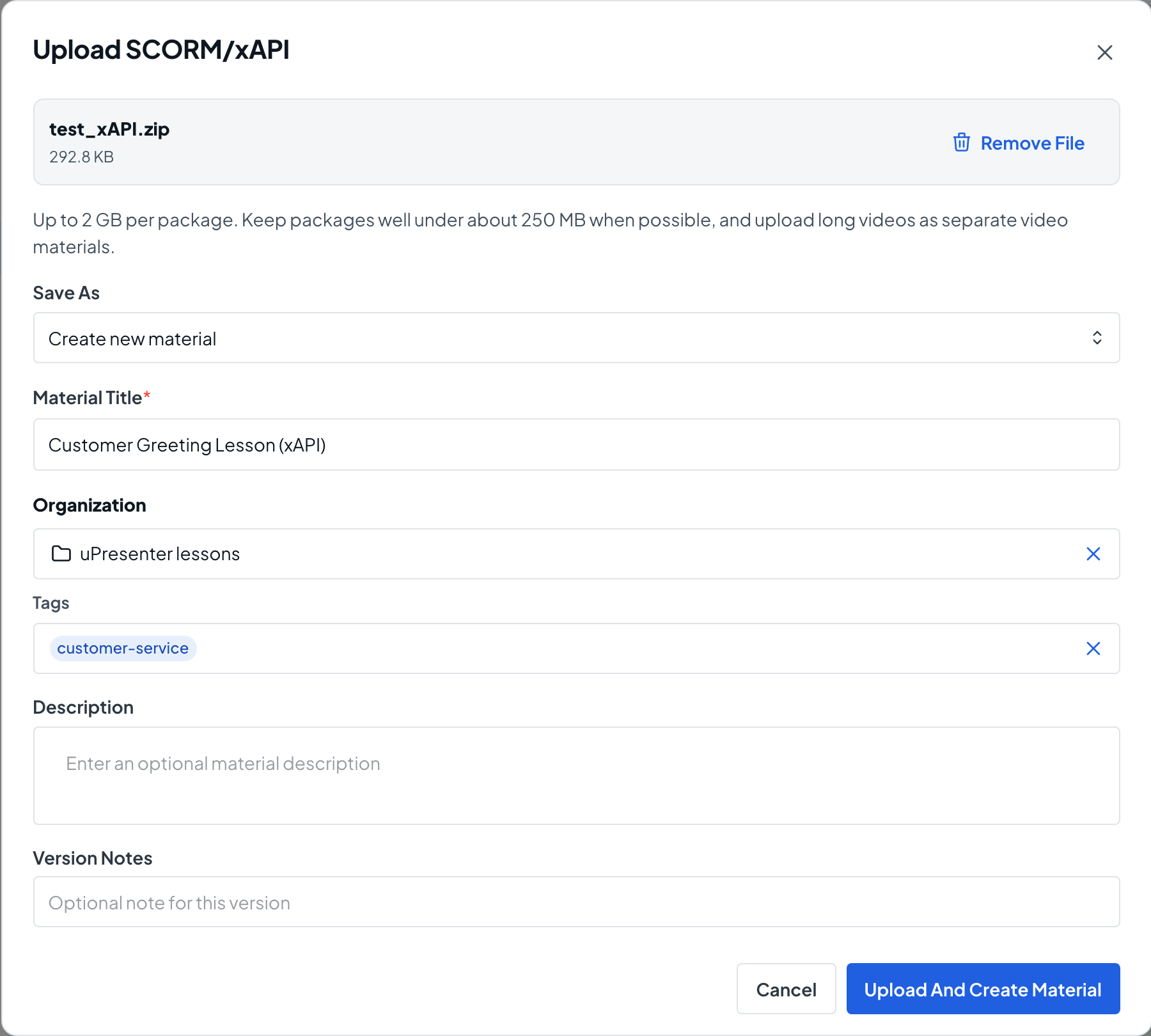
On the Content Library tab, select Upload SCORM/xAPI and choose the ZIP file. The Upload SCORM/xAPI dialog opens with the file name and your center’s size limit.
- 5
Name and file the material
Keep Save As on Create new material, enter a Material Title and an optional Description, then choose the Folder and Tags under Organization. Select Upload And Create Material.
- 6
Wait for Ready and preview
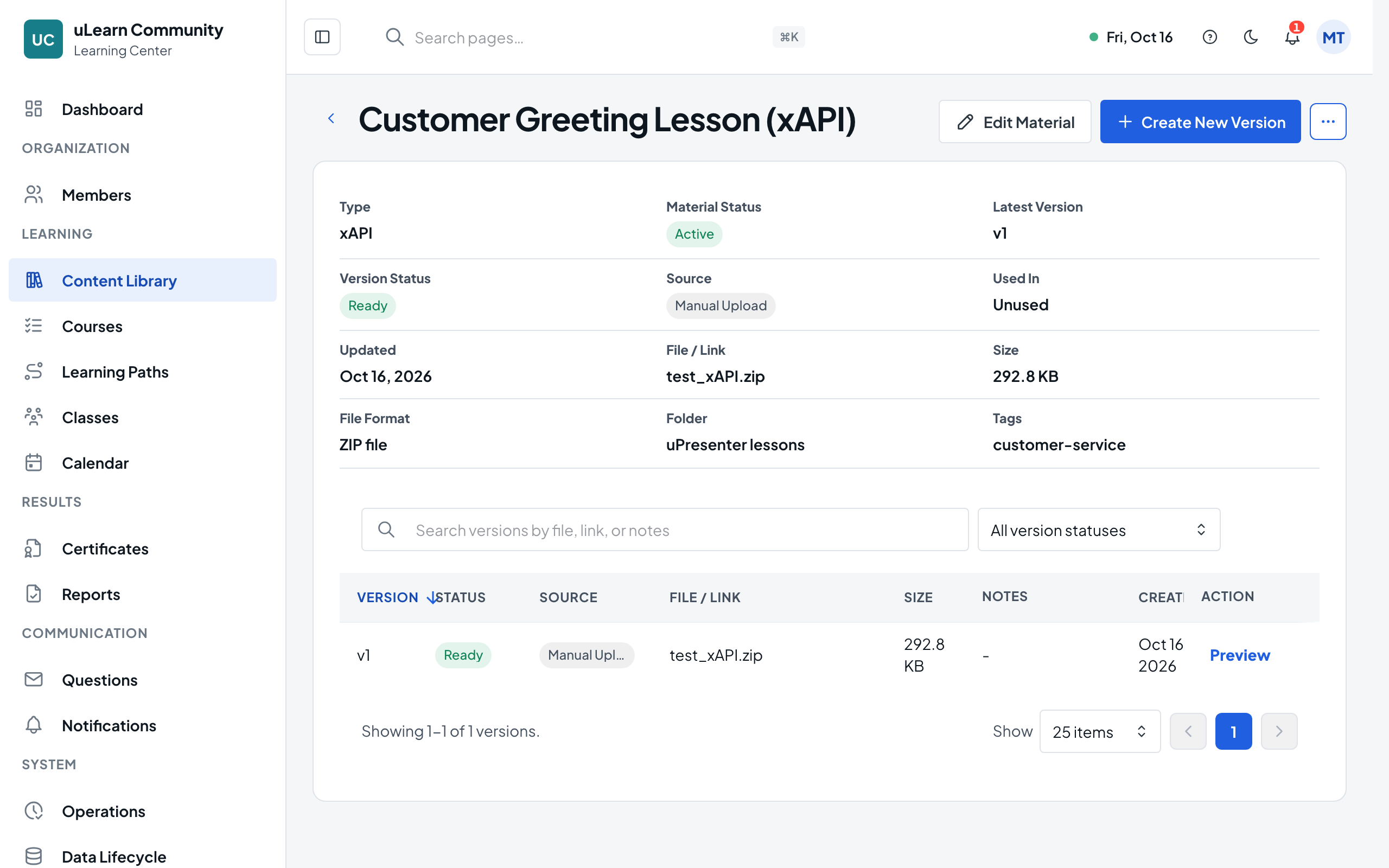
The material page opens with its type shown as xAPI. When the version shows Ready, use Preview in its version list to play it the way learners will.
- 7
Use it in a course
Open a course draft, go to the Outline tab and select Add Material on a section to add it as a lesson, then publish the course.