
Organize the content library
Sort your materials into folders and tags so everyone can find them. The Folders and Tags tabs appear only for people who can organize the whole learning center, such as the Owner and its administrators.
- 1
Open the Folders tab
In Manage Center, choose Content Library, then the Folders tab. You see your folder tree with the number of materials in each folder.
- 2
Create folders
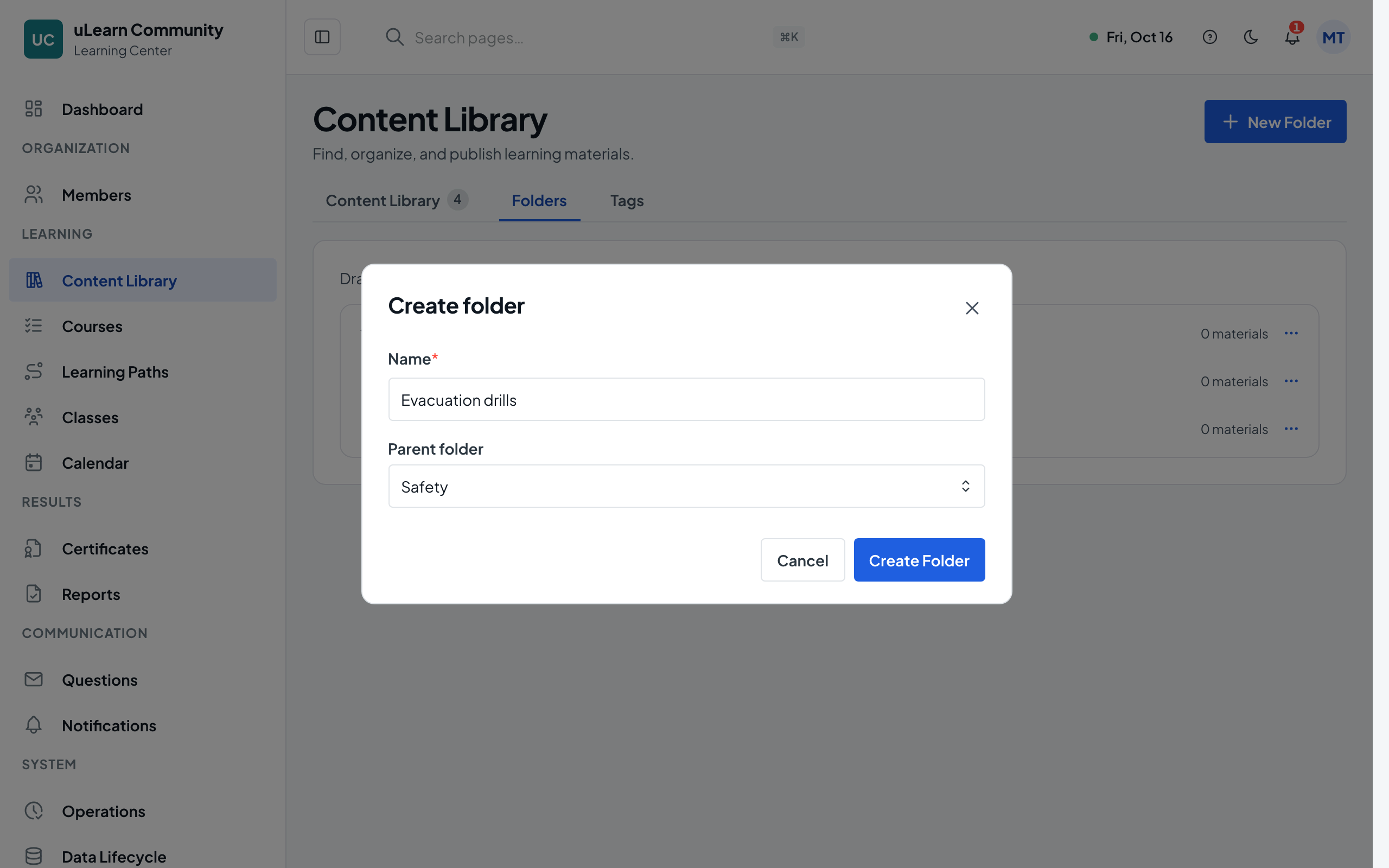
Select New Folder, enter a Name and, for a subfolder, choose its Parent folder, then select Create. Two folders with the same parent cannot share a name.
- 3
Rearrange the tree
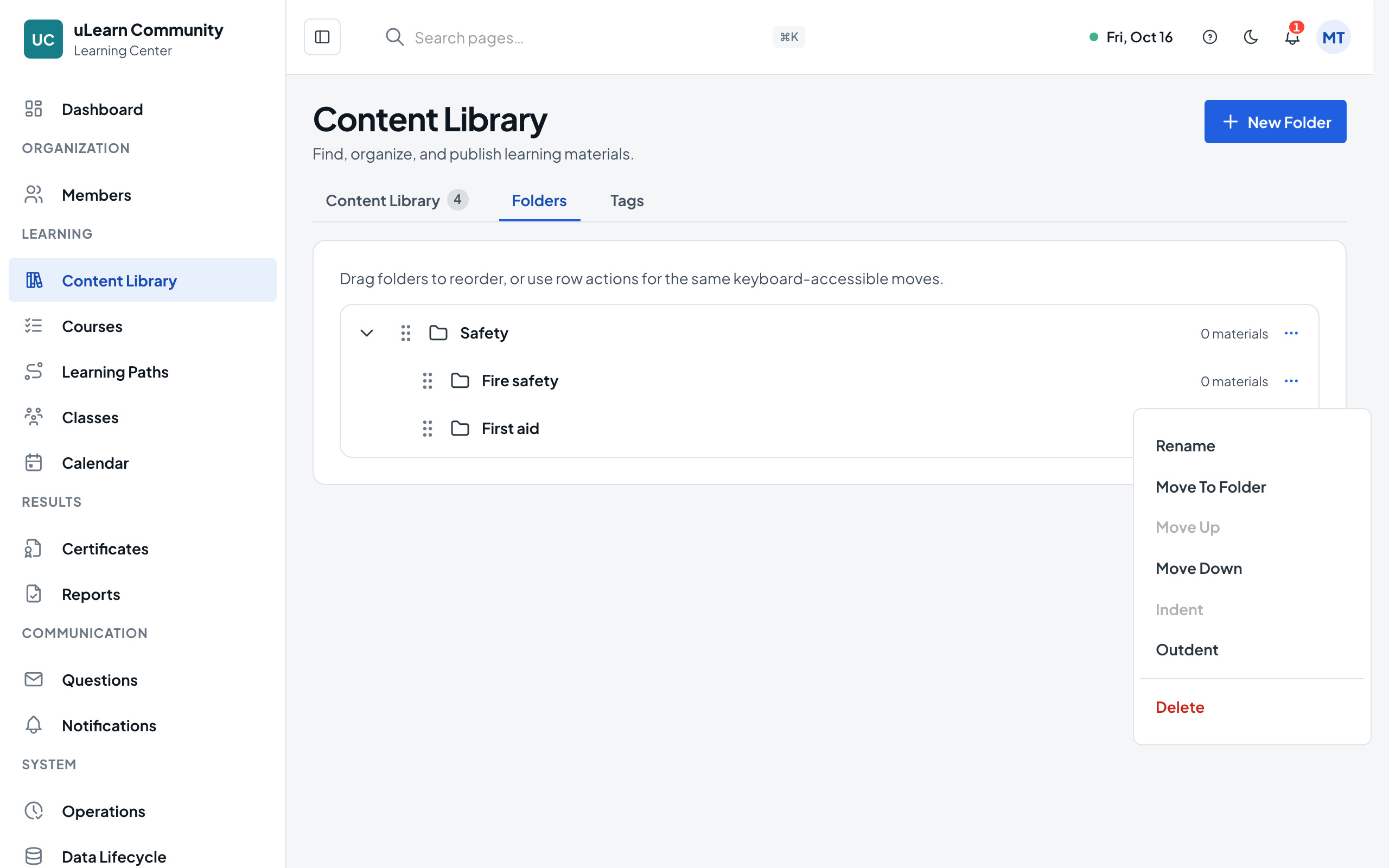
Open a folder’s actions menu to Rename it, Move Up or Move Down, Indent it under the folder above, Outdent it, or Move To Folder. In Move To Folder, Move Without a Parent puts it back at the top level.
- 4
Create tags
Open the Tags tab, select New Tag, enter a Name and select Create. Tags work across folders, for topics such as a language level or a department.
- 5
File a material
On the Content Library tab, open a material’s more actions menu and choose Change Folder or Edit Tags, pick the folder or tags and select Save. New uploads can get a Folder and Tags right in the upload dialog.
- 6
Organize many at once
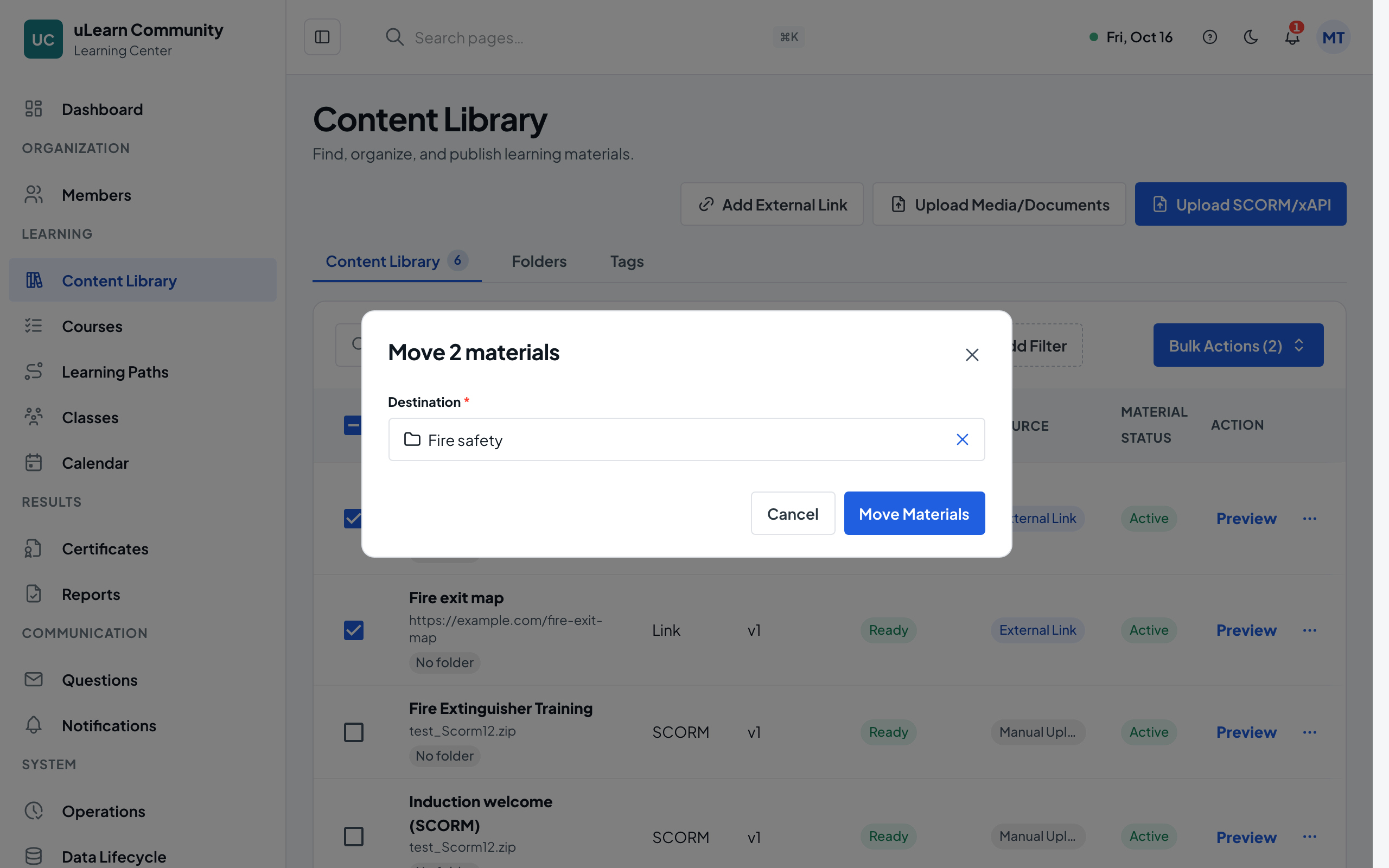
Select Bulk Actions and choose Move To Folder, Remove Folder, Add Tags or Remove Tags. Tick the materials, select Continue, choose the folder or tags and confirm; a message says how many materials were updated.
- 7
Find materials by folder or tag
Open Advanced Filters above the list and filter by folder or tags. Clear a filter to see the whole library again.
- 8
Tidy up
A folder can be deleted only when it has no subfolders and no materials. Deleting a tag removes it from every material; the materials themselves are kept.