
Organize members into groups
Create named lists of members, such as a cohort or a team, and use them to find and filter people, for example when you add learners to a class.
- 1
Open the Groups tab
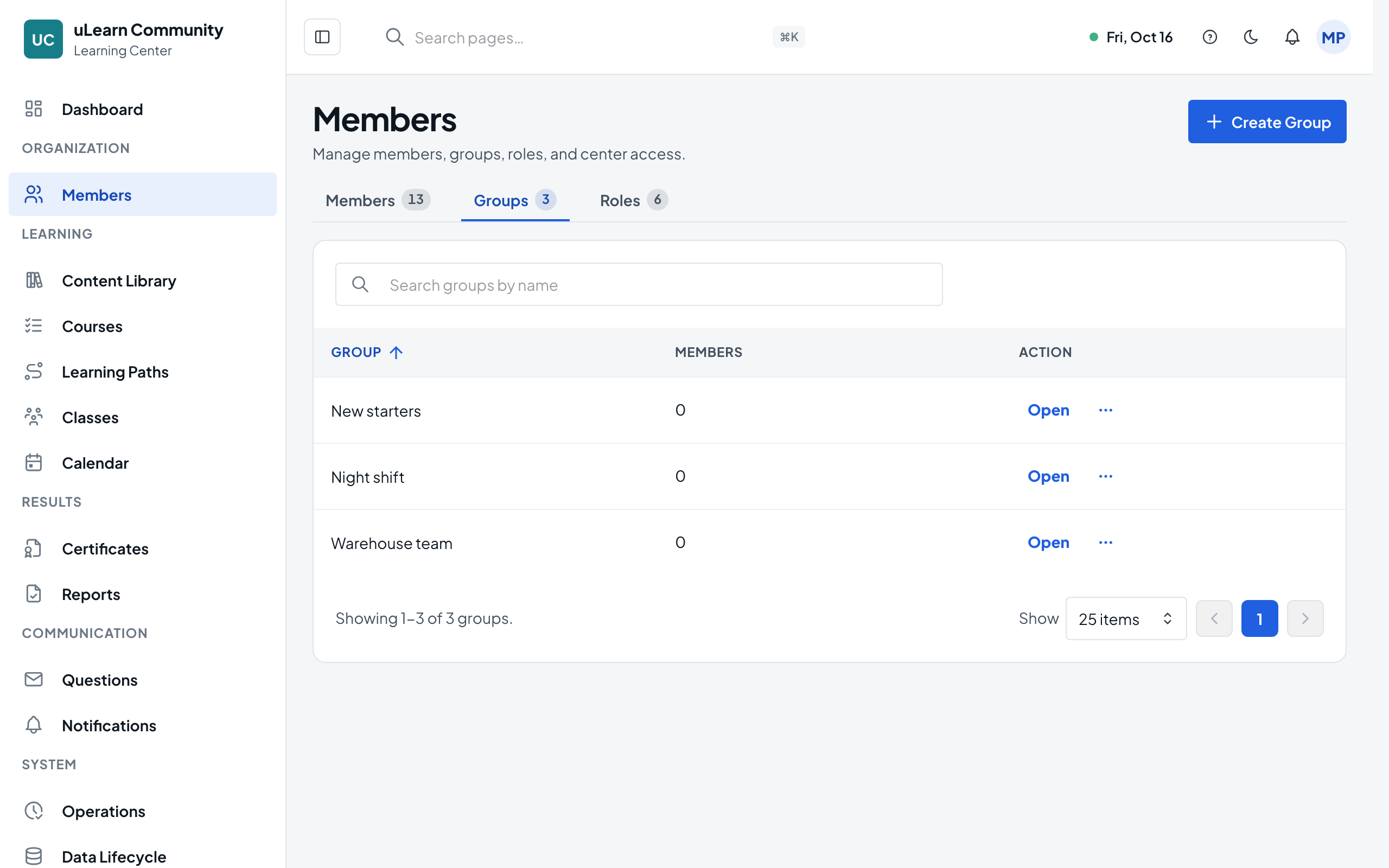
Select Members in the left menu, then the Groups tab; you need a role that manages people, such as Center Manager, People & Group Manager or People Administrator. It lists every group and how many members it has; use Search groups by name to find one.
- 2
Create a group
Select Create Group, type a Group Name such as Evening learners, and select Create Group. Each group needs its own name.
- 3
Open the group
Select Open on the group’s row. Group details shows its name and number of members.
- 4
Add members
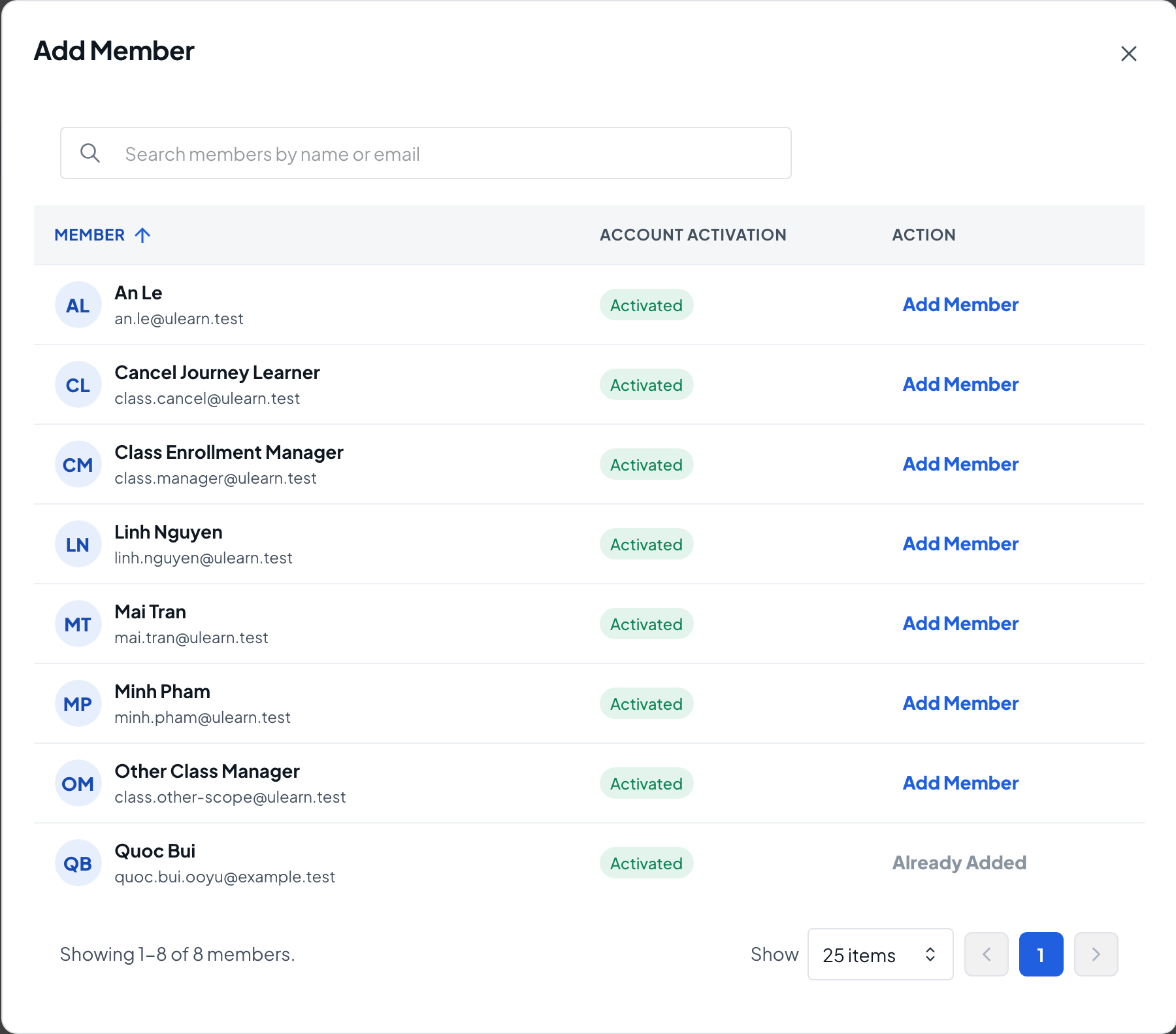
Select Manage Members, then Add Member. Search by name or email and select Add Member next to each person. People already in the group are marked Already Added.
- 5
Remove members
In Manage Group Members, select Remove on a row and confirm with Remove Member. The person keeps their access to the learning center.
- 6
Rename the group
In Group details, select Rename, change the Group Name and select Save Changes.
- 7
Delete the group
Select Delete, type the group’s exact name to confirm, and select Delete Group. Only the group is removed; its members stay in the learning center. Groups can’t be archived or restored.