
Publish from ActivePresenter
Send a finished ActivePresenter project straight to your content library as a new material or a new version, without exporting a ZIP yourself. You need permission to upload materials.
- 1
Choose the publish command
In ActivePresenter, choose Publish uLearn LMS.
- 2
Connect your learning center
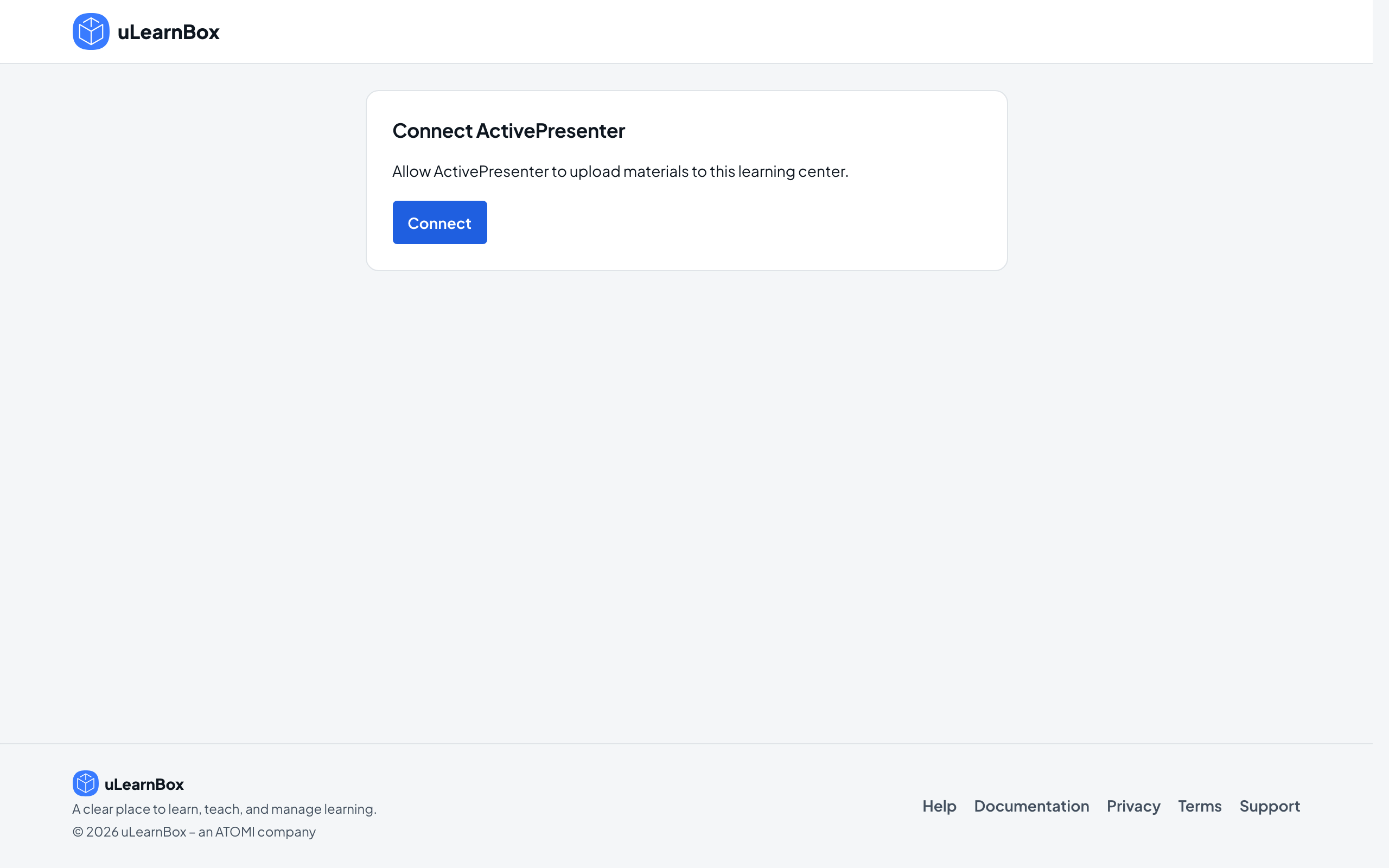
The first time, your browser opens the Connect ActivePresenter page. Sign in, choose your learning center (for an Organization learning center, enter its address under Private Center address and select Open Center), then select Connect and return to ActivePresenter.
- 3
Choose new or update
In ActivePresenter, publish as a new material, or pick an existing material in your library to add a new version to it.
- 4
File a new material
For a new material, give it a title and choose a folder and tags if you like. In an Organization learning center, also choose its department. A new version keeps the material’s folder and tags.
- 5
Publish and check
ActivePresenter uploads the package and shows the result. Open Content Library in uLearnBox, preview the material, then add it to a course from the course Outline tab.