
Build a course and open a class
Turn your materials into a published course, then run it as a class with learners, teachers and a schedule.
- 1
Create the course
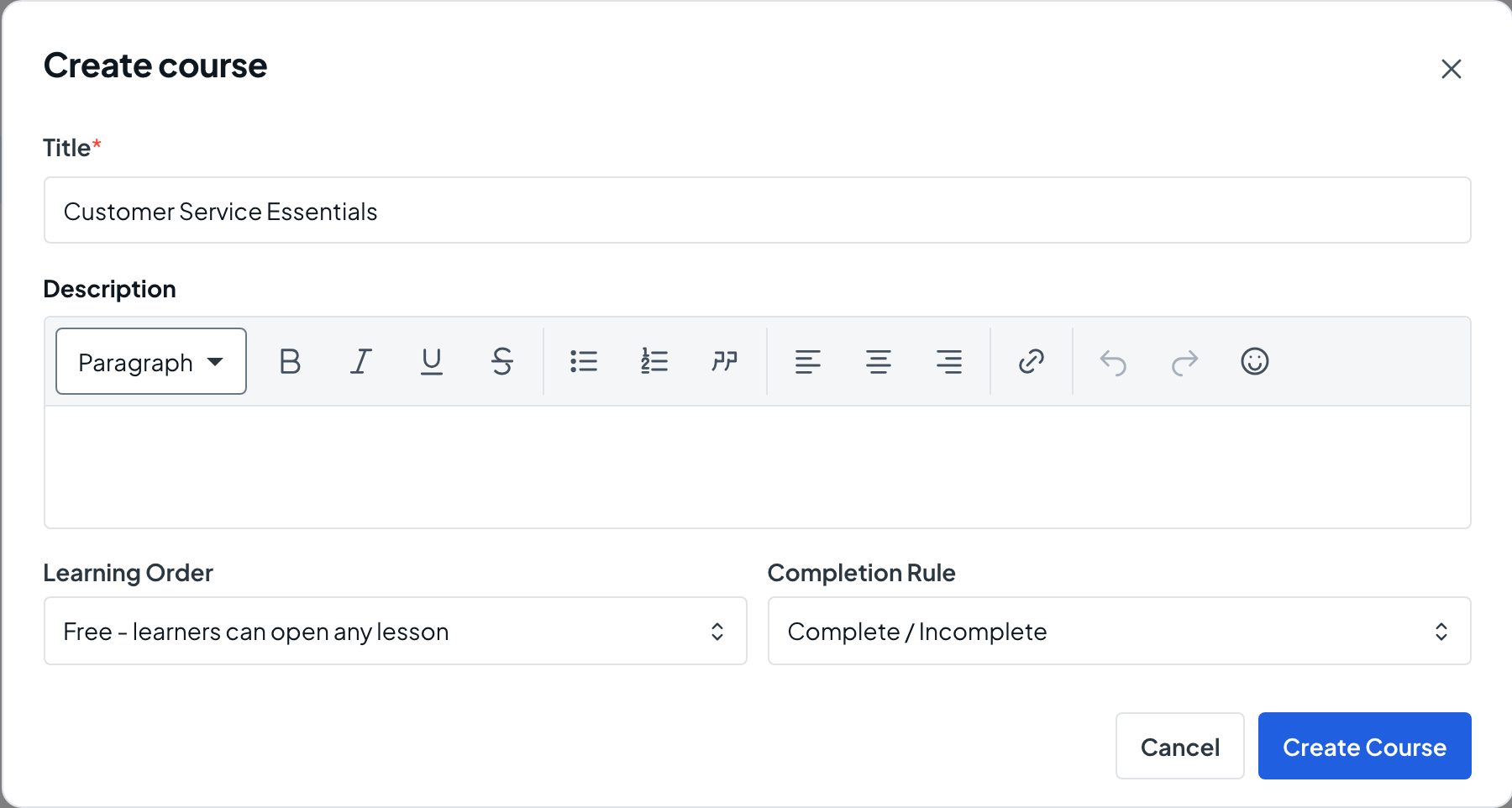
Choose Courses in the menu, then Create Course. Enter a Title, choose the Learning Order and the Completion Rule (Complete / Incomplete, or Pass / Fail Percent with a Passing Score), and choose Create Course again to save the draft. You need permission to edit and publish courses.
- 2
Add sections
On the Outline tab, choose Add Section, type the section title and choose Save.
- 3
Add lessons from the library
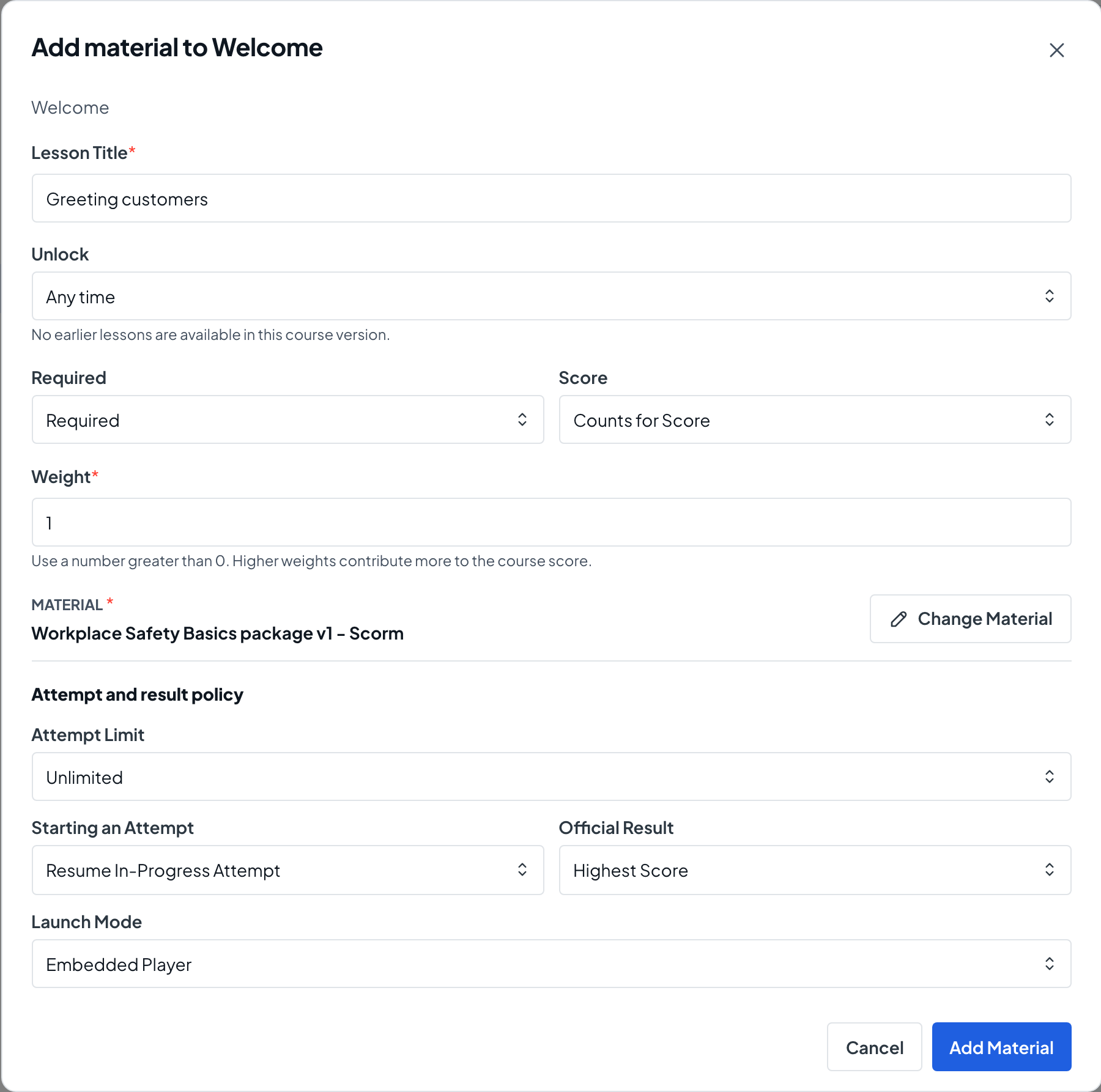
Choose Add Material on a section, select a material from the content library, give it a Lesson Title and choose Add Material. Upload new files to Content Library first; they then appear in this list.
- 4
Check how the course is completed
The course Overview shows the Completion rule. Choose Edit Completion to change it or the Passing score while the version is a draft.
- 5
Publish a version
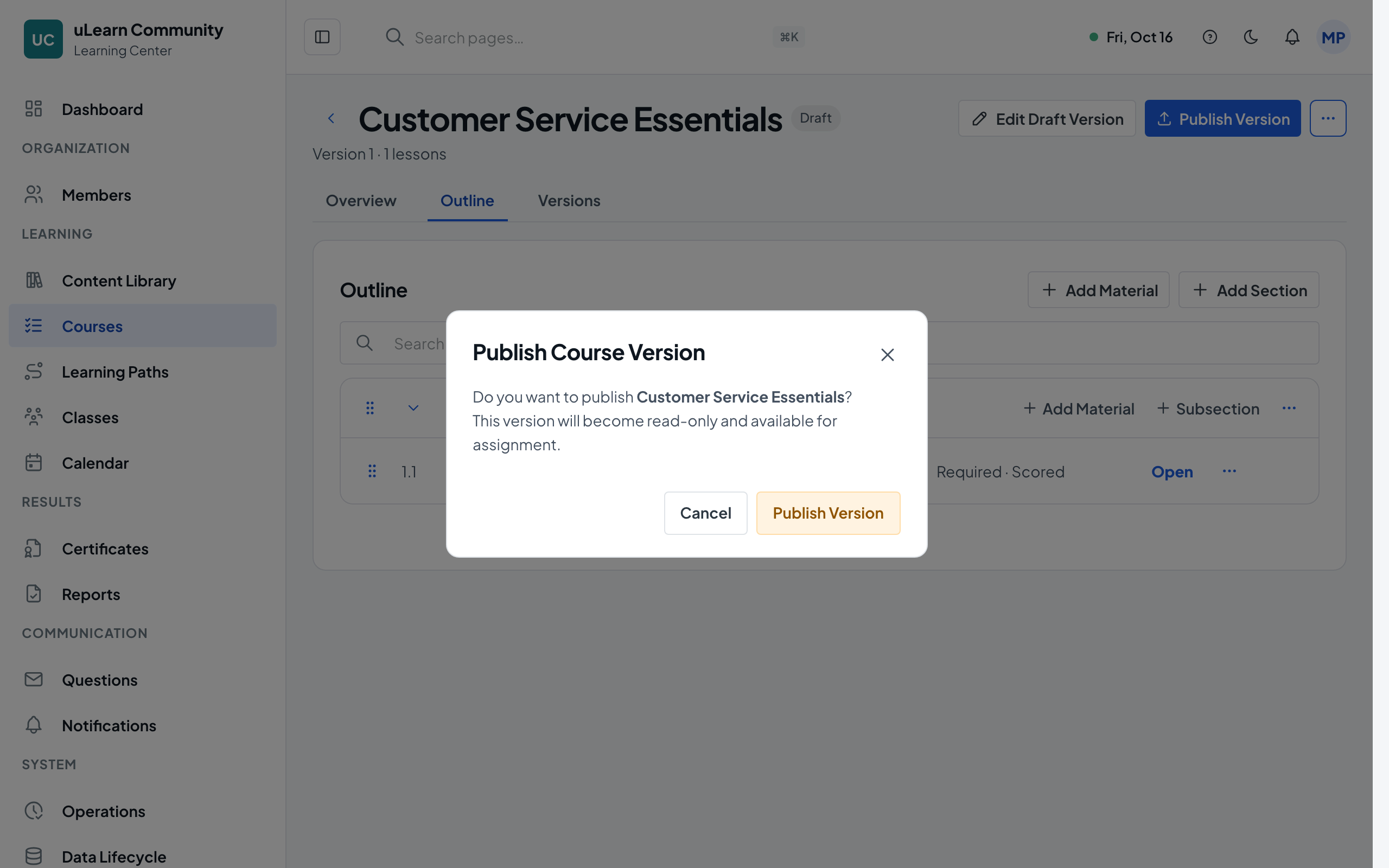
Choose Publish Version and confirm. Learners always study a published version, so later edits to a new draft never break their progress.
- 6
Open a class
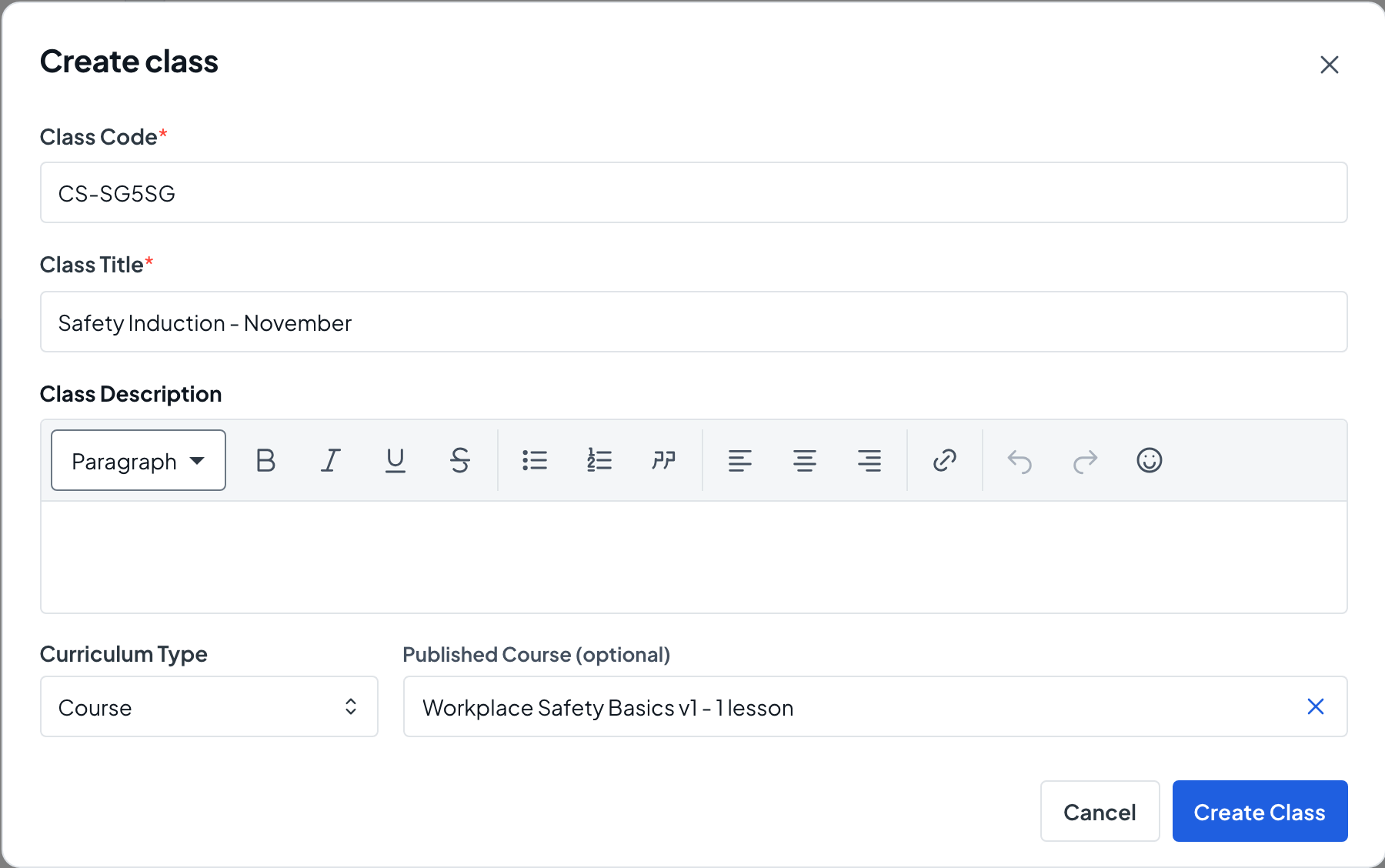
Choose Classes, then Create Class. Enter a Class Code and Class Title, choose a published course (or learning path) version with Use Version, and choose Create Class. The class starts as a draft; choose Activate Class when it should run.
- 7
Add learners
On the class Learners tab, choose Add Existing Members to add people who are already members. In a Public learning center you can also share a link, code or QR code from Join Link/Code.
- 8
Give teachers access
In Members, open the Roles tab and assign the Instructor role to each teacher with Access Area set to Class and this class chosen.
- 9
Plan the sessions
On the class Calendar tab, choose Create Event to add sessions, one at a time or repeating.