
Track your grades, certificates and notifications
See your scores and teacher feedback, open and download your certificates, and keep up with notifications from every learning center you belong to.
- 1
Glance at your dashboard
Select Learning in the left menu. The Scores tile shows your Average score and a bar for each class and course, and the Notifications tile shows your latest updates.
- 2
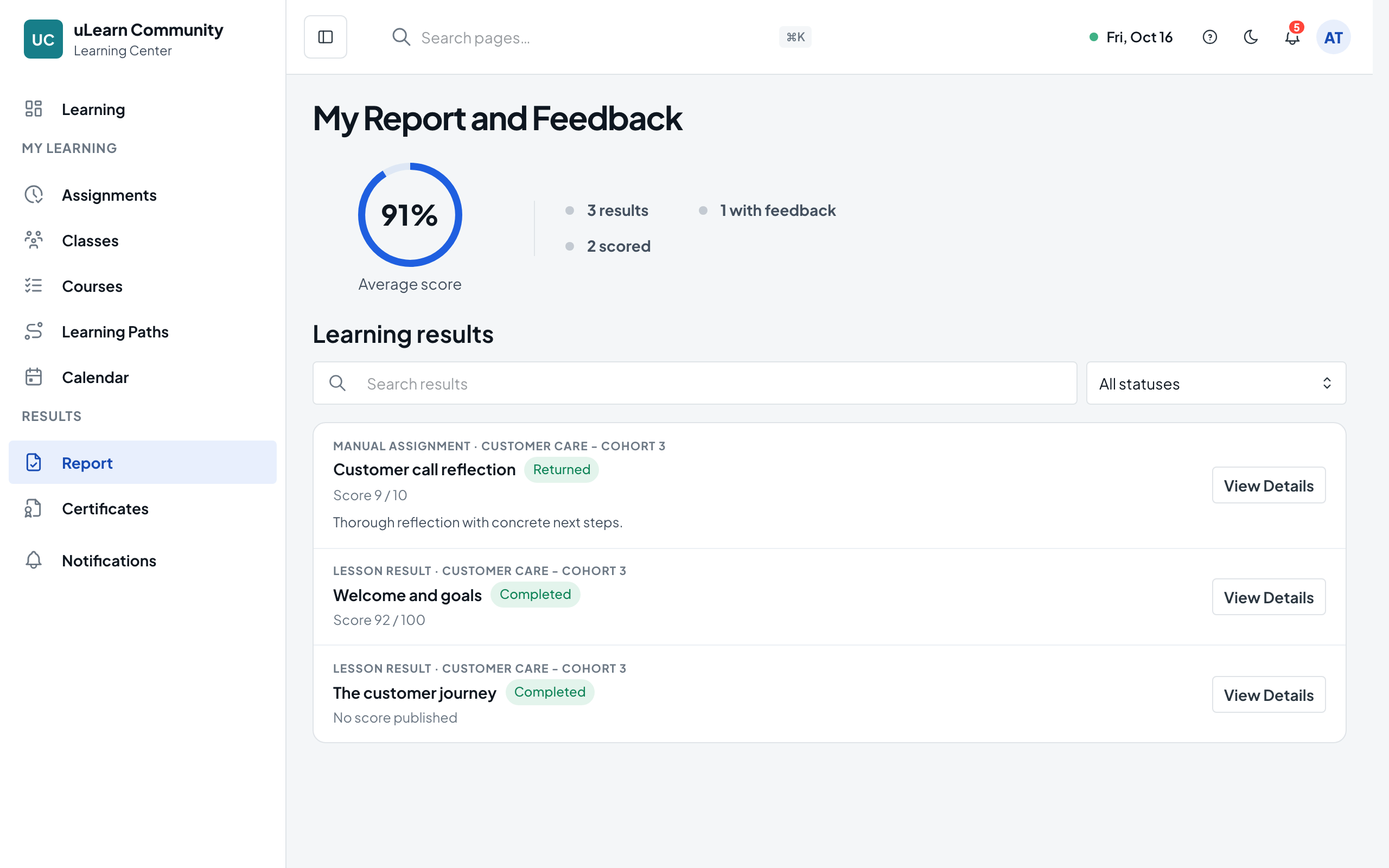
Open your report
Select Report in the left menu, or View Results on the Scores tile. My Report and Feedback lists your results; use Search results and Result status to find one.
- 3
Read a result
Select View result. The result shows the Score, Attempts, when it was Graded and your teacher’s Feedback. Back to Report returns to the list.
- 4
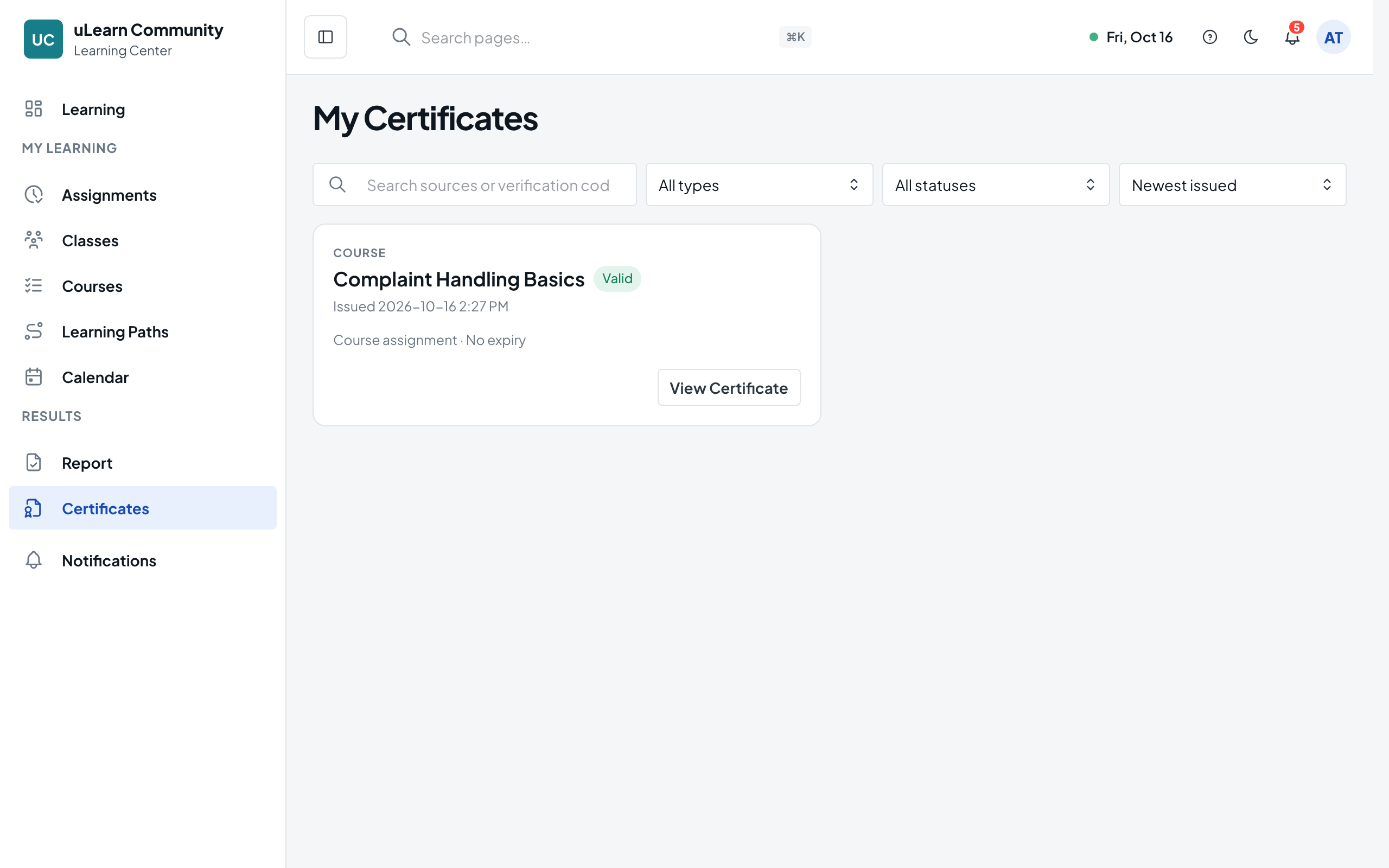
Find your certificates
Select Certificates in the left menu. Each certificate shows its course or learning path and its status, such as Valid. Search by name or verification code, and filter by Type and Status.
- 5
View and download a certificate
Select View Certificate. The Certificate Verification page opens with Download Image and Download PDF buttons.
- 6
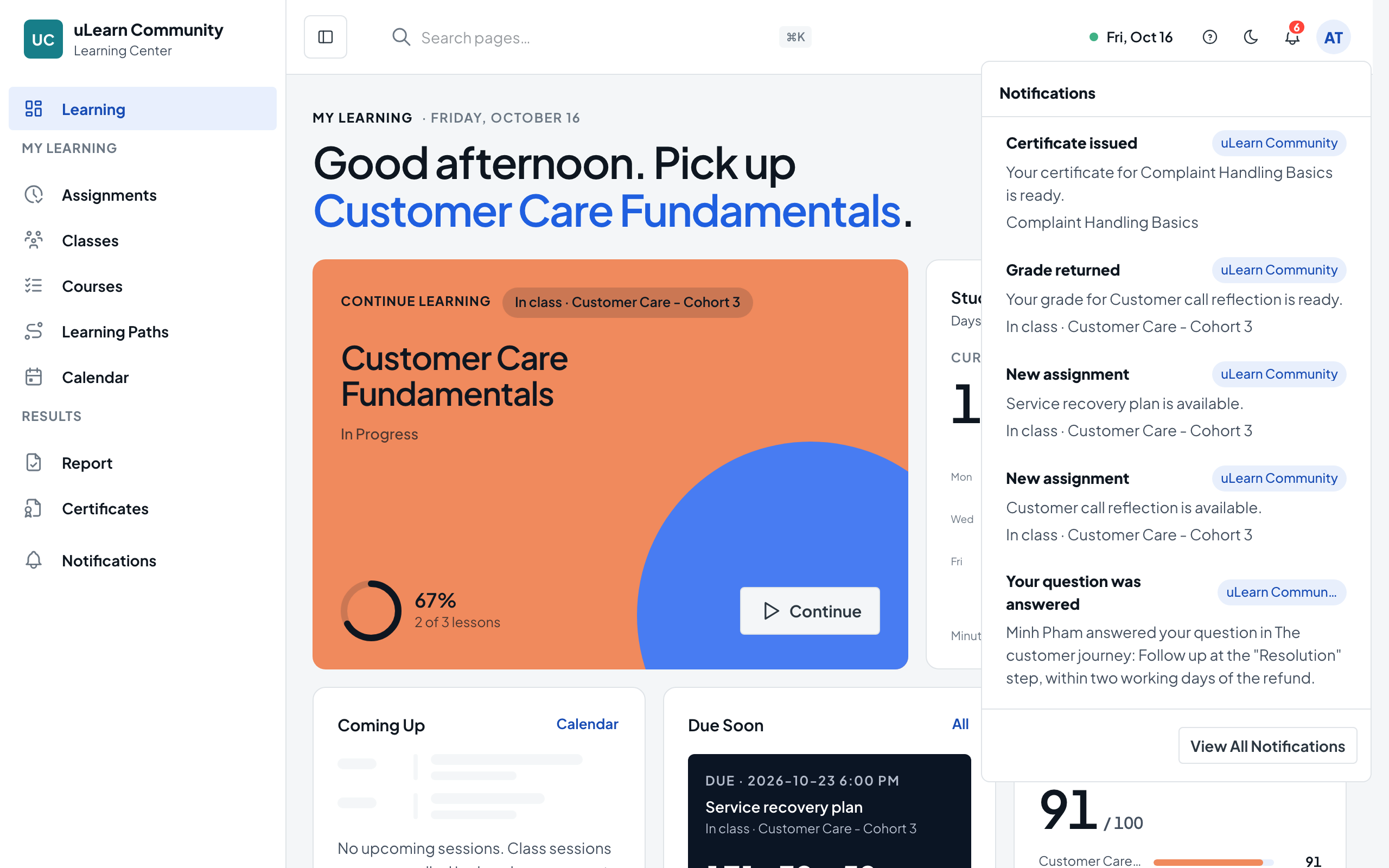
Check your notifications
Select the bell at the top of the page for recent notifications, then View All Notifications for the full inbox. Each row shows where it came from: System or the learning center.
- 7
Open and clear notifications
Select Open on a row to go straight to what it is about. To mark one as read, open More actions and select Mark Read; Mark Page Read clears the whole page.