
Set up departments
Build your organization’s structure (divisions, departments, teams and locations) in an Organization learning center, and place each member in the right Department.
- 1
Open Departments
Select Departments in the left menu. Departments exist only in Organization learning centers, and you see the ones your role covers. The tree starts with your organization at the top; use Search departments to find one.
- 2
Create a Department
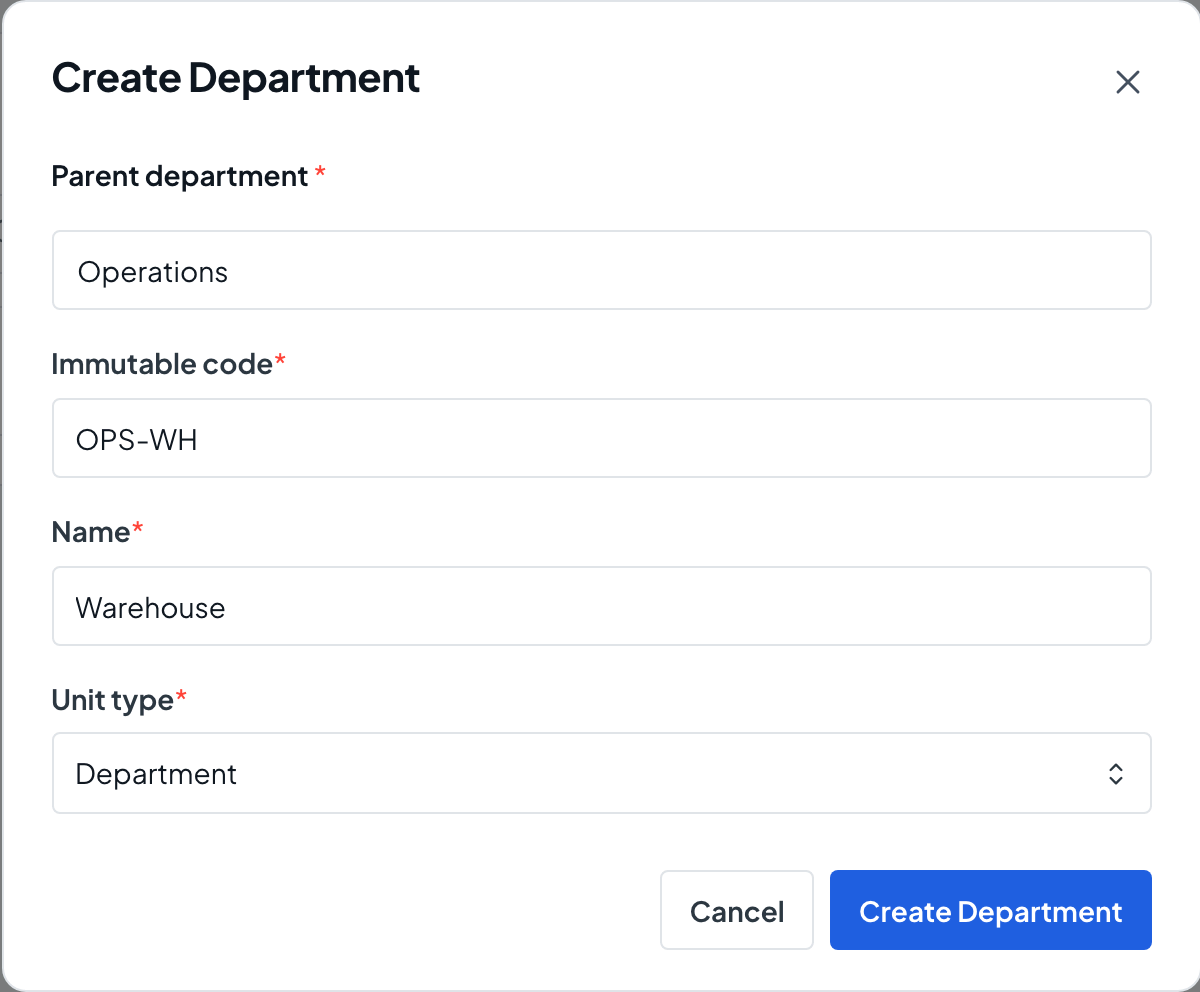
Select Create Department. Choose the Parent department, enter an Immutable code (capital letters, numbers, underscores, periods or hyphens; it can’t be changed later), a Name and a Unit type such as Division, Department, Team or Location. Then select Create Department.
- 3
Add the levels below
In the tree, open a Department’s actions menu and choose Add Child. The new Department’s parent is filled in for you.
- 4
Look inside a Department
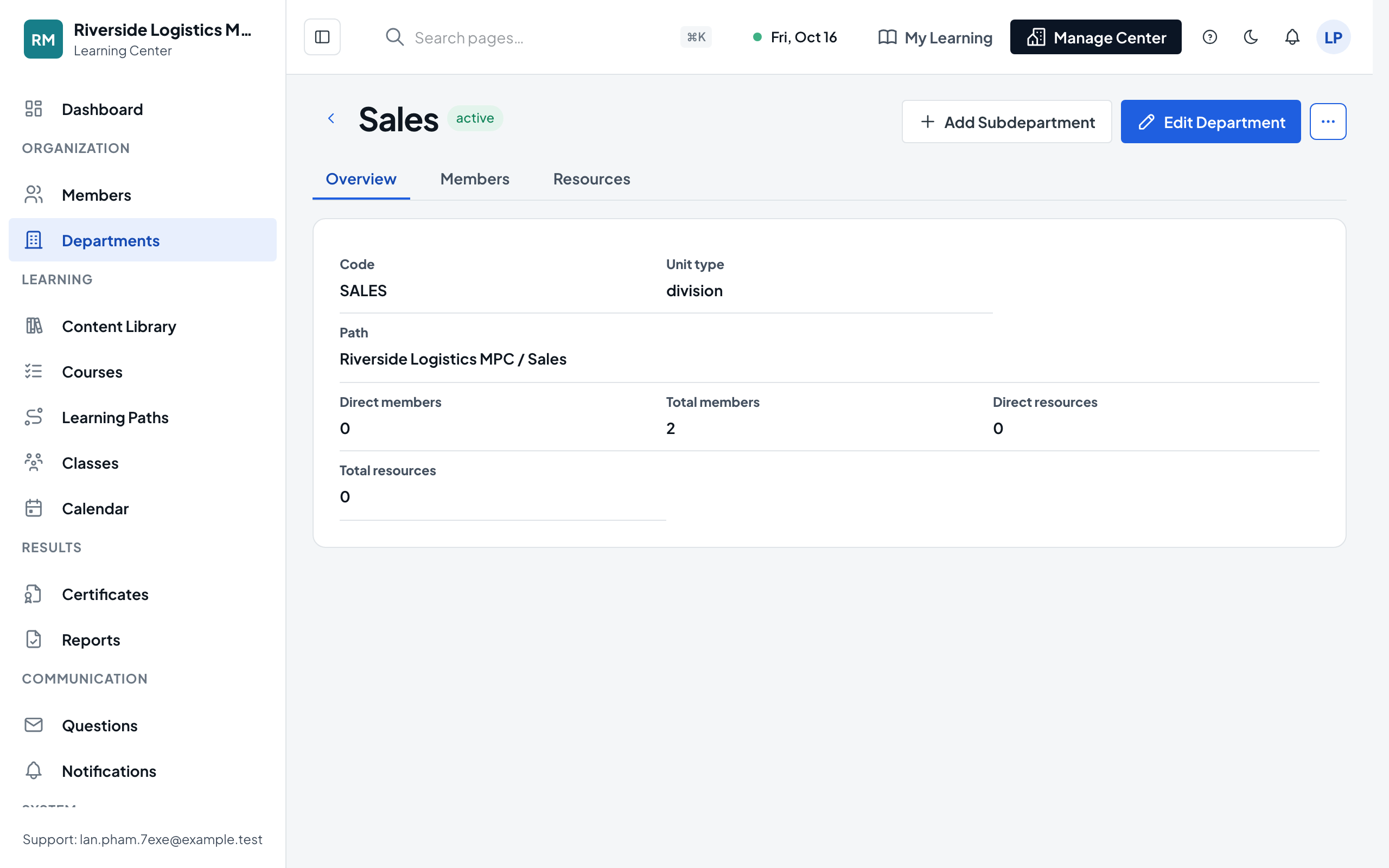
Select Open on a row. The Overview tab shows its code, path and member and resource totals. The Members tab lists its direct members, and Resources lists the classes, courses, learning paths and materials it owns.
- 5
Rename or move it
Select Edit Department to change the name or unit type, with a Reason. To put it under another parent, choose Move Department from Department Actions, pick the new parent, enter a Reason, select Preview Impact to review what changes, then Confirm Transfer.
- 6
Place members
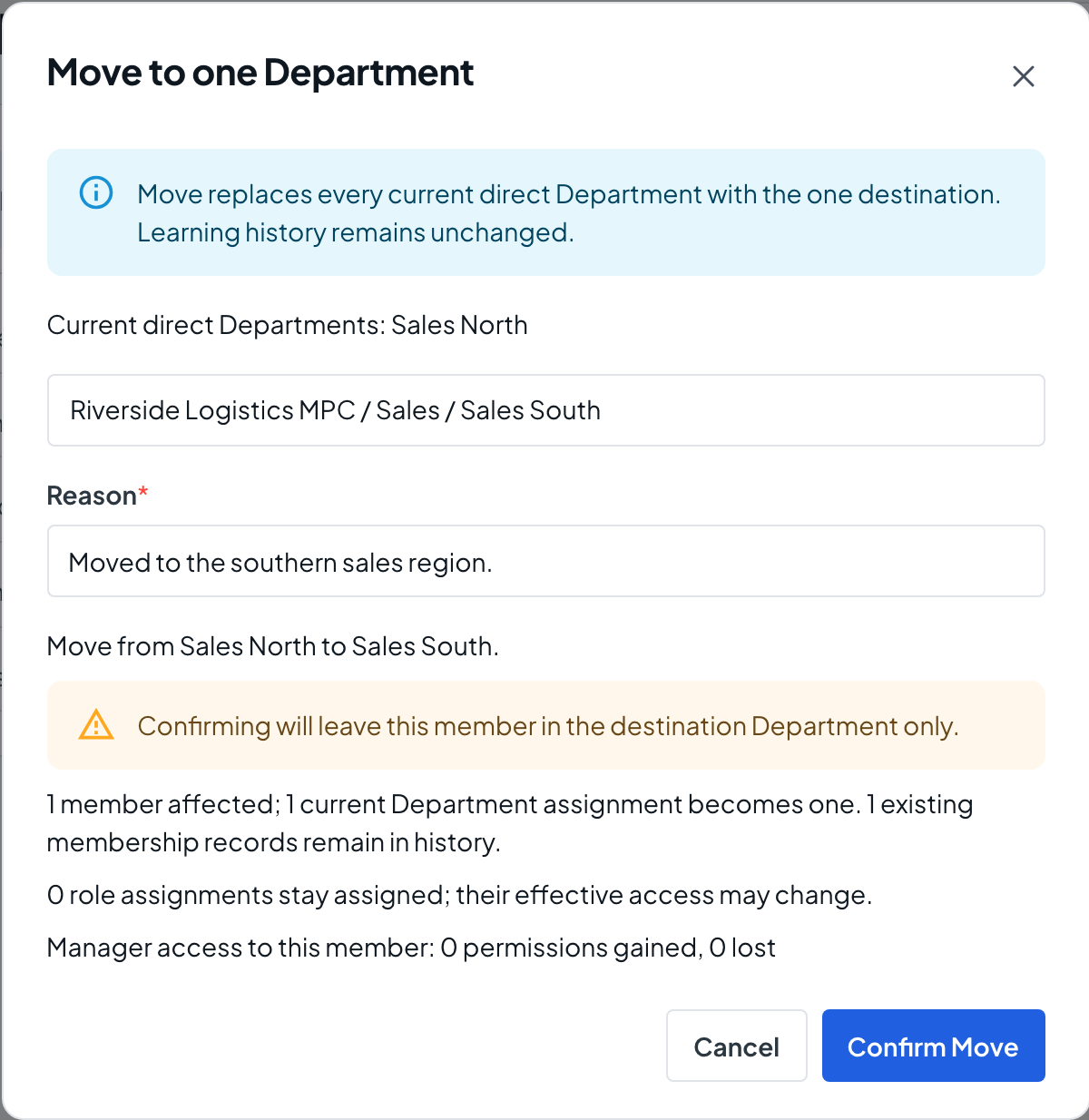
Members get a Department when you add or import them. To change it, open the member’s profile, choose Move To One Department from Member Actions, pick the Destination Department, enter a Reason, then select Preview Impact and Confirm Move.
- 7
Archive or delete
Choose Archive Department from Department Actions and give a Reason. Show Archived reveals archived Departments, which you can Restore or, only once archived, permanently Delete.