
Set language, time zone and sign-in options
Choose your learning center’s language, time zone and date format, and, in an Organization learning center, decide how members sign in.
- 1
Open the Locale tab
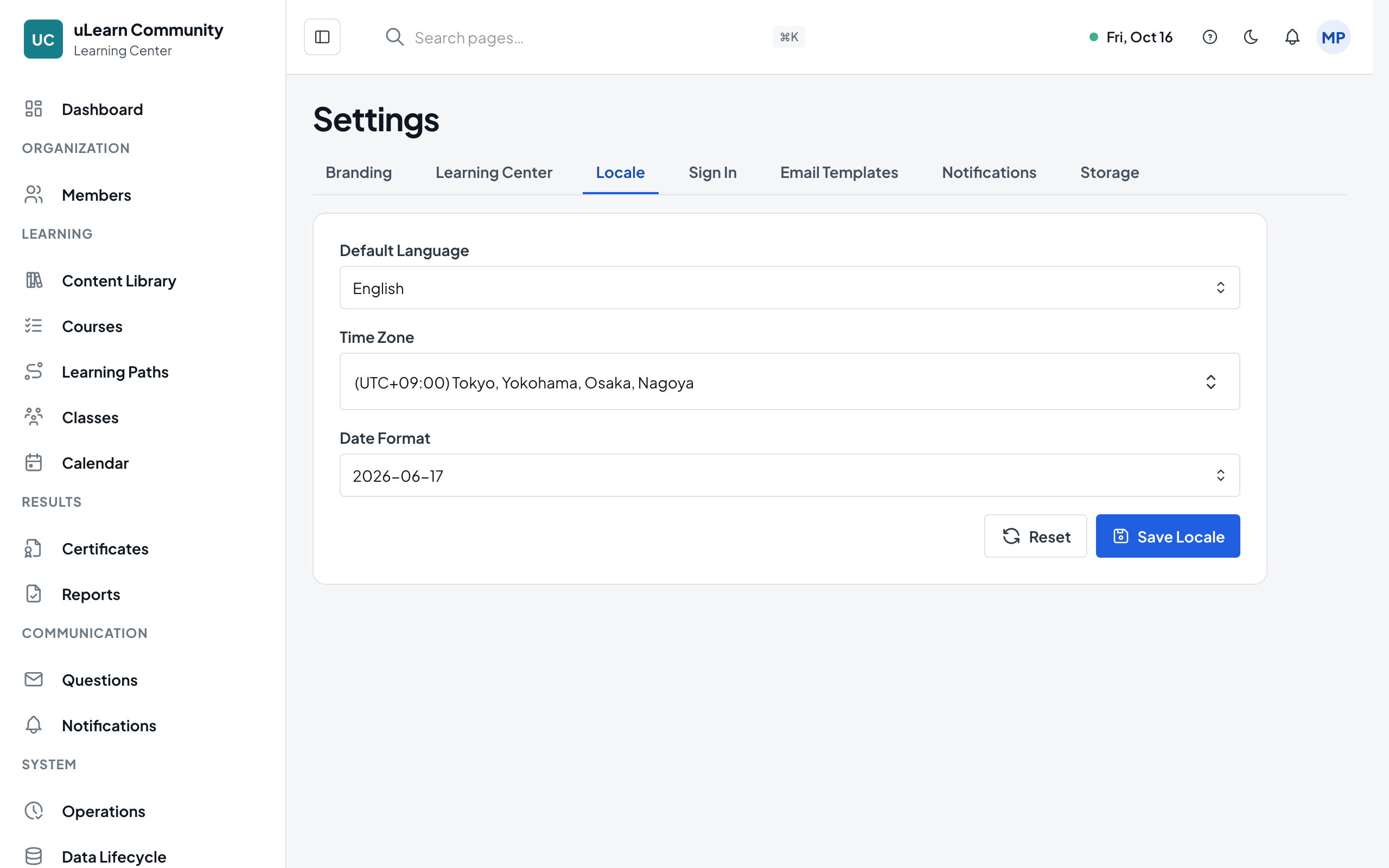
As the center owner or an administrator who can configure the center, open Settings in the management sidebar and select the Locale tab.
- 2
Choose language, time zone and date format
Pick English or Vietnamese in Default Language. Type a city in Time Zone and choose it from the list, then pick one of the three Date Format options.
- 3
Save the locale
Select Save Locale and you see Locale settings saved. Reset puts back the saved values.
- 4
Open the Sign In tab
In a Public learning center this tab is read-only: members use their public uLearnBox accounts and learners can create accounts themselves. In an Organization learning center, changing it needs the owner or a Center Administrator.
- 5
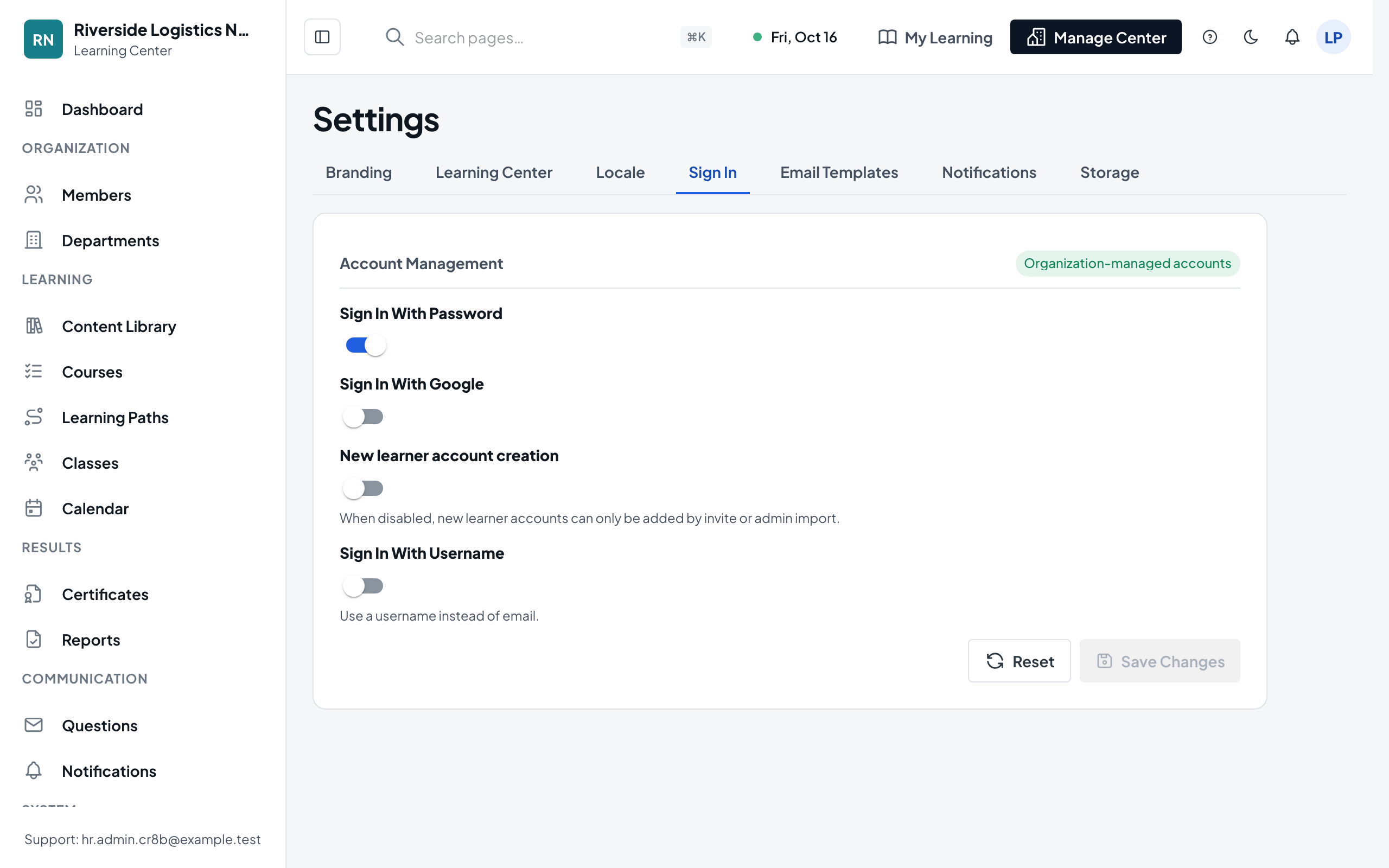
Choose sign-in methods
Turn Sign In With Password and Sign In With Google on or off. At least one must stay on, and turning off password sign-in only works once the center owner has linked Google to their account.
- 6
Decide who can create accounts
Turn on New learner account creation to let learners sign up on your center’s sign-in page. When it is off, new learners join only by invitation or when an administrator adds them.
- 7
Allow usernames if you need them
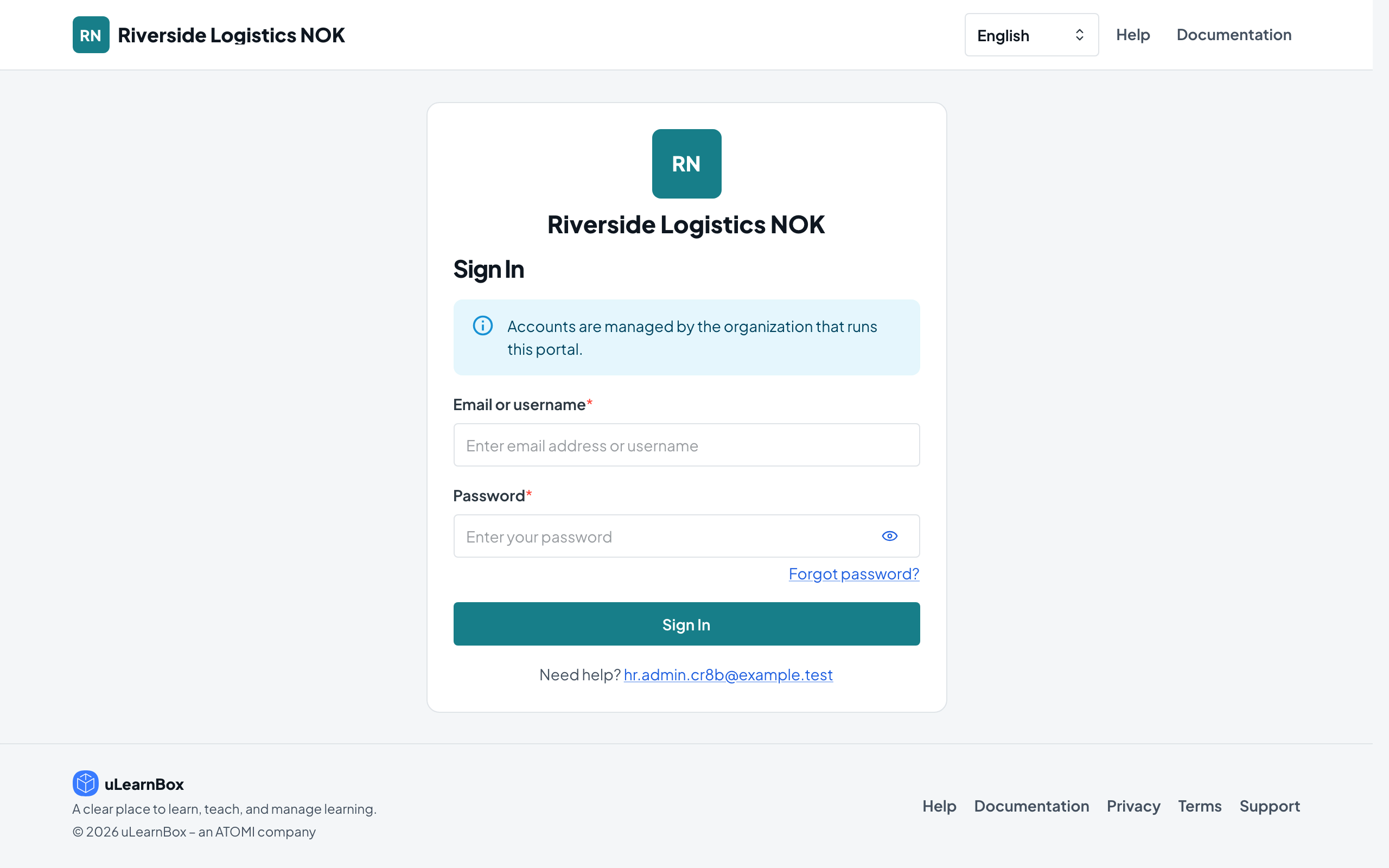
Turn on Sign In With Username so members who have a username can sign in with it; password sign-in must be on. The sign-in field then reads Email or username, and email sign-in keeps working.
- 8
Save your sign-in options
Select Save Changes and you see Changes saved. If turning usernames off would lock out members who have only a username, a warning shows how many before you save.