
Manage your account
Update your name and picture, change your password or login email, connect Google and sign out of devices you no longer use, all from Account Settings.
- 1
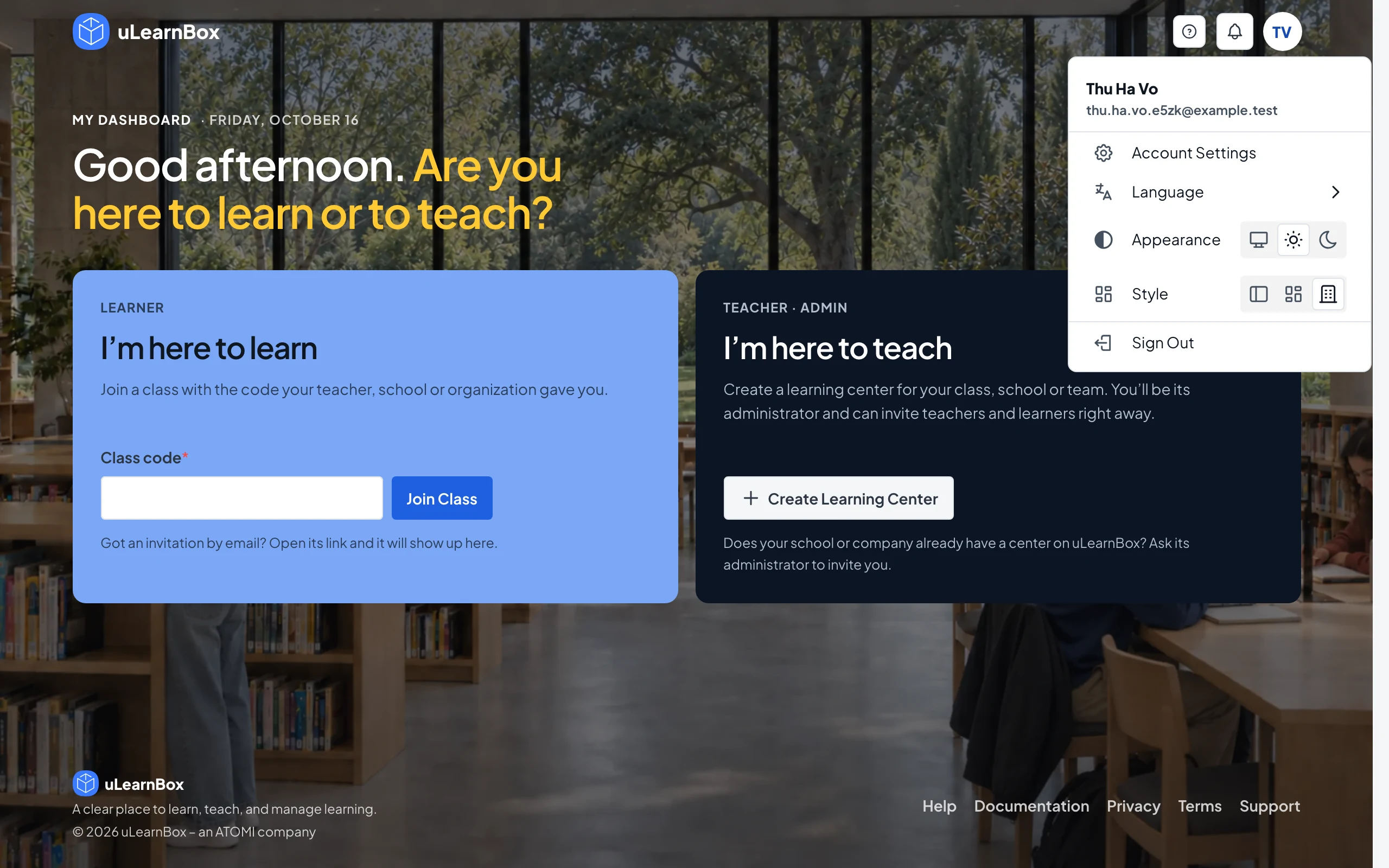
Open Account Settings
Select your profile picture at the top right and choose Account Settings. The Account Profile and Security page opens with three tabs: Profile, Login and Security, and Login Sessions.
- 2
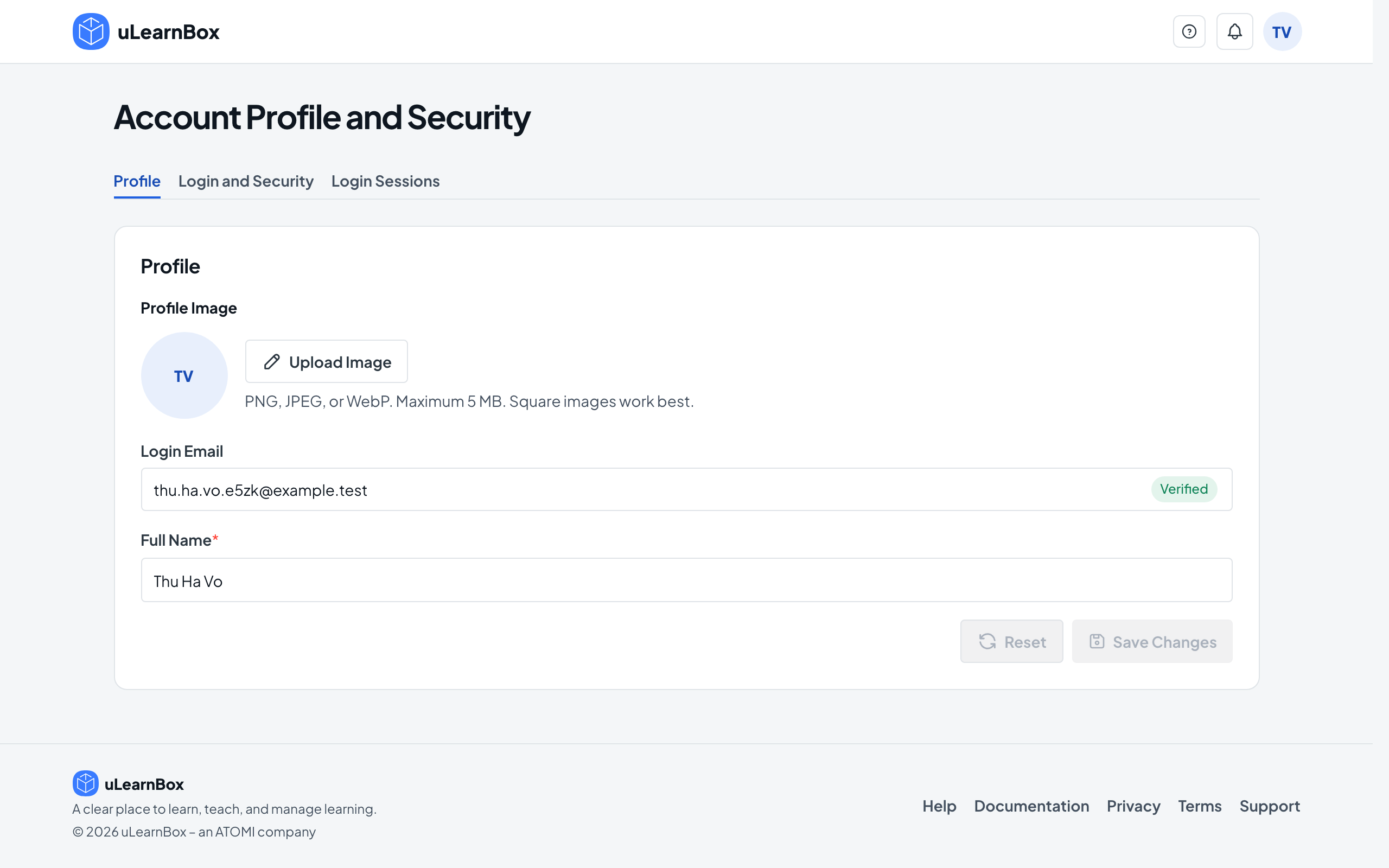
Update your name and picture
On Profile, edit Full Name, or select Upload Image to add a PNG, JPEG or WebP picture of up to 5 MB and adjust it before applying. Select Save Changes to see Profile saved. Every learning center you belong to now shows your new name.
- 3
Change your password
On Login and Security, select Change in the Password row. Enter Current Password, New Password and Confirm new password, then select Change Password.
- 4
Change your login email
Select Change in the Login Email row, enter New Email and select Send Verification Email. Open the link sent to the new address and select Verify New Email; from then on you sign in with the new email.
- 5
Connect or remove Google
Select Connect in the Google Login row, then Connect Google, to sign in with Google too. You can remove Google later with Remove Google, as long as you still have a password to sign in with.
- 6
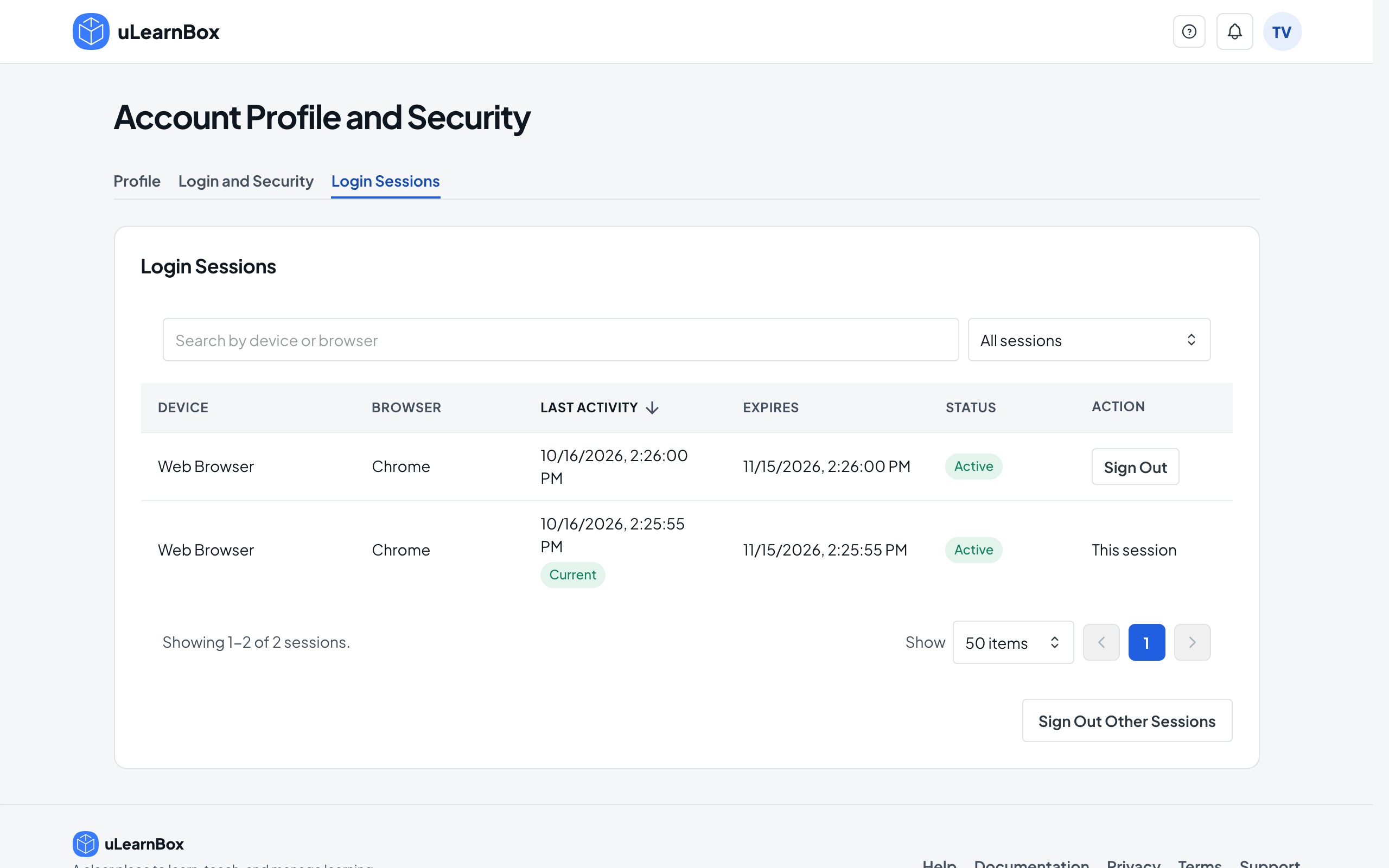
Sign out other devices
On Login Sessions you see each device and browser with its last activity. Select Sign Out on a row to end that session, or Sign Out Other Sessions to stay signed in only on this device.
- 7
Pick language and appearance
Open the same profile menu to switch Language between English and Tiếng Việt, and Appearance between Light, Dark and System.