
Handle upload and lesson errors
When a package fails to upload or a lesson runs into a problem, the error is logged in Operations. Review it, follow the suggested fix and close it.
- 1
Open Operations
Select Operations in the left menu, under System. You need the Center Owner, Center Manager or Center Administrator role. The Dashboard tab shows Open Errors and the learning center’s Health.
- 2
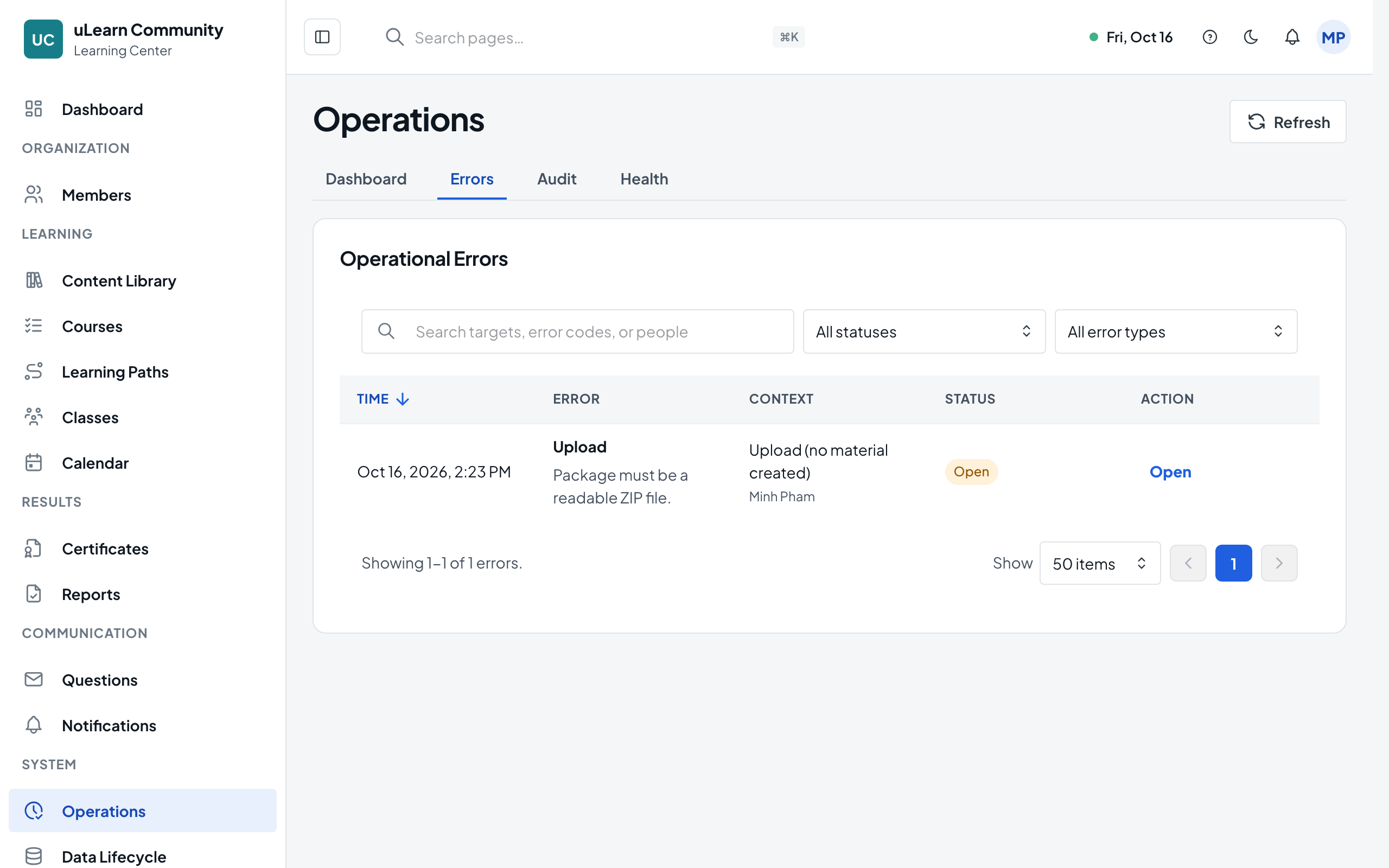
Go to the Errors tab
Operational Errors lists each error with its target, the person involved and its status. Search by target, error code or person, filter by Status, and use Advanced Filters to choose a Type such as Upload, Player or xAPI.
- 3
Open an error
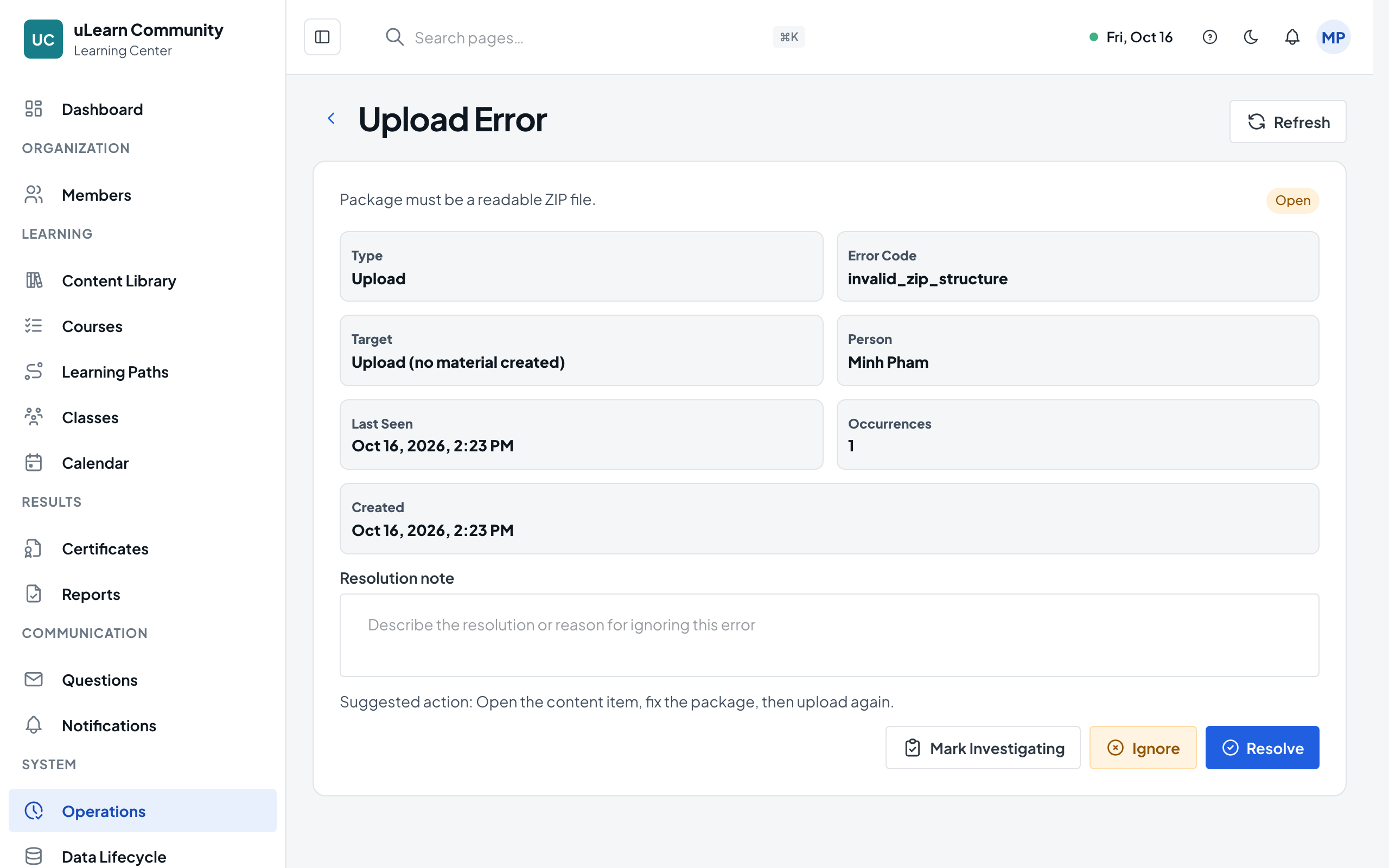
Select Open. The page shows the Type, Error Code, Target, Person, Last Seen, Occurrences and Created time, the error message and a Suggested action.
- 4
Fix the cause
Follow the suggested action, for example upload a corrected package in the Content Library, then return to the error.
- 5
Show that you’re on it
Write a Resolution note and select Mark Investigating. You see Operation error marked investigating.
- 6
Close the error
Select Resolve once it’s fixed, or Ignore if nothing needs doing; add a Resolution note first if you want one. A closed error no longer offers status changes. Back To Errors returns you to the list.