
Create a learning path
Combine published courses into one program learners follow in order or freely, then publish it so it can be assigned or used for a class. You need permission to create learning paths.
- 1
Start a learning path
In Manage Center, choose Learning Paths, then Create Learning Path. The Create learning path dialog opens.
- 2
Describe it
Enter a Title and an optional Description. In an Organization learning center, choose the Owner Department. Choose a Progression: Free lets learners open courses in any order, Sequential unlocks required courses in order. Select Create Learning Path.
- 3
Add courses
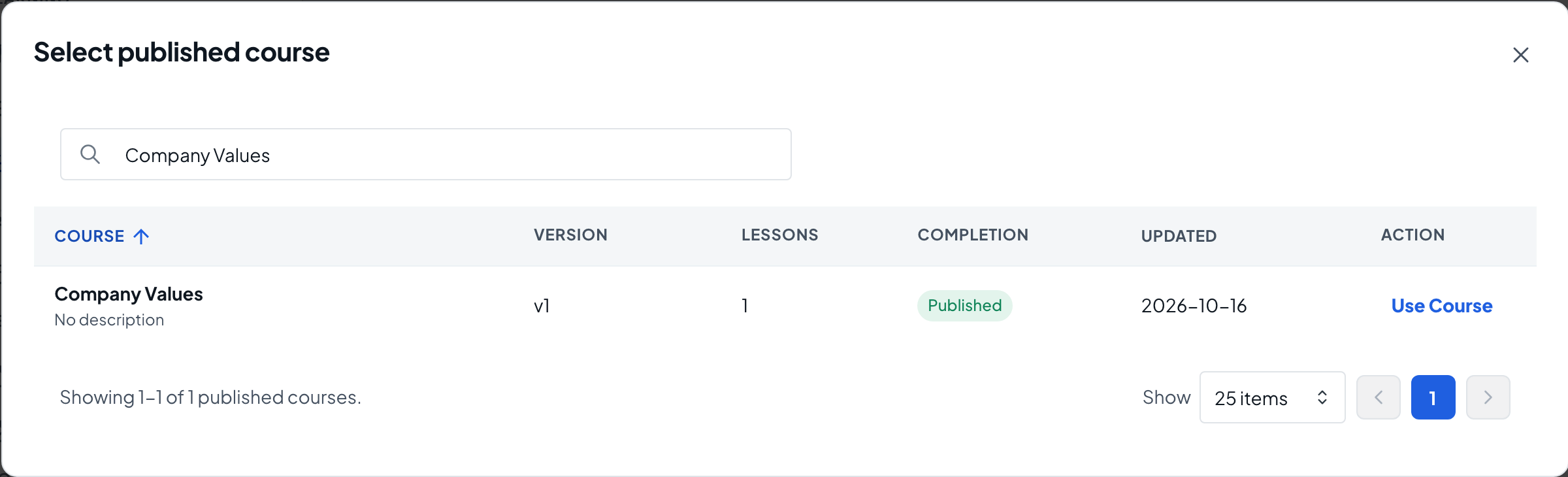
On the Outline tab, select Add Course, then Select Course. Search the list of published courses and choose Use Course. Only published courses can be added, and each course only once.
- 4
Mark each course required or optional
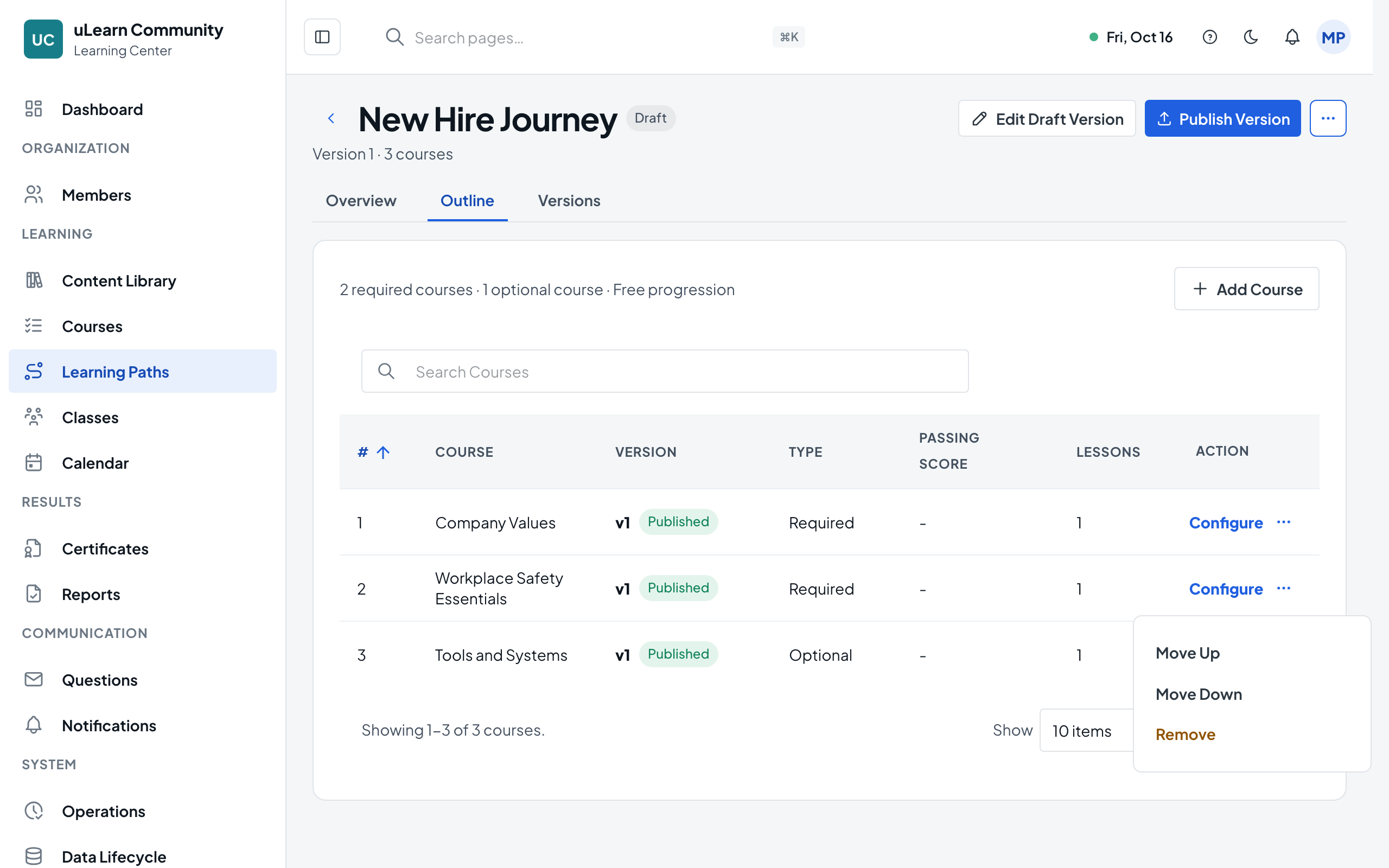
In the Add Course to Learning Path dialog, set Course Type to Required or Optional and select Add Course. The outline lists the courses in learning order.
- 5
Adjust the order
Use Configure on a course to change its Course Type. Its more actions menu offers Move Up, Move Down and Remove.
- 6
Publish the version
Select Publish Version and confirm. The outline becomes read-only and the Learners tab appears, where you can assign the path to learners.