
Create a custom role
Build a role with just the permissions a job needs, such as a grader or a report viewer, within a permission boundary that caps what it can ever do.
- 1
Open Create Custom Role
Select Members in the left menu, open the Roles tab and select Create Custom Role. You need the Center Owner, Center Manager or Center Administrator role.
- 2
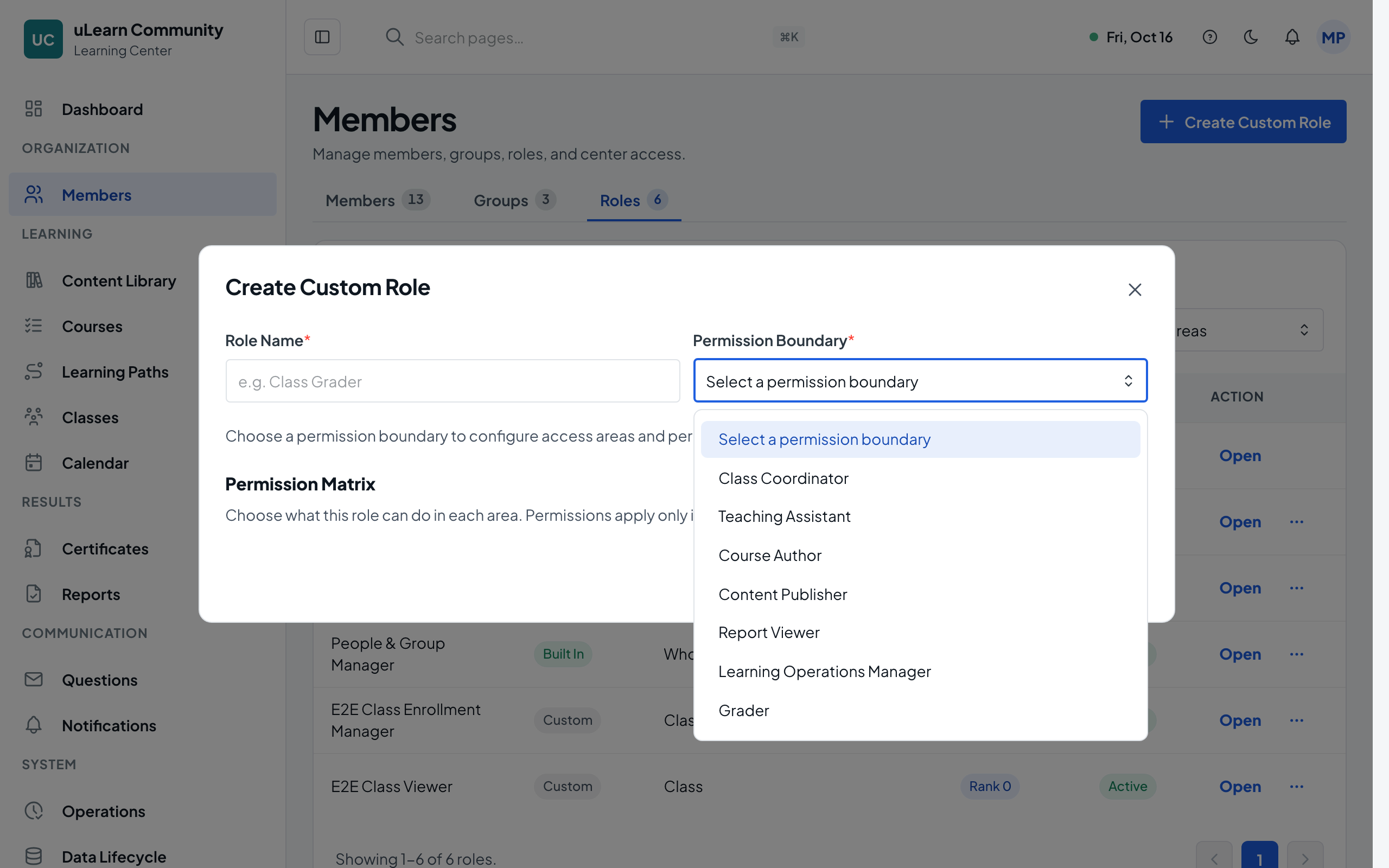
Name it and choose a boundary
Enter a Role Name, such as Class Grader, and choose a Permission Boundary, such as Grader, Report Viewer or Teaching Assistant. The boundary sets the most the role can do and can’t be changed later.
- 3
Set the authority rank if asked
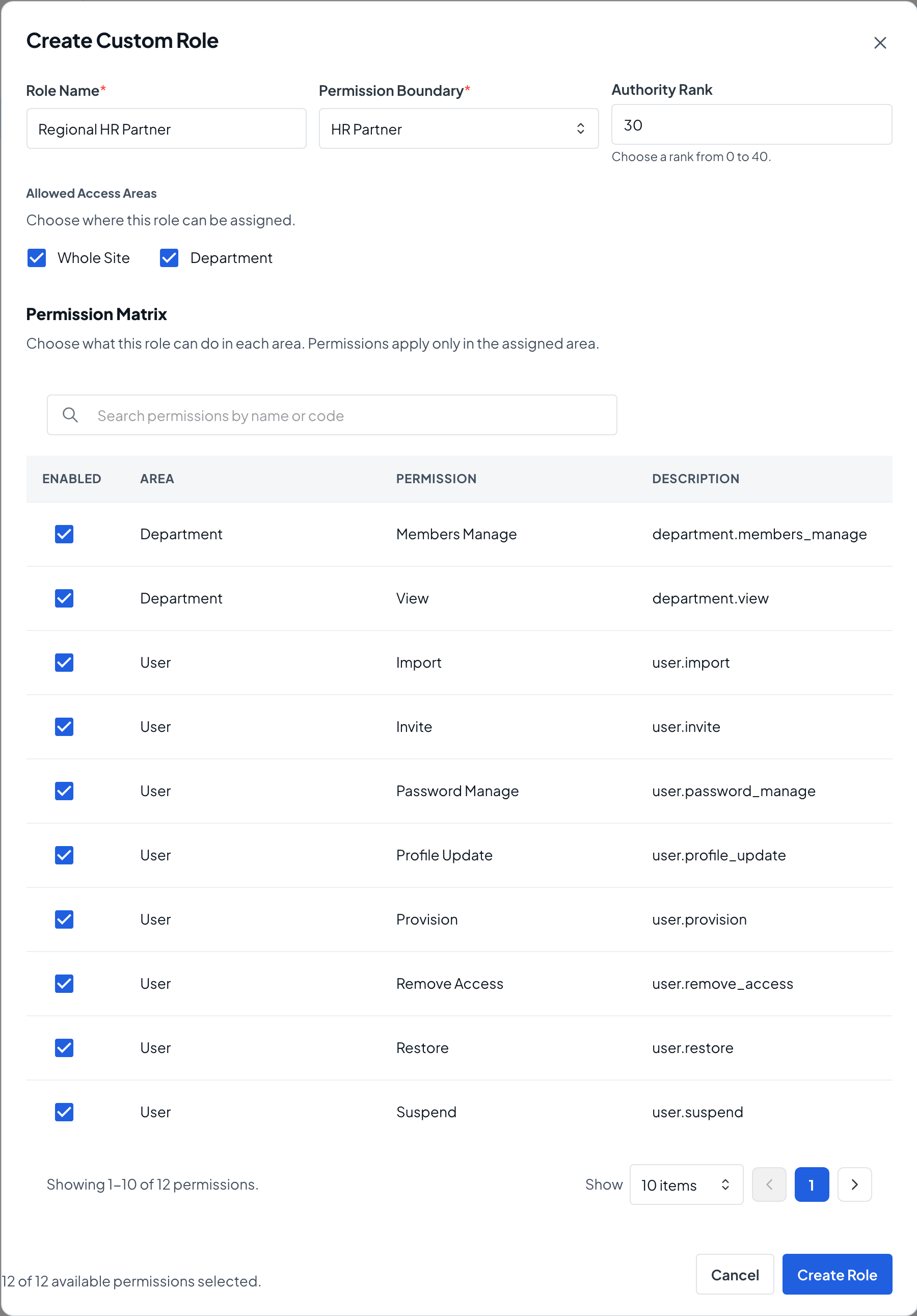
Some boundaries add an Authority Rank field with its allowed range, for example Choose a rank from 0 to 40. A member can only manage people and roles ranked below their own.
- 4
Choose where it can be assigned
Under Allowed Access Areas, tick the places this role can be given, such as Whole Site, Class or Department. With no area ticked, you can’t choose permissions or save.
- 5
Pick the permissions
In the Permission Matrix, tick or clear Enabled for each permission, or find one with Search permissions by name or code. The footer shows how many of the available permissions are selected.
- 6
Save the role
Select Save Custom Role. You see Custom role created. and the role appears on the Roles tab as Custom, ready to assign.
- 7
Keep it up to date
From the role’s menu, choose Edit to change it, Archive to stop new assignments, Restore to bring it back, or Delete when the role has never been put to use.