Set up notifications and email templates
For owners and administrators: choose how each kind of notification reaches learners, set reminder times, word the emails your learning center sends, and send an announcement.
- 1
Open the Email Templates tab
In the sidebar, select Settings, then the Email Templates tab. You see five emails: Member invite, Due date reminder, Grade/comment published, Learner report sent and Certificate issued.
- 2
Edit an email
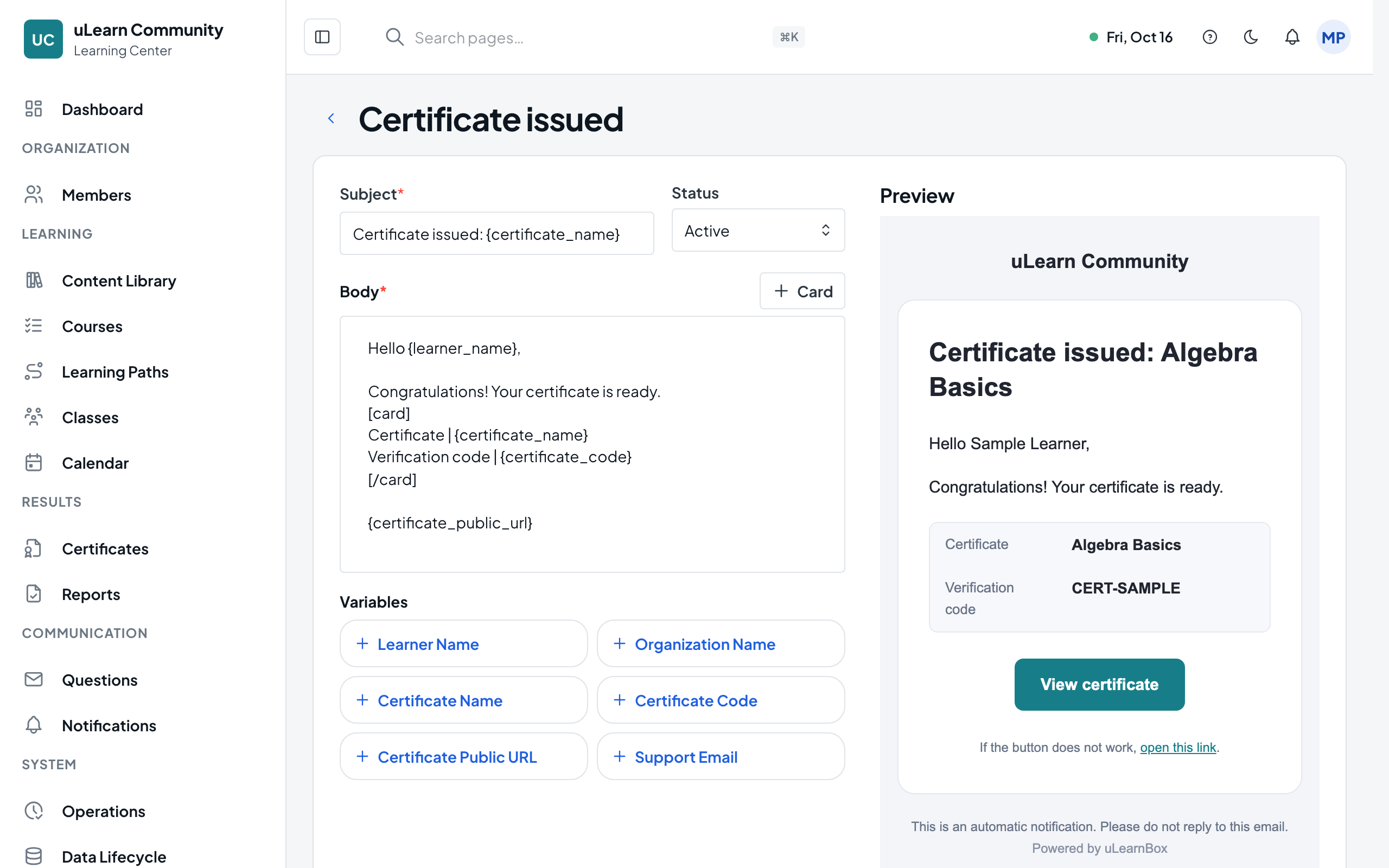
Select Edit on a row. The editor has Subject, Status and Body on the left and a live preview on the right that fills in sample values.
- 3
Insert variables
Under Variables, select a variable such as Learner Name or Certificate Code to insert it into the body. Each email offers only its own variables; anything else in curly brackets keeps Save turned off.
- 4
Save and send a test
Select Save, then Send Test to receive the saved email at your own account address. Reset throws away changes you haven’t saved.
- 5
Choose delivery channels
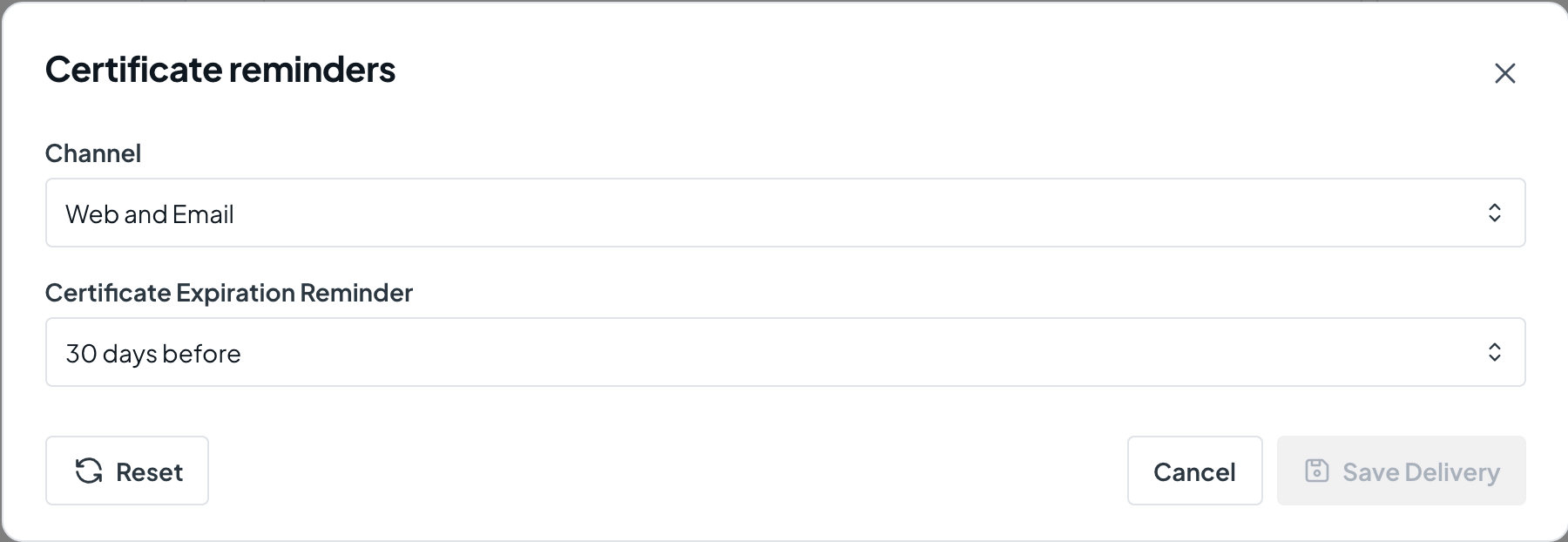
Open the Notifications tab in Settings. Each group, such as Manual announcements, Learning updates, Due reminders or Certificate reminders, shows its channel. Select Edit and pick Web and Email, Web only, Email only or Off.
- 6
Set reminder timing
For Due reminders choose Due Reminder Timing (6 to 72 hours before), and for Certificate reminders choose Certificate Expiration Reminder (7 to 60 days before). Select Save Delivery.
- 7
Know the locked groups
Groups marked Locked, such as Required access emails, are set by system policy and open with View only.
- 8
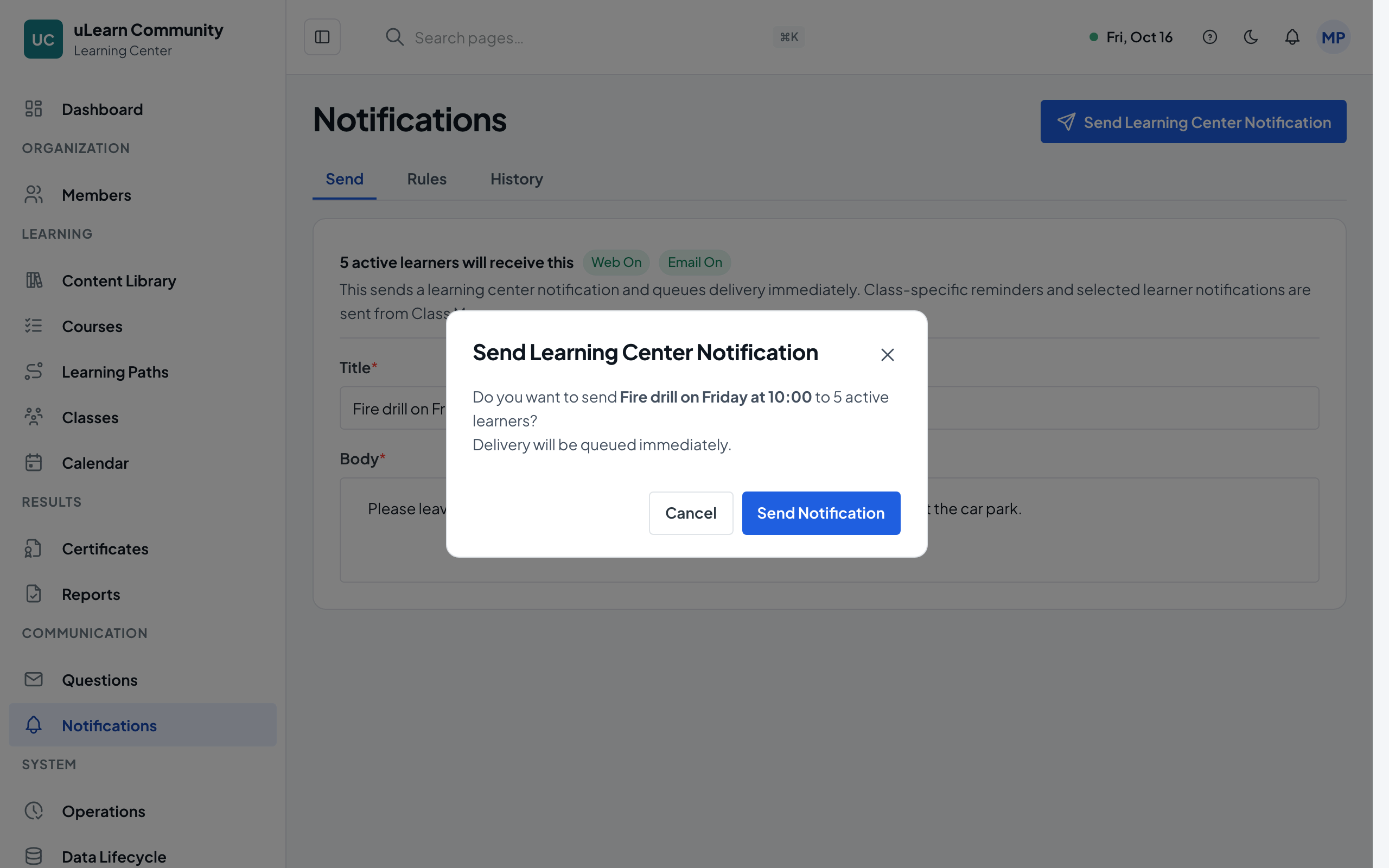
Send an announcement
Select Notifications in the sidebar. On the Send tab, enter a Title and Body and select Send Learning Center Notification; after you confirm, every active learner receives it. The History tab shows each delivery.