Add members from a spreadsheet
Add many people at once from a CSV or Excel file. A Public learning center sends invitations; an Organization learning center creates or updates member accounts. You check every row before anything is saved.
- 1
Open the import page
On the Members tab, select Bulk Invite Members (Public learning center) or Import Members (Organization learning center). You need a role that can manage people, such as Center Owner, Center Manager or Center Administrator. A page opens with three steps: Upload, Review and Result.
- 2
Fill in the sample file
Select Download Sample File and use its columns: Email, Full Name, Groups, Role, Role Access Area and Role Target. In an Organization learning center the sample also has Password, Employee ID and Department Code, plus Username when username sign-in is turned on.
- 3
Choose your file
Select Choose File and pick a CSV or XLSX file of up to 10 MB. In an Organization learning center, tick Update Existing Members at the bottom if rows for people who already have an account should update them instead of being blocked.
- 4
Preview the rows
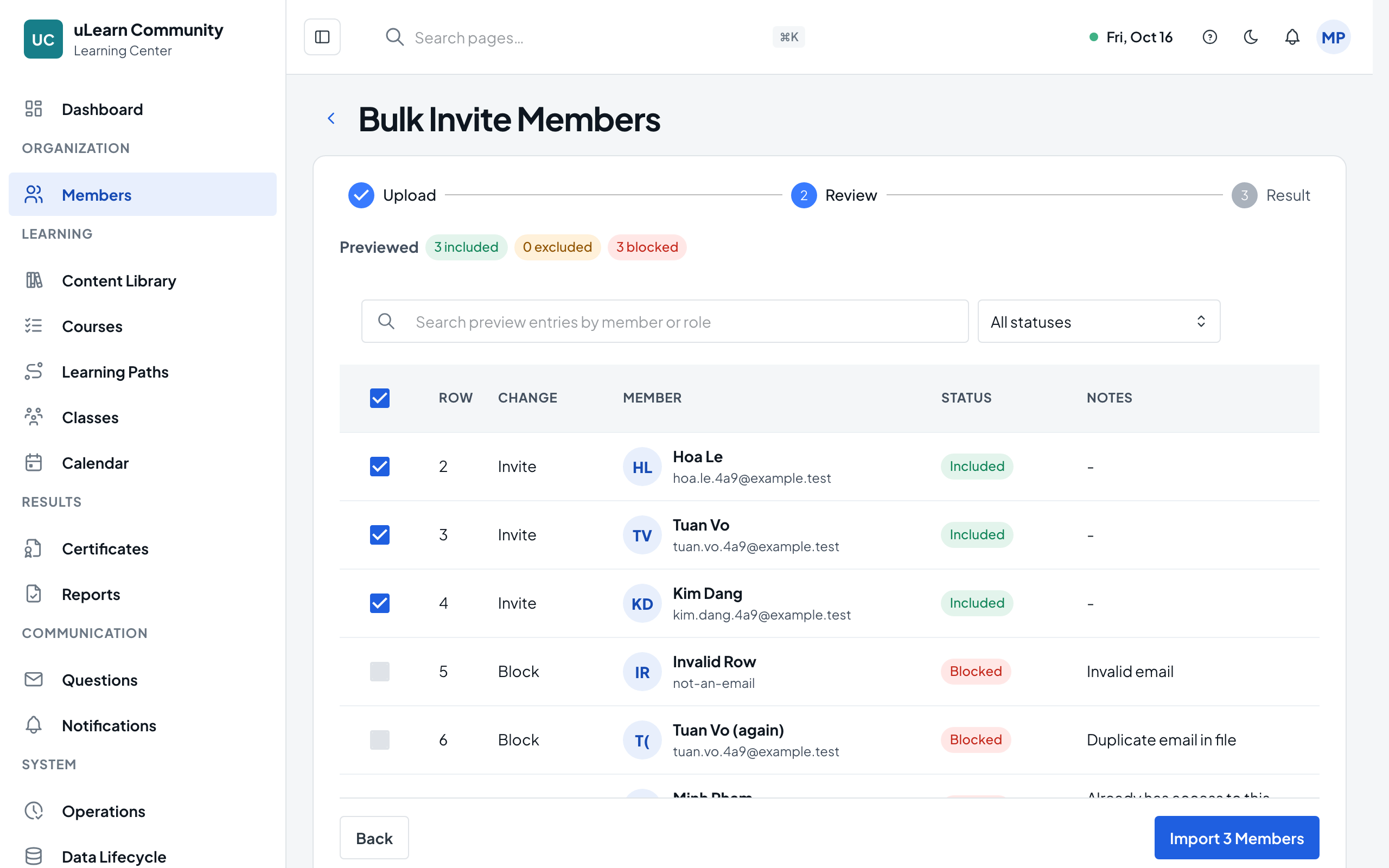
Select Upload And Preview. The Review step lists every row with its Change, Status and Notes, and counts the included, excluded and blocked rows. Nothing is saved yet.
- 5
Fix or leave out rows
Blocked rows, such as an invalid or duplicate email or an unknown Department Code, say why in Notes and can’t be included. Clear Include on any row you want to skip. Back returns to Upload with your file kept, so you can upload a corrected one.
- 6
Choose the options
Send Invite Email (Public learning center) is on by default; Send account activation invite email (Organization learning center) is off by default. Auto-create Missing Groups creates any group named in the file that doesn’t exist yet.
- 7
Confirm
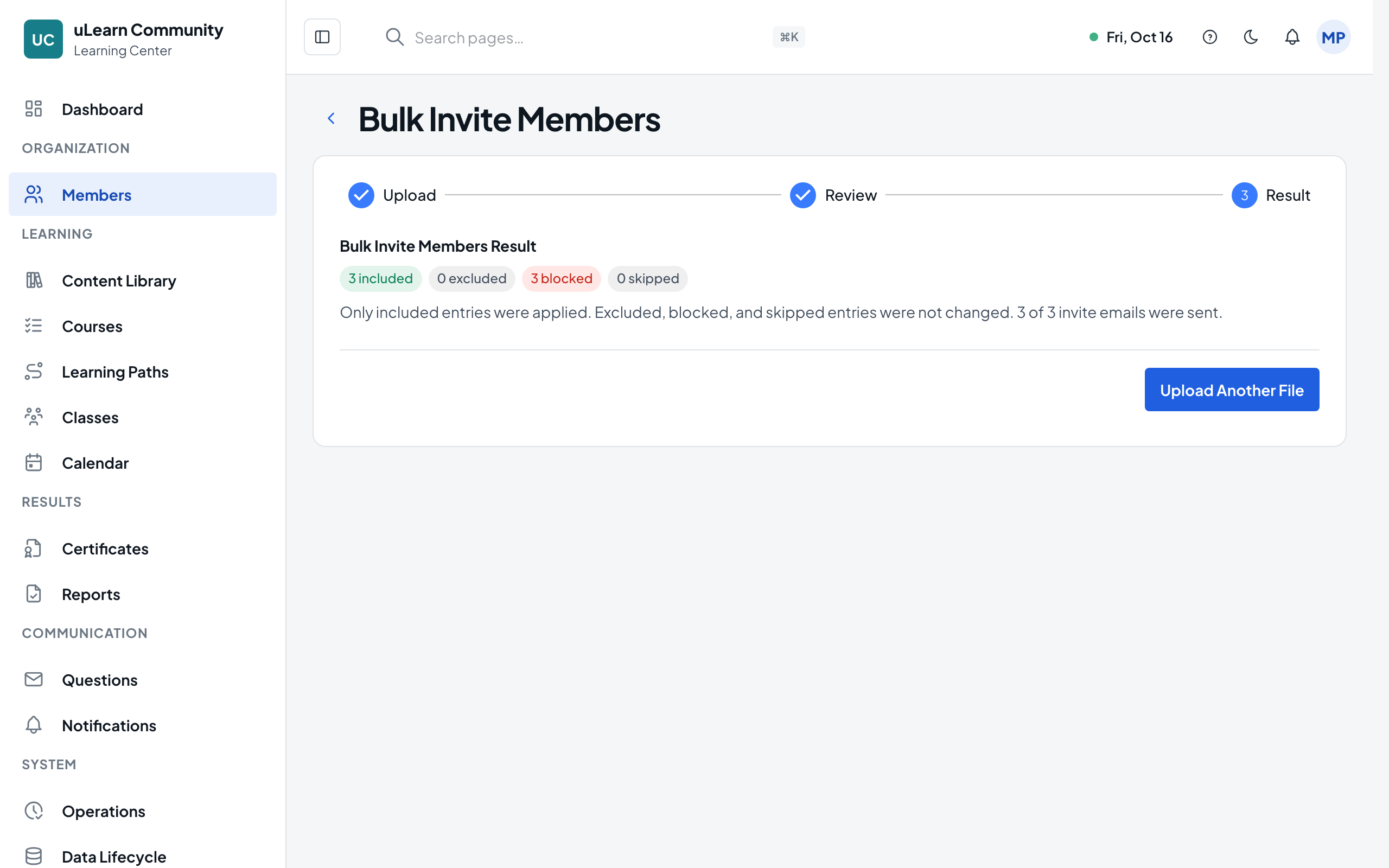
Select Import, followed by the number of members, and confirm in the dialog. The Result step shows the included, excluded, blocked and skipped counts and how many emails were sent. In a Public learning center, people appear as pending invitations until they accept.