
Upload a SCORM or xAPI package
Add an interactive package from any authoring tool to your content library, filed in a folder and ready for a lesson. You need permission to upload materials.
- 1
Open the content library
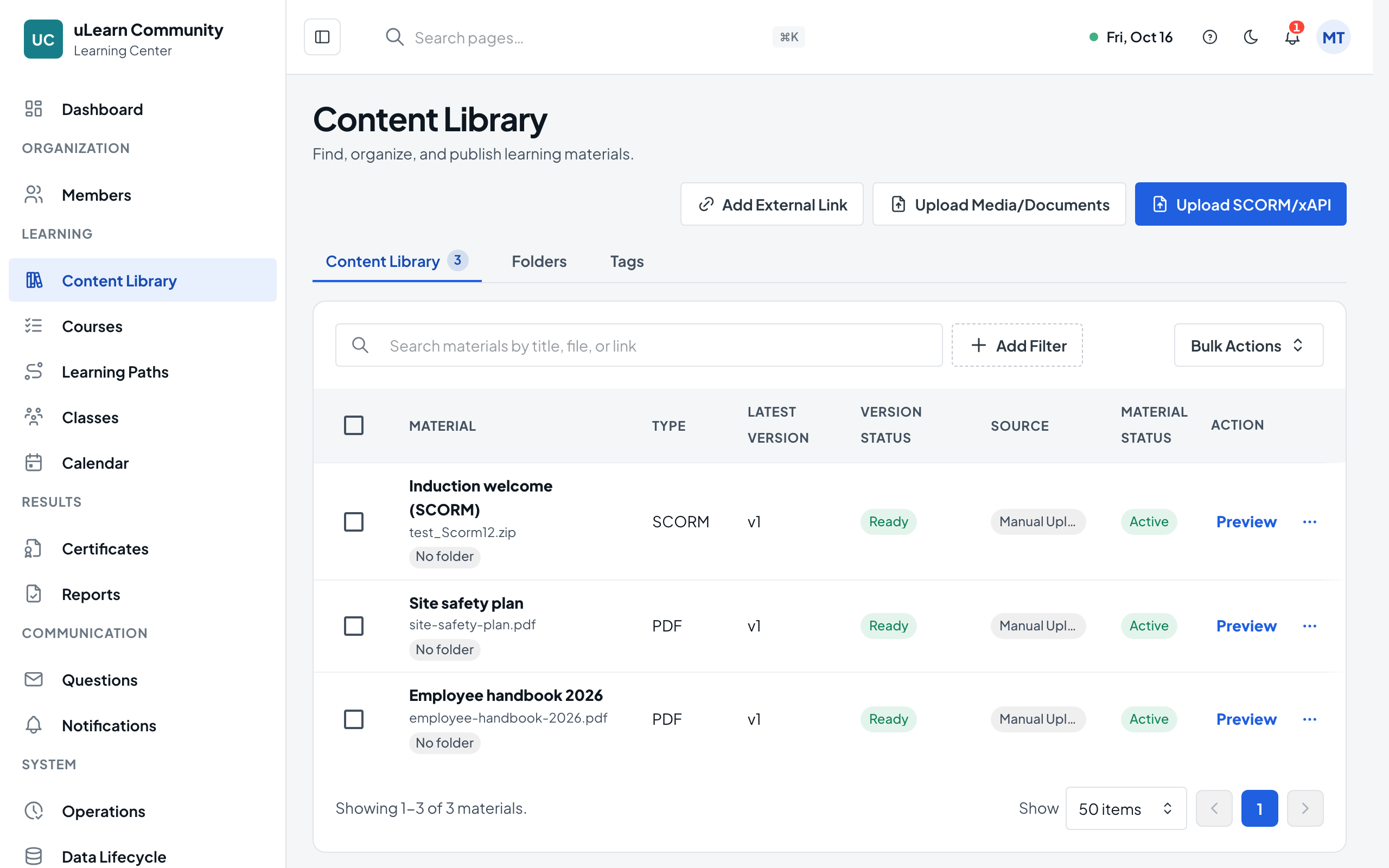
In Manage Center, choose Content Library. The Content Library tab lists your materials with Upload SCORM/xAPI at the top.
- 2
Choose the ZIP file
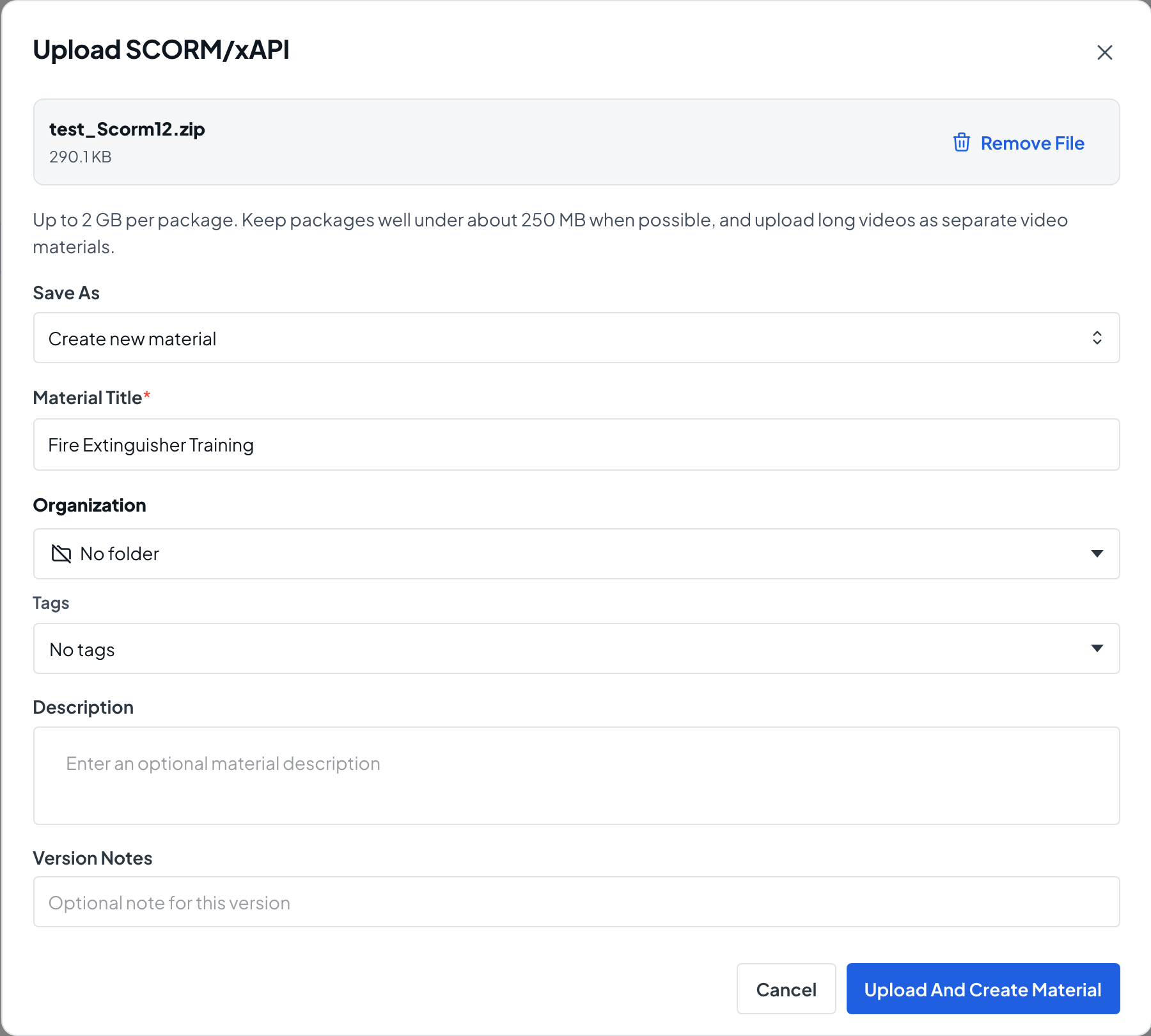
Select Upload SCORM/xAPI and pick the package ZIP. SCORM 1.2, SCORM 2004 and xAPI packages are supported. The Upload SCORM/xAPI dialog opens with the file name and your center’s size limit.
- 3
Name and file the material
Keep Save As on Create new material, enter a Material Title and an optional Description, and choose a Folder and Tags under Organization. Select Upload And Create Material.
- 4
Wait for the check
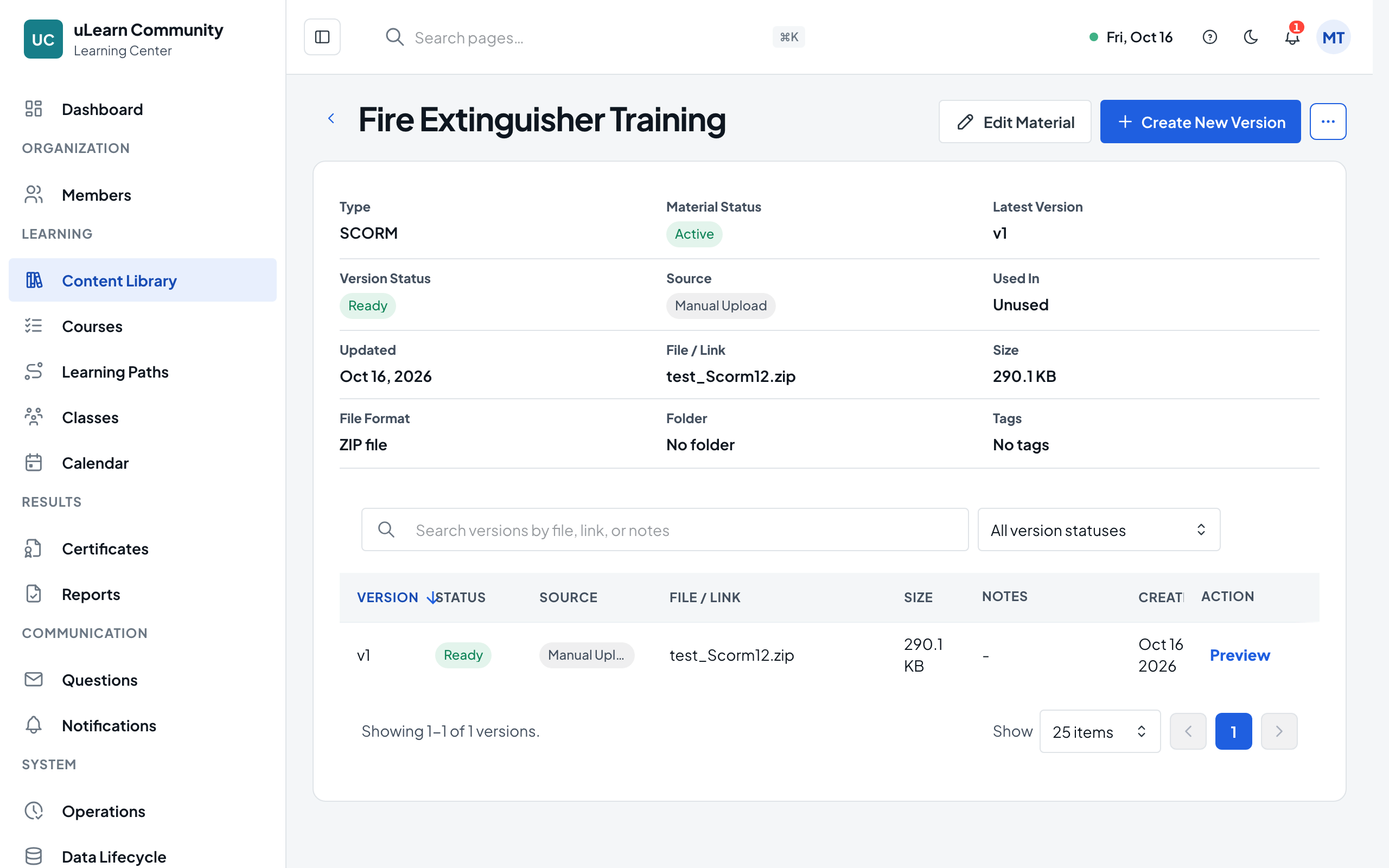
uLearnBox checks the package structure, size and safety. The material page opens; when the version shows Ready it can be used. If the check fails, the version shows what to fix.
- 5
Preview it
Select Preview in the material’s version list to play the package the way learners will.
- 6
Use it in a lesson
Open a course draft, go to the Outline tab and select Add Material on a section to add the package as a lesson.