
Set and grade assignments
Collect files, photos or links from learners, then grade them, write feedback and return the results.
- 1
Create the assignment
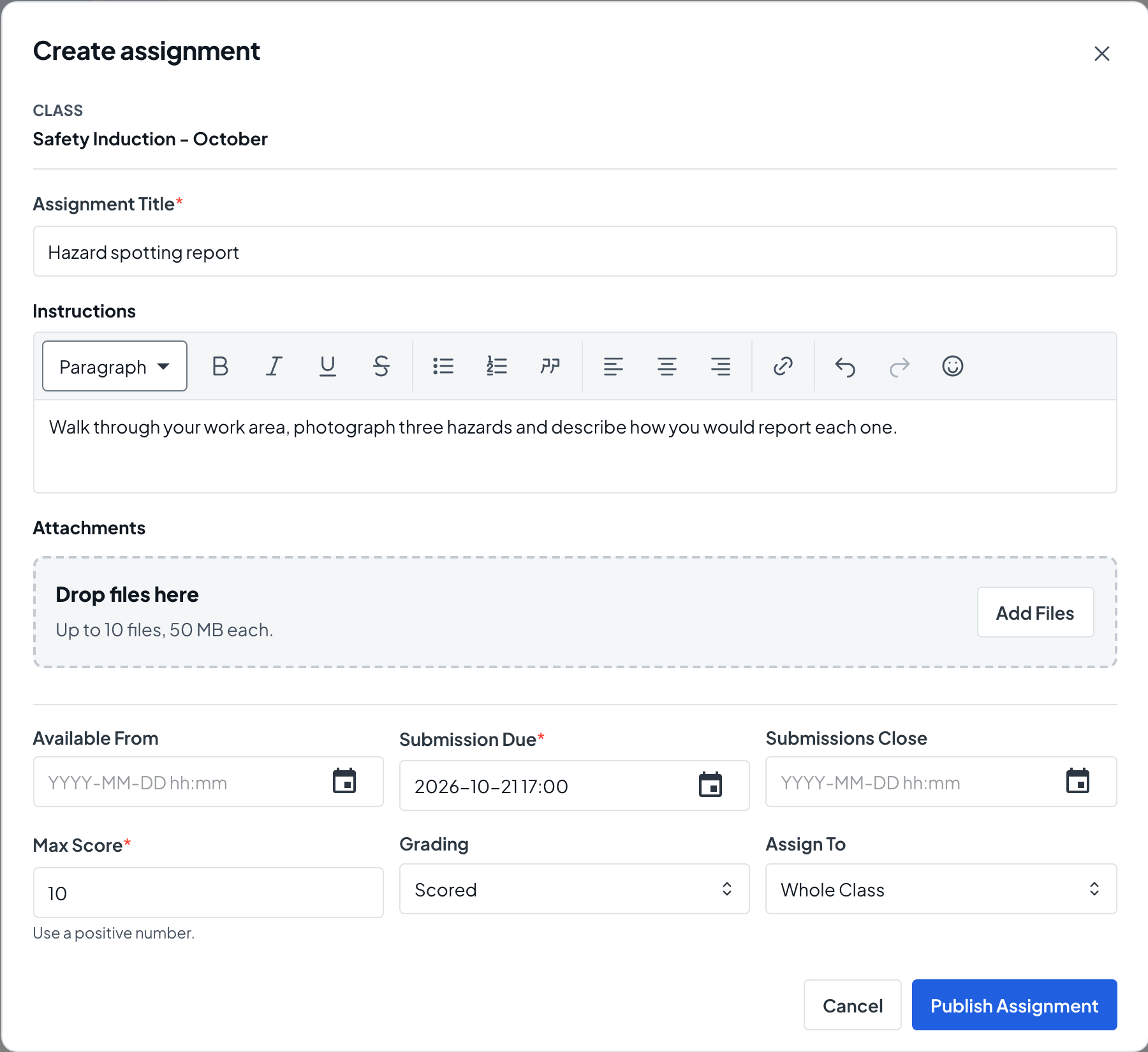
On the class Assignments tab, choose Create Assignment. Enter the Assignment Title and Instructions, set Submission Due (and, if needed, Available From and Submissions Close), choose Grading (Scored with a Max Score, or Completion only) and Assign To (Whole Class or Selected Learners), then choose Publish Assignment.
- 2
Learners submit
Learners upload a file or photo, or paste a link, from the class page or Assignments in their own menu, and choose Submit Assignment.
- 3
Open work to review
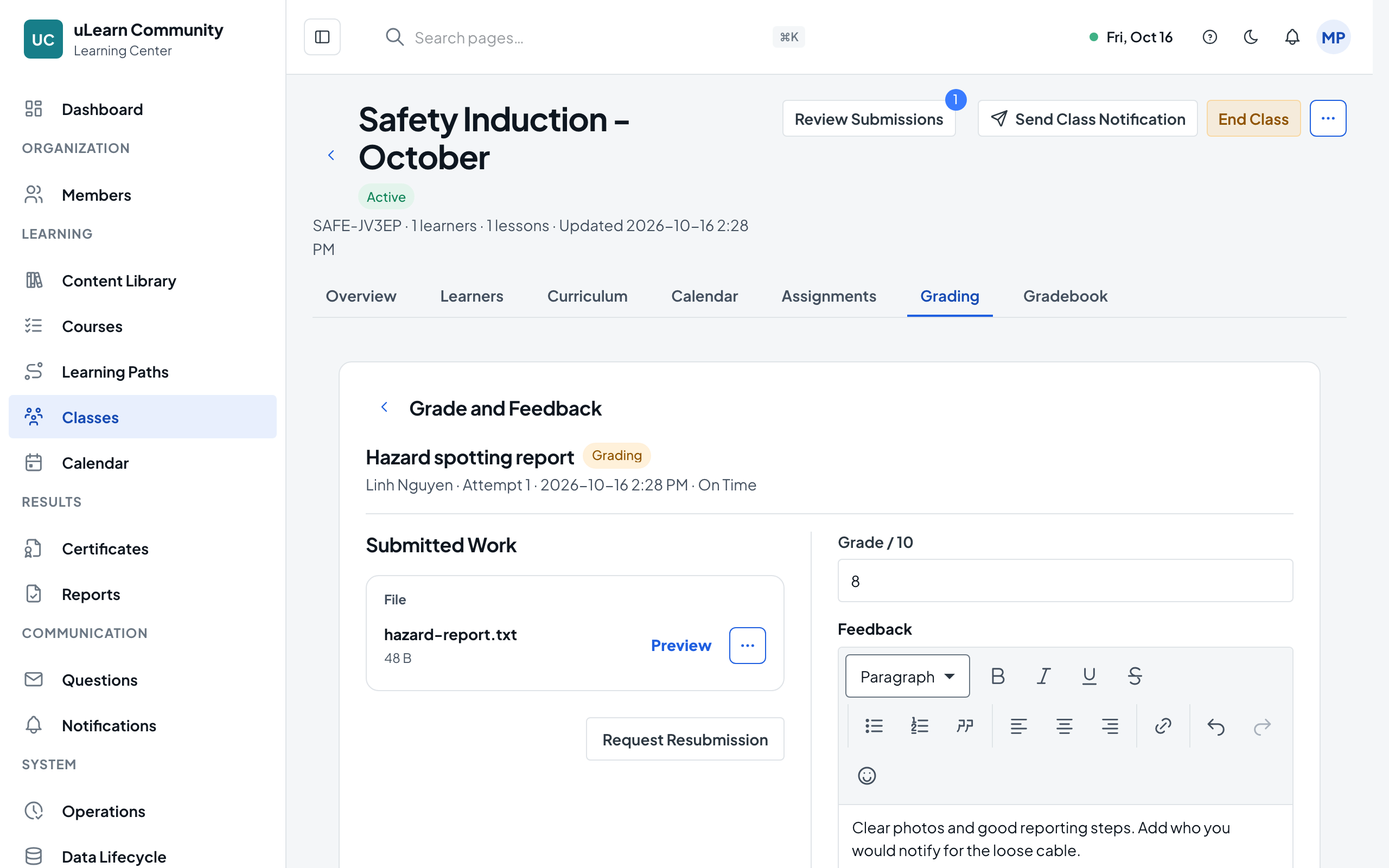
The Grading tab lists submissions waiting for review. Choose Review on a row to see the submission next to the Grade and Feedback panel.
- 4
Grade and give feedback
Enter the grade and Feedback. Save Draft keeps the grade private; Publish Grade returns it, and the learner sees the score and feedback. For a Completion only assignment, choose Mark Complete instead.
- 5
Ask for another try
When work needs changes, choose Request Resubmission, explain what to fix in Feedback and confirm. The learner can then submit again.