Issue certificates and share reports
For owners and administrators who manage certificates and reports: reward completion with verifiable certificates, and share progress with the people who need it.
- 1
Turn on certificates
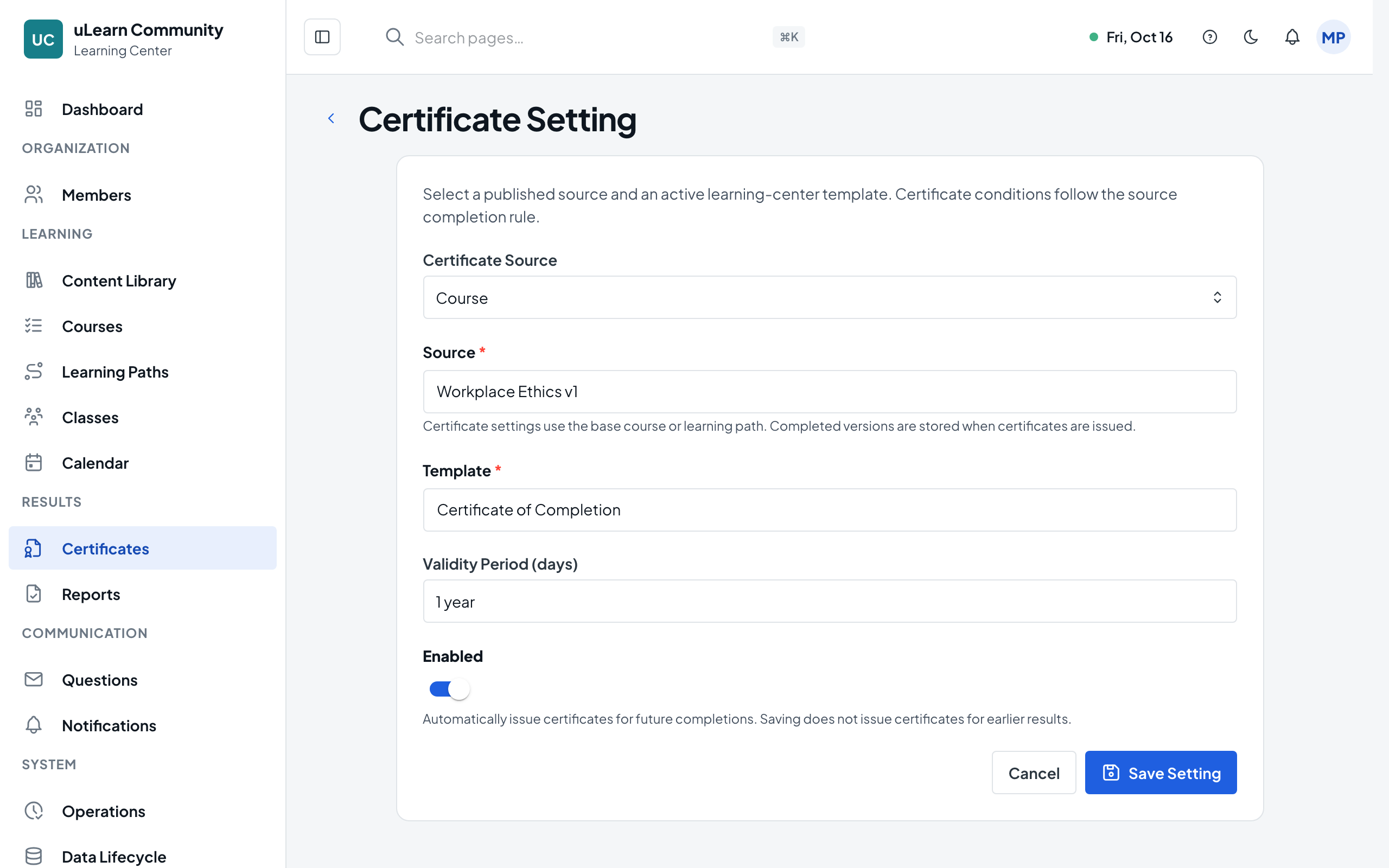
Open Certificates, then the Settings tab, and select Add Setting. Choose Course or Learning Path as the Certificate Source, pick it with Select Source, choose an active template with Select Template and, if needed, a Validity Period. Keep Enabled on and select Save Setting.
- 2
Let learners earn them
When a learner completes or passes, uLearnBox issues a certificate with its own verification code. For learners who finished before you turned it on, select Issue Certificates on the saved setting.
- 3
Remind before expiry
Certificates with a validity period expire. The Certificate reminders group under Settings, Notifications reminds learners 30 days before by default, and you can change the timing there.
- 4
Learners find their certificates
Learners open My Learning, Certificates and select View Certificate. You see every issued certificate on the Issued tab of Certificates.
- 5
Verify a certificate
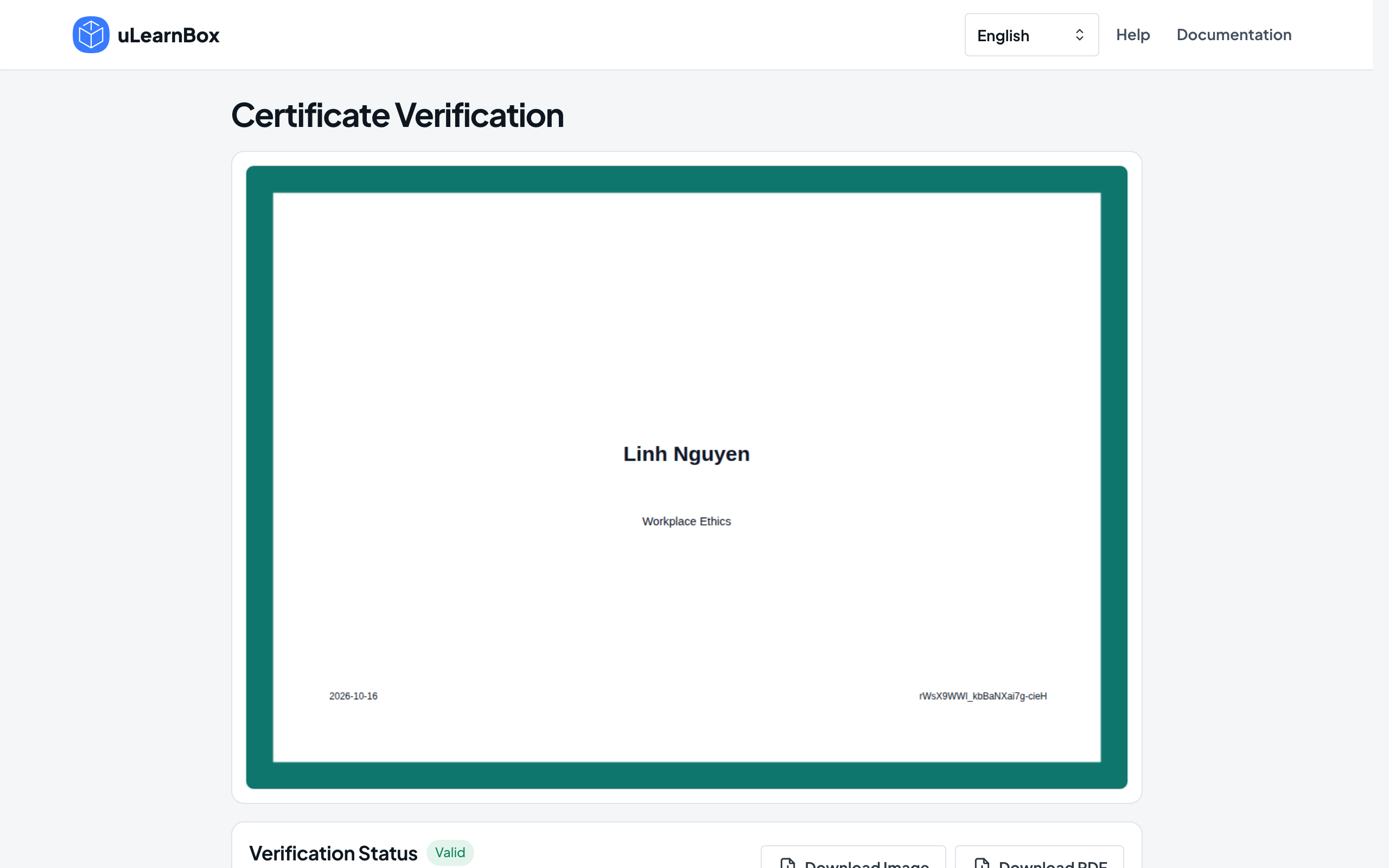
Anyone with the verification link or the QR code on the certificate can open the public verification page without signing in. It shows the certificate as issued, its status and code, but never the learner’s email or scores.
- 6
Share reports
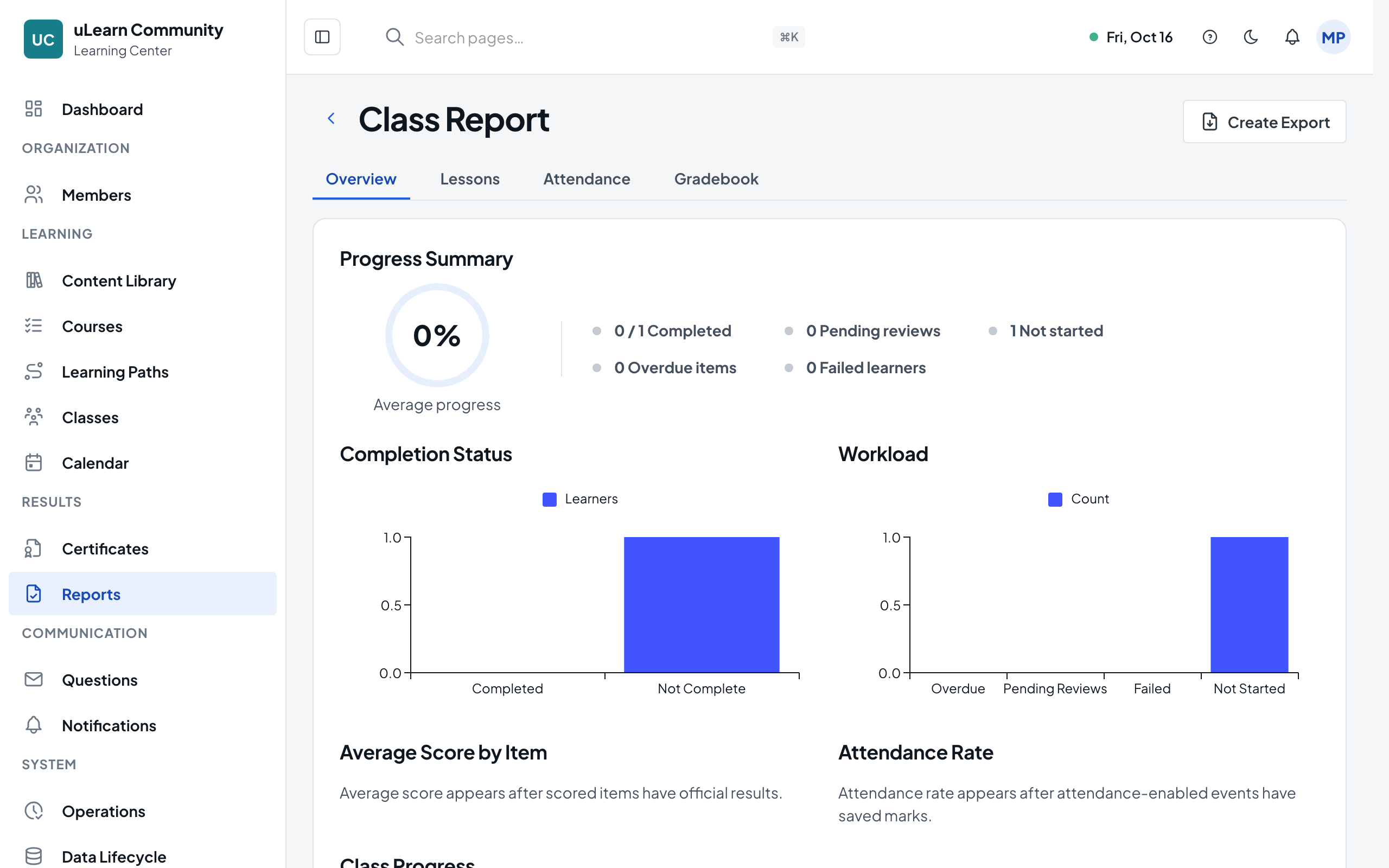
Open Reports, open a class, course or learning path report, then select Create Export for an Excel or CSV file, or open a learner and select Send Report to email them their own report.